
 GnoteLinux
vs
Microsoft Sticky NotesWindows
Gnote como alternativa Linux ao Microsoft Sticky Notes
Atualizado em
Nossa avaliação
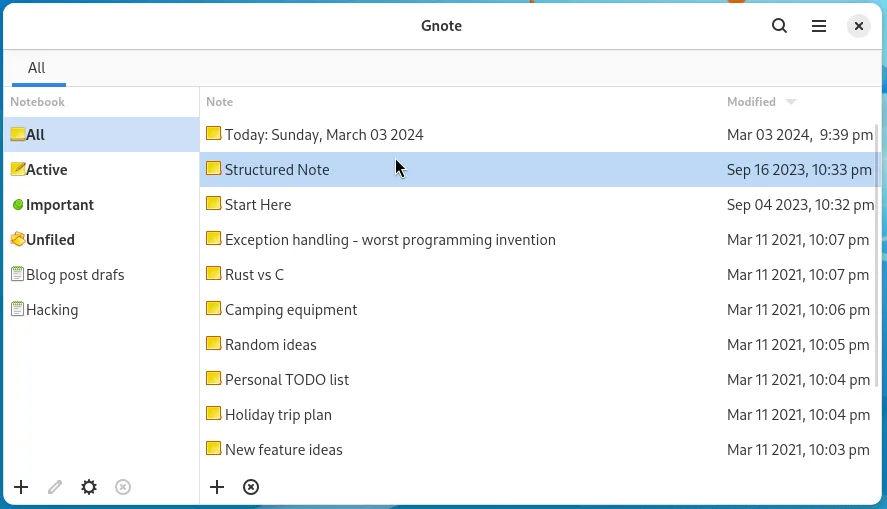
Gnote is a viable replacement for Microsoft Sticky Notes if you value organization over speed. It offers persistent, local notes with wiki-style linking and notebook grouping, covering the core need for quick text capture without cloud dependency. However, it is not a direct 1:1 interface swap. It lacks the true always-on-top, color-coded sticky note aesthetic that defines the Windows experience. Gnote is better suited for GNOME users who want a lightweight, structured note-taking tool rather than a simple desktop clutter manager. If you need minimal, always-visible stickies, Gnote might feel too heavy or structured.
- Licença
- GPL-3.0-only
- Preço
- Grátis
- Versão mais recente
- 51.0 (26 de setembro de 2026)
- Avaliação
- —
O que funciona igual
- Lightweight, local-first note-taking without mandatory cloud sync
- Persistent storage that survives reboots and system restarts
- Quick access to create and manage short text snippets
- Support for basic text formatting and organization
O que muda
- Gnote uses a windowed interface rather than always-on-top desktop stickies
- Lacks the specific color-coded label system for visual organization
- Includes wiki-style links and notebooks, which are absent in Sticky Notes
- Primarily targets the GNOME desktop environment, while Sticky Notes is Windows-specific
Abrindo seus arquivos do Microsoft Sticky Notes
Gnote does not natively import or export Microsoft Sticky Notes files (.json or proprietary formats). You will need to manually copy text content from Windows Sticky Notes into Gnote. Gnote stores its own notes as plain text with optional Markdown support, so you can export your Gnote data as HTML or plain text for backup, but there is no direct file conversion tool provided.
Trocando o Microsoft Sticky Notes pelo Gnote, passo a passo
- Export or copy text from Microsoft Sticky Notes on your Windows machine
- Install Gnote via your package manager or Flathub
- Create a new notebook in Gnote to organize your migrated notes
- Paste your notes into Gnote, using wiki links if you want to connect them
- Configure Gnote to autostart with your GNOME session if desired
- Verify that notes persist after a reboot to confirm local storage works
Principais recursos do Gnote
- Wiki‑style links between notes
- Notebook organization
- HTML export and printing
- Local sync via GNOME Online Accounts
- Keyboard shortcuts for common actions
- Plain‑text storage with optional Markdown support
Como instalar o Gnote no Linux
flatpak install flathub org.gnome.Gnotesudo apt install gnotesudo apt install gnotesudo dnf install gnotesudo pacman -S gnotesudo zypper install gnotePerguntas frequentes
Does Gnote keep notes always on top of other windows?
No, Gnote uses standard application windows. It does not have the always-on-top sticky note behavior that Microsoft Sticky Notes offers. You can keep a Gnote window open, but it will behave like any other app window.
Can I use Gnote without an internet connection?
Yes, Gnote works fully offline. While it supports synchronization via GNOME Online Accounts, this is optional. All notes are stored locally on your disk by default.
Is Gnote available for all Linux distributions?
Gnote is packaged in major distributions including Arch, Debian, Fedora, openSUSE, and Ubuntu. It is also available on Flathub for broader compatibility.
Outras 3 alternativas ao Microsoft Sticky Notes
 Sticky NotesUm aplicativo leve de recados adesivos para desktop GNOME, com opções básicas de formatação e cores.Código abertoGrátisFlatpakSticky Notes vs Microsoft Sticky Notes