
 Microsoft EdgeLinux
vs
Microsoft EdgeLinux
vs
 Google ChromeWindows
Microsoft Edge como alternativa Linux ao Google Chrome
Atualizado em
Nossa avaliação
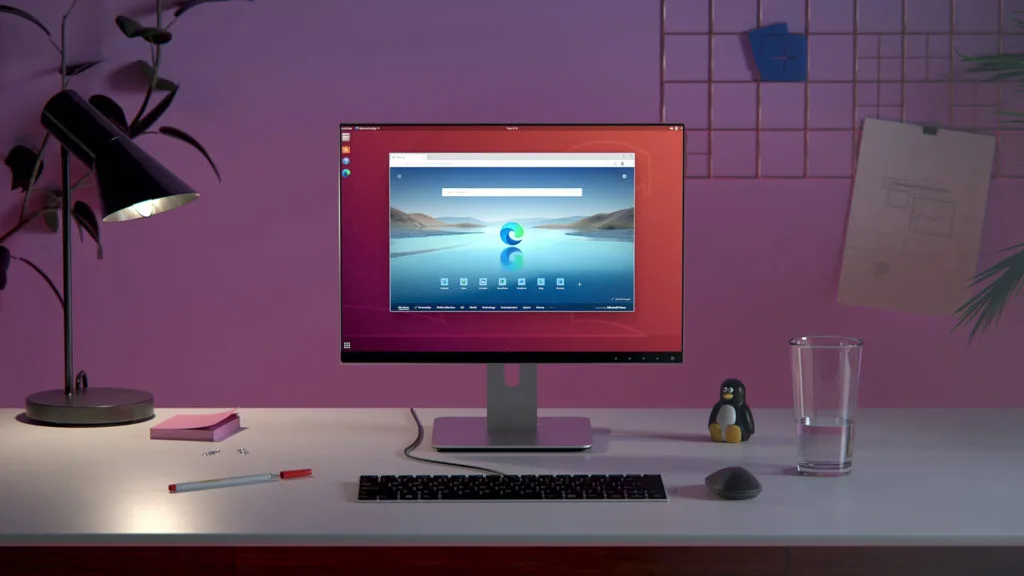
Microsoft Edge on Linux is a solid replacement for Google Chrome for users who want a Chromium‑based browser with added privacy controls and Microsoft ecosystem integration. It offers the same core browsing experience, extension support, and performance, while adding tracking prevention, built‑in AdBlock Plus, InPrivate browsing, and Microsoft Defender SmartScreen. Users who rely on Microsoft services (OneDrive, Outlook, Teams) will find Edge more convenient, whereas those who prefer a fully open‑source stack might prefer Chrome or another Chromium fork.
- Licença
- LicenseRef-proprietary
- Preço
- Grátis
- Versão mais recente
- 156.0.4314.42-1 (22 de outubro de 2026)
- Avaliação
- —
O que funciona igual
- Both use the Chromium engine, so rendering and performance are comparable.
- Both support Chrome Web Store extensions.
- Both provide tab management, bookmarks, and sync (Edge via Microsoft account, Chrome via Google account).
- Both have built‑in developer tools for debugging.
- Both allow private/incognito browsing modes.
O que muda
- Edge includes built‑in tracking prevention and AdBlock Plus, which Chrome does not ship with by default.
- Edge offers Microsoft Defender SmartScreen protection, not present in Chrome.
- Edge’s sync relies on Microsoft accounts; Chrome sync uses Google accounts, affecting cross‑platform integration if you use both ecosystems.
- Edge has a Bing search bar and integrated Microsoft services; Chrome uses Google search and services.
- Edge’s extension store is the Chrome Web Store, but some extensions may behave differently due to Edge’s additional security layers.
Abrindo seus arquivos do Google Chrome
Google Chrome stores bookmarks, history, and extensions in a profile directory under ~/.config/google-chrome. Edge stores them under ~/.config/microsoft-edge. You can copy the entire profile folder from Chrome to Edge’s folder to import bookmarks and settings. Extensions must be re‑installed from the Chrome Web Store within Edge; they are not automatically transferred.
Trocando o Google Chrome pelo Microsoft Edge, passo a passo
- 1. Install Microsoft Edge from Flathub or Microsoft’s repository.
- 2. Export bookmarks from Chrome via Settings → Bookmarks → Bookmark Manager → Export.
- 3. Import the exported file into Edge via Settings → Profiles → Import bookmarks and settings.
- 4. Re‑install desired extensions from the Chrome Web Store within Edge.
- 5. Sign in with a Microsoft account to enable sync across devices.
- 6. Verify that your browsing data (history, passwords) has been transferred via Edge’s sync settings.
Principais recursos do Microsoft Edge
- Motor baseado em Chromium com renderização rápida
- Prevenção de rastreamento integrada e AdBlock Plus
- Navegação InPrivate e busca
- Sincronização entre dispositivos via conta Microsoft
- Proteção Microsoft Defender SmartScreen
- Suporte a extensões da Chrome Web Store
- Barra de busca Bing integrada
- Edge DevTools para depuração
Como instalar o Microsoft Edge no Linux
flatpak install flathub com.microsoft.EdgePerguntas frequentes
Does Edge support all Chrome extensions?
Most Chrome extensions work in Edge because it uses the same extension API, but a few may not due to Edge’s stricter security policies. Test individual extensions if you encounter issues.
Is Edge more secure than Chrome on Linux?
Edge adds Microsoft Defender SmartScreen and built‑in tracking prevention, which provide extra layers of protection. However, both browsers are Chromium‑based and receive regular security updates, so the difference is marginal for most users.
Will Edge sync my data across my Windows and Linux machines?
Yes. If you sign in with the same Microsoft account on both devices, bookmarks, passwords, history, and open tabs will sync automatically between Windows and Linux installations of Edge.
Outras 9 alternativas ao Google Chrome
 ChromiumChromium é o projeto de navegador de código aberto por trás do Chrome e do Edge, oferecendo uma experiência…Código abertoGrátisFlatpakChromium vs Google Chrome
 SeaMonkeySeaMonkey é uma suíte de internet gratuita com navegador, e‑mail e editor HTML, baseada no antigo código do…Código abertoGrátisSeaMonkey vs Google Chrome
 EpiphanyEpiphany (GNOME Web) é um navegador leve baseado no GNOME construído sobre o WebKit.Código abertoGrátisEpiphany vs Google Chrome
 OperaOpera GX é um navegador proprietário para Linux criado para jogadores, oferecendo controles de desempenho…GrátisFlatpakOpera vs Google Chrome
 Mozilla FirefoxMozilla Firefox é um navegador web de código aberto que roda nativamente no Linux, oferecendo uma experiência…Código abertoGrátisMozilla Firefox vs Google Chrome
 FirefoxO Firefox é um navegador da web rápido e privado desenvolvido pela Mozilla.Código abertoGrátisFlatpakFirefox vs Google Chrome
 BraveO Brave é um navegador web rápido e focado em privacidade que bloqueia anúncios e rastreadores por padrão e…Código abertoGrátisFlatpakBrave vs Google Chrome
 ZenZen é um navegador web leve, focado em privacidade, que mantém as abas organizadas e a navegação rápida.Código abertoGrátisFlatpakZen vs Google Chrome