
 WPS OfficeLinux
vs
Microsoft 365Windows
WPS OfficeLinux
vs
Microsoft 365Windows
WPS Office como alternativa Linux ao Microsoft 365
Atualizado em
Nossa avaliação
WPS Office is a solid Linux alternative for most users who need the core Office apps—Writer, Spreadsheets, and Presentation—with good compatibility for .docx, .xlsx and .pptx files. It works well for personal productivity, students, and small businesses that do not rely heavily on the deeper integration, advanced collaboration, or the Outlook email/calendar suite that Microsoft 365 provides. If you can live without a native Linux mail client, the full suite of cloud collaboration tools, and the extensive macro ecosystem, WPS Office will cover the majority of everyday document work.
- Licença
- LicenseRef-proprietary=https://www.wps.c…
- Preço
- freemium
- Versão mais recente
- 11.1.0.11723 (22 de fevereiro de 2024)
- Avaliação
- —
O que funciona igual
- Supports .docx, .xlsx, .pptx formats
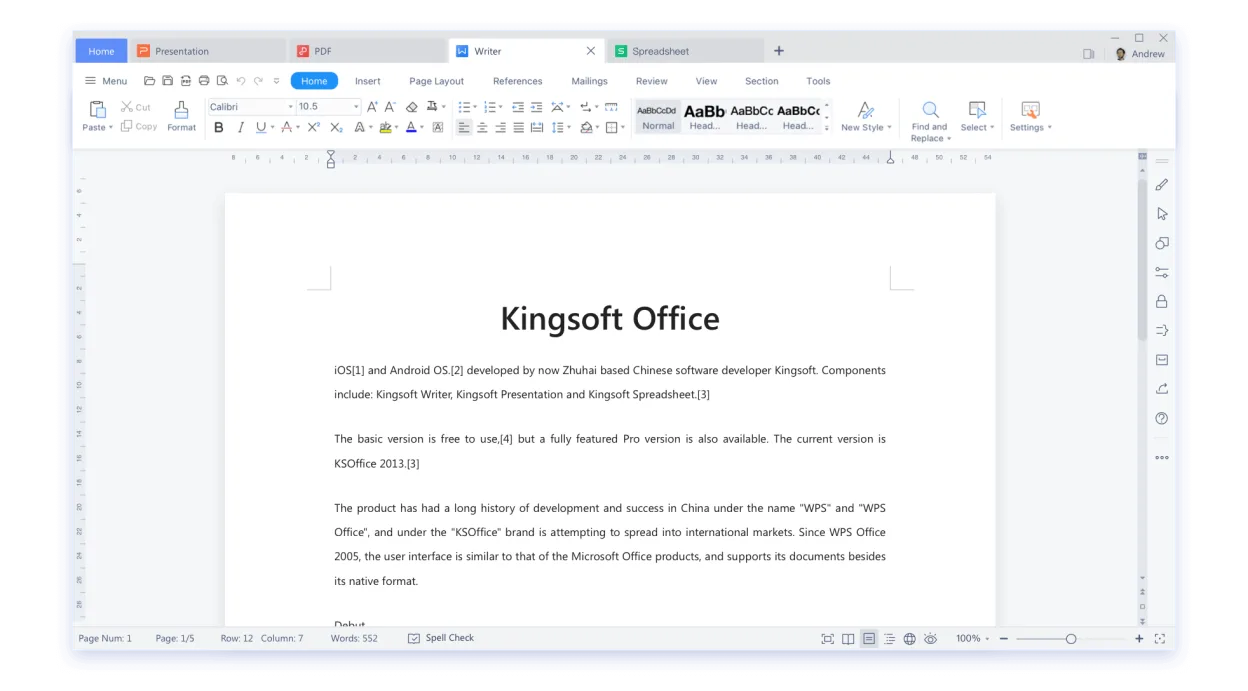
- Ribbon‑style UI similar to Microsoft Office
- Integrated PDF viewer/editor
- Template library for documents and presentations
- Cross‑platform availability (Windows, macOS, Linux)
O que muda
- No native email and calendar client (Outlook equivalent missing)
- Real‑time co‑authoring is limited to WPS Cloud, not full Microsoft Teams integration
- Macro support is basic and not fully compatible with complex VBA scripts
- No built‑in cloud storage comparable to OneDrive for Business
- Advanced data‑analysis features (Power Query, Power Pivot) are absent
Abrindo seus arquivos do Microsoft 365
WPS Office opens and saves .docx, .xlsx and .pptx files with a high degree of fidelity; most text formatting, tables and simple formulas survive the round‑trip. Complex elements such as advanced macros, embedded objects, or intricate chart types may lose some functionality or appear differently. Export to PDF is reliable, and you can also export to the native Microsoft formats when needed. For very feature‑rich Office documents, a quick test of a representative file is advisable before a full migration.
Trocando o Microsoft 365 pelo WPS Office, passo a passo
- Download and install WPS Office from Flathub or the official .deb/.rpm package.
- Open a sample .docx, .xlsx and .pptx file to verify rendering and editing work as expected.
- Export any existing Office files to the native WPS formats if you plan to keep them long‑term.
- Configure WPS Cloud or another storage service for file syncing if needed.
- Set default applications for office files to WPS Office in your desktop environment.
- Train users on the ribbon layout and any missing features (e.g., Outlook replacement).
Principais recursos do WPS Office
- Compatibilidade total com .docx, .xlsx, .pptx
- Interface em estilo ribbon semelhante ao Microsoft Office
- Visualizador e editor de PDF integrado
- Sincronização na nuvem via WPS Cloud
- Ferramentas de verificação ortográfica e gramatical
- Biblioteca de modelos integrada
- Suporte a macros no Writer
- Disponibilidade multiplataforma (Windows, macOS, Linux)
Como instalar o WPS Office no Linux
flatpak install flathub com.wps.OfficePerguntas frequentes
Can WPS Office replace Outlook for email and calendar?
No. WPS Office does not include an email client; you will need a separate Linux mail application such as Thunderbird or Evolution.
Is real‑time collaboration possible with WPS Office?
WPS Cloud offers basic sharing, but it lacks the full real‑time co‑authoring and Teams integration found in Microsoft 365.
Will my existing macros work in WPS Writer?
Simple macros may run, but complex VBA scripts are not fully supported and may need to be rewritten or run in Microsoft Office.
Outras 2 alternativas ao Microsoft 365
 LibreOfficeO LibreOffice é uma suíte de escritório gratuita e de código aberto, com Writer, Calc, Impress, Draw, Base e…Código abertoGrátisFlatpakLibreOffice vs Microsoft 365
 ONLYOFFICE Desktop EditorsONLYOFFICE Desktop Editors é uma suíte de escritório gratuita e de código aberto para Linux que edita Word…Código abertoGrátisFlatpakONLYOFFICE Desktop Editors vs Microsoft 365