
 AcetoneISOLinux
vs
WinCDEmuWindows
AcetoneISO as a Linux alternative to WinCDEmu
Updated
Our verdict
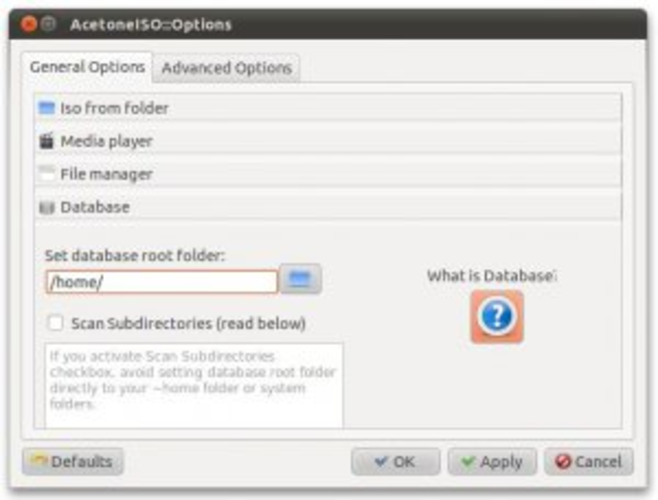
AcetoneISO is a solid replacement for WinCDEmu if you need a graphical interface for managing virtual drives. It handles the core task of mounting ISO, BIN, and NRG files as block devices, which is all WinCDEmu does. However, it is not the only option; many modern Linux distributions handle ISO mounting natively via the kernel. AcetoneISO adds value through its GUI for managing multiple drives, extracting files, and burning discs. It is best for users who prefer a dedicated tool over command-line utilities or native file manager integration, especially when dealing with complex image formats or needing to burn media.
- License
- GPL-3.0
- Price
- Free
- Latest version
- 2.4_7
- Rating
- 5/5 (1)
What works the same
- Mounts ISO, BIN, and NRG files as virtual block devices
- Provides a graphical interface for managing virtual drives
- Allows manual mounting and unmounting of images
- Integrates with file managers for easy access
What is different
- AcetoneISO includes disc burning and image creation features, which WinCDEmu lacks
- AcetoneISO is a full application suite, while WinCDEmu is a lightweight utility
- AcetoneISO does not emulate copy protection schemes
- AcetoneISO requires installation of a separate package, whereas WinCDEmu is a standalone driver
Opening your WinCDEmu files
AcetoneISO reads standard disc image formats like ISO, BIN/CUE, and NRG directly. It does not use a proprietary file format for mounting; instead, it interacts with the Linux kernel's loop device or similar mechanisms. There are no 'WinCDEmu files' to migrate, as WinCDEmu does not store state in a file. You simply mount the same image files you used on Windows.
Switching from WinCDEmu to AcetoneISO, step by step
- Install AcetoneISO from your distribution's package manager
- Launch AcetoneISO and add a virtual drive if not present
- Right-click an ISO file in your file manager and select 'Mount with AcetoneISO'
- Access the mounted drive from the file manager or command line
- Unmount the drive via the AcetoneISO GUI or file manager when done
Key features of AcetoneISO
- Mount ISO, BIN, IMG, MDF, NRG and other image formats
- Create ISO images from folders or physical discs
- Convert between supported image formats
- Burn images to CD/DVD/BD media
- Manage virtual drives (add/remove) via GUI
- Extract files from images without mounting
- Command‑line support via acetoneiso-cli
- Integration with file manager context menus
How to install AcetoneISO on Linux
sudo apt install acetoneisosudo apt install acetoneisoFrequently asked questions
Do I need AcetoneISO if my file manager can mount ISOs?
No, if your file manager (like Nautilus or Dolphin) mounts ISOs natively, that is often sufficient for simple tasks. AcetoneISO is useful if you need to manage multiple drives, extract files, or burn discs.
Can AcetoneISO handle CUE/BIN files?
Yes, AcetoneISO supports mounting CUE/BIN image pairs, which is a common requirement for game and software distribution.
Is AcetoneISO compatible with all Linux distributions?
It is available in most major distributions like Debian and Ubuntu via their repositories. For other distros, you may need to build from source or use a Flatpak/Snap package.
2 other alternatives to WinCDEmu
 CDemuCDEmu is a free, open‑source daemon that mounts disc images as virtual optical drives on Linux.Open sourceFreeDiscontinuedCDemu vs WinCDEmu
 Furius ISO MountFurius ISO Mount is a lightweight GTK tool for mounting and unmounting ISO images on Linux.Open sourceFreeDiscontinuedFurius ISO Mount vs WinCDEmu