
 GIMPLinux
vs
AsepriteWindows
GIMPLinux
vs
AsepriteWindows
GIMP als Linux-Alternative zu Aseprite
Aktualisiert am
Unser Fazit
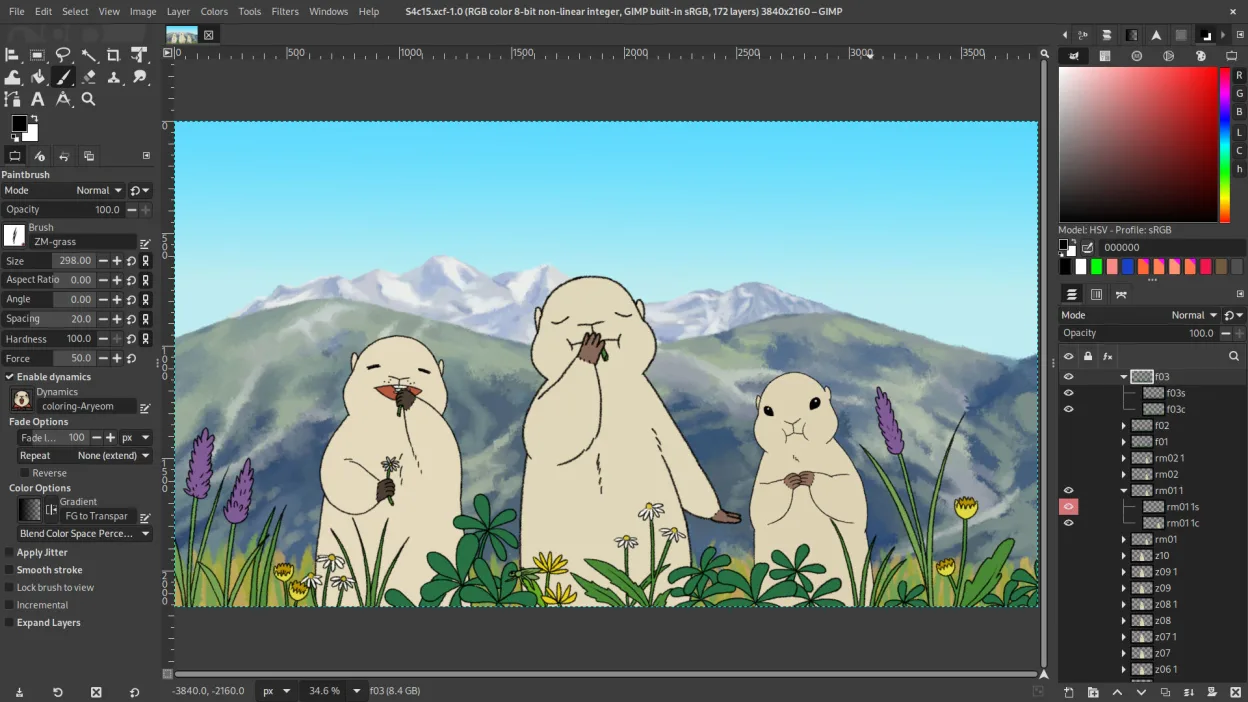
GIMP is a partial replacement for Aseprite, suitable only if you primarily need static sprite sheet creation and do not require frame-by-frame animation editing. It lacks a native timeline, onion skinning, and tilemap editor, which are central to Aseprite's workflow. If your project involves complex animation or game asset pipelines relying on tilemaps, GIMP will feel restrictive and inefficient. For simple pixel art illustrations or single-frame sprites, it works well, but you will need to export frames separately and manage animation externally.
- Lizenz
- GPL-3.0+ AND LGPL-3.0+
- Preis
- Kostenlos
- Aktuelle Version
- 3.2.6 (10. September 2026)
- Bewertung
- —
Was gleich funktioniert
- Supports layer-based editing with transparency
- Offers precise pixel-level drawing tools and brushes
- Can export sprite sheets as PNG or other raster formats
- Allows custom canvas sizes and resolutions
Was anders ist
- No built-in frame-based animation timeline or onion skinning
- Lacks native tilemap editing capabilities
- Animation workflow requires manual frame management or external tools
- Interface is optimized for general raster editing, not pixel art specifics
Ihre Aseprite-Dateien öffnen
GIMP does not natively open or save .aseprite files. You must export your work from Aseprite as a sprite sheet (PNG) or individual frames. GIMP can then import these PNGs for further static editing or compositing. If you need to re-import into Aseprite, you would need to reconstruct the animation frames manually or use a script to split the sprite sheet back into individual frames.
Von Aseprite zu GIMP wechseln – Schritt für Schritt
- Export your Aseprite project as a sprite sheet or individual PNG frames
- Open the exported images in GIMP for static editing or retouching
- Use GIMP's layer system to organize sprite parts if needed
- Export final assets as PNG with transparency for your game engine
- Manage animation timing externally, as GIMP does not handle frame sequences natively
Wichtige Funktionen von GIMP
- Ebenenbasiertes Bearbeiten mit Masken, Mischmodi und Transparenz
- Fortschrittliche Pinsel‑Engine für digitale Malerei und Retusche
- Unterstützung für Photoshop‑kompatible Plug‑ins (via Kompatibilitätsschichten)
- Stapelverarbeitung und Skripting mit Script‑Fu, Python oder GEGL
- Nicht‑destruktives Bearbeiten über Plug‑ins wie G'MIC möglich
- Umfangreiche Formatunterstützung: PNG, JPEG, TIFF, PSD, WebP und weitere
- Anpassbare Oberfläche mit anheftbaren Panels und Themes
- Farbmanagement mit ICC‑Profilunterstützung
GIMP unter Linux installieren
flatpak install flathub org.gimp.GIMPsudo apt install gimpsudo apt install gimpsudo dnf install gimpsudo pacman -S gimpsudo zypper install gimpHäufige Fragen
Can I animate in GIMP like in Aseprite?
No. GIMP has limited GIF animation support, but it lacks a dedicated frame timeline, onion skinning, and pixel-art-specific animation tools. It is not designed for frame-by-frame sprite animation.
Does GIMP support tilemaps?
No. GIMP does not have a tilemap editor. You would need to use a separate tool for tilemap creation and then import the resulting image into GIMP for further editing if necessary.
Is GIMP good for pixel art?
It is acceptable for static pixel art. You can use hard-edged brushes and disable anti-aliasing. However, it lacks the specialized pixel art features and workflow optimizations found in Aseprite.
3 weitere Alternativen zu Aseprite
 KritaKrita ist ein vollwertiges Open‑Source-Programm für digitales Malen und Illustration.Open SourceKostenlosFlatpakKrita vs. Aseprite
 PintaPinta ist ein kostenloser, quelloffener Bitmap‑Editor, der Paint.NET mit einer einfachen Oberfläche und…Open SourceKostenlosFlatpakPinta vs. Aseprite
 MyPaintMyPaint ist ein schnelles, kostenloses Open-Source-Rasterprogramm, das sich auf Pinseldynamik und die Nutzung…Open SourceKostenlosFlatpakMyPaint vs. Aseprite