
 GIMPLinux
vs
AsepriteWindows
GIMPLinux
vs
AsepriteWindows
GIMP as a Linux alternative to Aseprite
Updated
Our verdict
GIMP is a partial replacement for Aseprite, suitable only if you primarily need static sprite sheet creation and do not require frame-by-frame animation editing. It lacks a native timeline, onion skinning, and tilemap editor, which are central to Aseprite's workflow. If your project involves complex animation or game asset pipelines relying on tilemaps, GIMP will feel restrictive and inefficient. For simple pixel art illustrations or single-frame sprites, it works well, but you will need to export frames separately and manage animation externally.
- License
- GPL-3.0+ AND LGPL-3.0+
- Price
- Free
- Latest version
- 3.2.6 (September 10, 2026)
- Rating
- —
What works the same
- Supports layer-based editing with transparency
- Offers precise pixel-level drawing tools and brushes
- Can export sprite sheets as PNG or other raster formats
- Allows custom canvas sizes and resolutions
What is different
- No built-in frame-based animation timeline or onion skinning
- Lacks native tilemap editing capabilities
- Animation workflow requires manual frame management or external tools
- Interface is optimized for general raster editing, not pixel art specifics
Opening your Aseprite files
GIMP does not natively open or save .aseprite files. You must export your work from Aseprite as a sprite sheet (PNG) or individual frames. GIMP can then import these PNGs for further static editing or compositing. If you need to re-import into Aseprite, you would need to reconstruct the animation frames manually or use a script to split the sprite sheet back into individual frames.
Switching from Aseprite to GIMP, step by step
- Export your Aseprite project as a sprite sheet or individual PNG frames
- Open the exported images in GIMP for static editing or retouching
- Use GIMP's layer system to organize sprite parts if needed
- Export final assets as PNG with transparency for your game engine
- Manage animation timing externally, as GIMP does not handle frame sequences natively
Key features of GIMP
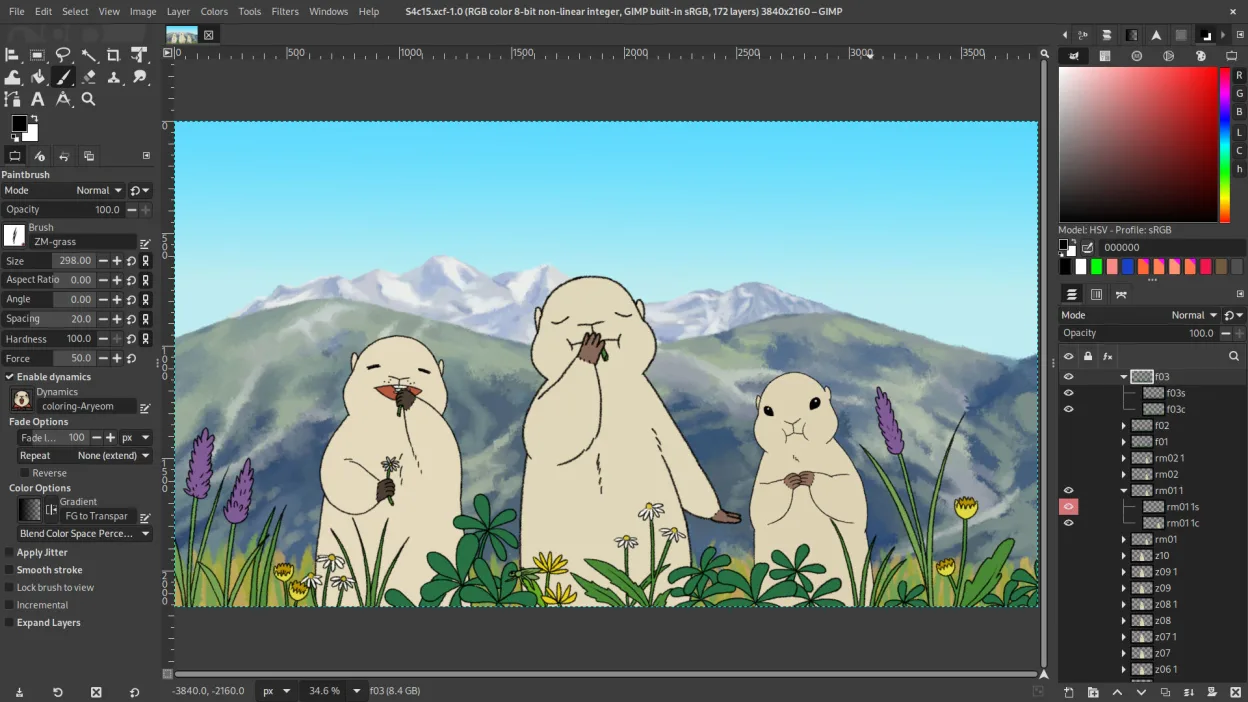
- Layer-based editing with masks, blending modes, and transparency
- Advanced brush engine for digital painting and retouching
- Support for Photoshop-compatible plug-ins (via compatibility layers)
- Batch processing and scripting with Script-Fu, Python, or GEGL
- Non-destructive editing possible through plug-ins like G'MIC
- Extensive format support: PNG, JPEG, TIFF, PSD, WebP, and more
- Customizable interface with dockable panels and themes
- Color management with ICC profile support
How to install GIMP on Linux
flatpak install flathub org.gimp.GIMPsudo apt install gimpsudo apt install gimpsudo dnf install gimpsudo pacman -S gimpsudo zypper install gimpFrequently asked questions
Can I animate in GIMP like in Aseprite?
No. GIMP has limited GIF animation support, but it lacks a dedicated frame timeline, onion skinning, and pixel-art-specific animation tools. It is not designed for frame-by-frame sprite animation.
Does GIMP support tilemaps?
No. GIMP does not have a tilemap editor. You would need to use a separate tool for tilemap creation and then import the resulting image into GIMP for further editing if necessary.
Is GIMP good for pixel art?
It is acceptable for static pixel art. You can use hard-edged brushes and disable anti-aliasing. However, it lacks the specialized pixel art features and workflow optimizations found in Aseprite.
3 other alternatives to Aseprite
 KritaKrita is a full‑featured open‑source digital painting and illustration program.Open sourceFreeFlatpakKrita vs Aseprite
 PintaPinta is a free, open‑source bitmap editor that mimics Paint.NET with a simple interface and layer support.Open sourceFreeFlatpakPinta vs Aseprite
 MyPaintMyPaint is a fast, free, open‑source raster painting program focused on brush dynamics and tablet use.Open sourceFreeFlatpakMyPaint vs Aseprite