
 GIMPLinux
vs
Lightroom CCWindows
GIMPLinux
vs
Lightroom CCWindows
GIMP als Linux-Alternative zu Lightroom CC
Aktualisiert am
Unser Fazit
GIMP can replace Lightroom CC for basic RAW development and batch editing, but it lacks the dedicated catalog, metadata tagging, and cloud sync that Lightroom offers. Photographers who prefer a free, open‑source tool and are comfortable managing files manually will benefit. Those who need a full‑blown photo management workflow or heavy metadata handling should look elsewhere.
- Lizenz
- GPL-3.0+ AND LGPL-3.0+
- Preis
- Kostenlos
- Aktuelle Version
- 3.2.6 (10. September 2026)
- Bewertung
- —
Was gleich funktioniert
- Both support non‑destructive editing via layers or masks
- Both can process RAW files (GIMP via UFRaw or Darktable integration)
- Both offer batch processing and scripting
- Both provide color management with ICC profiles
- Both support a wide range of image formats
Was anders ist
- Lightroom CC has a built‑in library and catalog; GIMP does not
- Lightroom CC manages metadata and tagging natively; GIMP requires external tools
- Lightroom CC offers cloud sync and mobile apps; GIMP has no native sync
- Lightroom CC provides advanced color grading presets; GIMP requires manual adjustments or plug‑ins
- Lightroom CC has a subscription model; GIMP is free
Ihre Lightroom CC-Dateien öffnen
GIMP cannot open Lightroom CC's proprietary catalog or XMP files directly. It can import RAW files exported from Lightroom or use the same RAW files if they are stored locally. Exporting to Lightroom-compatible XMP is not supported; you would need to re‑import the edited image back into Lightroom for further cataloging.
Von Lightroom CC zu GIMP wechseln – Schritt für Schritt
- Export RAW files from Lightroom as DNG or TIFF
- Open the exported files in GIMP for editing
- Use GIMP's batch tools or Script‑Fu to process multiple images
- Save edited images in a format Lightroom can read (e.g., JPEG or DNG)
- Re‑import the edited files into Lightroom for cataloging and metadata
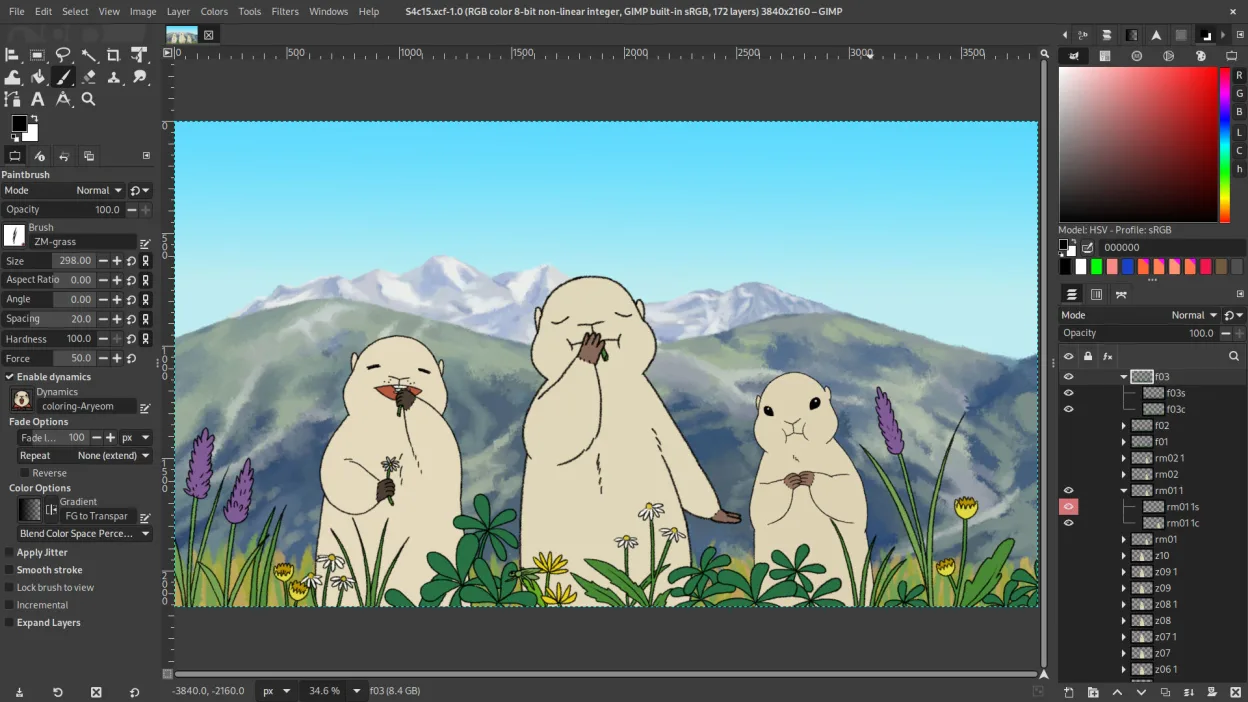
Wichtige Funktionen von GIMP
- Ebenenbasiertes Bearbeiten mit Masken, Mischmodi und Transparenz
- Fortschrittliche Pinsel‑Engine für digitale Malerei und Retusche
- Unterstützung für Photoshop‑kompatible Plug‑ins (via Kompatibilitätsschichten)
- Stapelverarbeitung und Skripting mit Script‑Fu, Python oder GEGL
- Nicht‑destruktives Bearbeiten über Plug‑ins wie G'MIC möglich
- Umfangreiche Formatunterstützung: PNG, JPEG, TIFF, PSD, WebP und weitere
- Anpassbare Oberfläche mit anheftbaren Panels und Themes
- Farbmanagement mit ICC‑Profilunterstützung
GIMP unter Linux installieren
flatpak install flathub org.gimp.GIMPsudo apt install gimpsudo apt install gimpsudo dnf install gimpsudo pacman -S gimpsudo zypper install gimpHäufige Fragen
Can I use GIMP to develop RAW images like Lightroom?
Yes, GIMP can open RAW files via UFRaw or Darktable integration, but the workflow is less streamlined than Lightroom's built‑in RAW processor.
Does GIMP support non‑destructive editing?
GIMP uses layers and masks to preserve original data, and plug‑ins like G'MIC can add true non‑destructive capabilities, though it is not as straightforward as Lightroom's history stack.
Will my Lightroom catalog stay intact if I switch to GIMP?
No. GIMP does not read Lightroom catalogs; you would need to export images and metadata separately before re‑importing them into Lightroom or another catalog tool.
4 weitere Alternativen zu Lightroom CC
 darktabledarktable ist ein kostenloser, quelloffener Bildbearbeitungsprogrammier, der Rohdateien verwaltet und einen…Open SourceKostenlosFlatpakdarktable vs. Lightroom CC
 RawTherapeeRawTherapee ist ein quelloffenes, plattformübergreifendes Programm zur Entwicklung von Raw-Fotos.Open SourceKostenlosFlatpakRawTherapee vs. Lightroom CC
 digiKamdigiKam ist ein umfassender KDE-Fotomanager zum Organisieren, Taggen und Bearbeiten digitaler Fotos mit…Open SourceKostenlosFlatpakdigiKam vs. Lightroom CC
 KritaKrita ist ein vollwertiges Open‑Source-Programm für digitales Malen und Illustration.Open SourceKostenlosFlatpakKrita vs. Lightroom CC