
 GIMPLinux
vs
NVIDIA StudioWindows
GIMPLinux
vs
NVIDIA StudioWindows
GIMP als Linux-Alternative zu NVIDIA Studio
Aktualisiert am
Unser Fazit
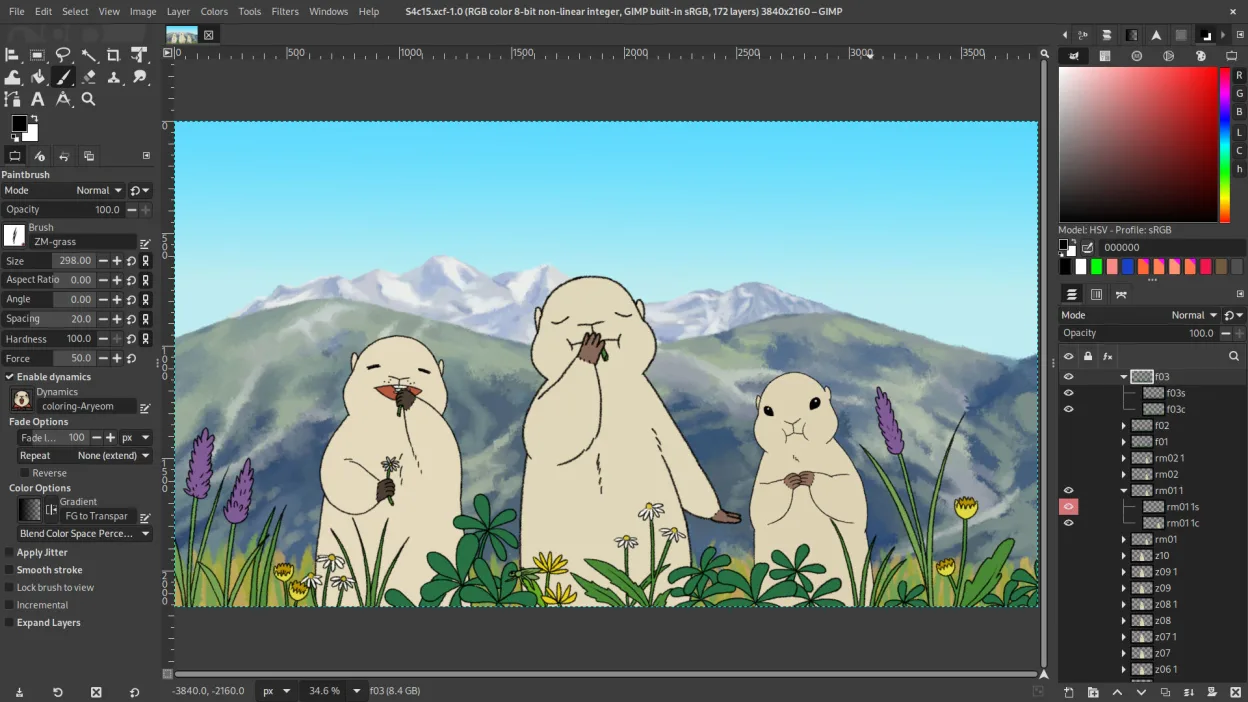
GIMP is not a replacement for NVIDIA Studio as a whole, but it can replace some of its photo editing capabilities for users focused on raster graphics. If your work relies heavily on GPU-accelerated rendering, 3D modeling, or video editing, GIMP won't meet those needs. However, for photo retouching, image composition, and digital painting on Linux, GIMP is a solid, free tool with strong customization and scripting. It's best suited for graphic designers and photographers who don't require real-time GPU effects or professional video workflows.
- Lizenz
- GPL-3.0+ AND LGPL-3.0+
- Preis
- Kostenlos
- Aktuelle Version
- 3.2.6 (10. September 2026)
- Bewertung
- —
Was gleich funktioniert
- Both support high-quality photo editing and color management with ICC profiles
- GIMP offers layer-based editing, masks, and blending modes like many Studio apps
- Support for plugin extensions to enhance functionality
- Available on multiple platforms including Linux, Windows, and macOS
- Used in professional creative workflows, especially in open-source environments
Was anders ist
- GIMP lacks GPU-accelerated rendering and real-time effects processing
- No built-in support for 3D modeling, animation, or video editing
- Does not provide optimized drivers or system-level stability for creative apps
- No native integration with NVIDIA hardware or CUDA acceleration
- Limited real-time performance for complex compositions compared to Studio tools
Ihre NVIDIA Studio-Dateien öffnen
GIMP can open and edit common image formats used in creative workflows, including PSD (Photoshop), TIFF, JPEG, PNG, and WebP, which may be generated in NVIDIA Studio environments. However, it cannot handle project files from 3D or video tools in the Studio suite, such as those from Blender (if using Studio drivers) or DaVinci Resolve. There is no support for proprietary NVIDIA Studio-specific file types, and GPU-rendered output from Studio apps cannot be imported directly into GIMP.
Von NVIDIA Studio zu GIMP wechseln – Schritt für Schritt
- Install GIMP via your distribution's package manager or Flathub
- Import existing image projects in supported formats like PSD or TIFF
- Install G'MIC and other plugins for enhanced editing and non-destructive workflows
- Configure color management using ICC profiles for accurate output
- Use Script-Fu or Python scripts to automate repetitive tasks if needed
Wichtige Funktionen von GIMP
- Ebenenbasiertes Bearbeiten mit Masken, Mischmodi und Transparenz
- Fortschrittliche Pinsel‑Engine für digitale Malerei und Retusche
- Unterstützung für Photoshop‑kompatible Plug‑ins (via Kompatibilitätsschichten)
- Stapelverarbeitung und Skripting mit Script‑Fu, Python oder GEGL
- Nicht‑destruktives Bearbeiten über Plug‑ins wie G'MIC möglich
- Umfangreiche Formatunterstützung: PNG, JPEG, TIFF, PSD, WebP und weitere
- Anpassbare Oberfläche mit anheftbaren Panels und Themes
- Farbmanagement mit ICC‑Profilunterstützung
GIMP unter Linux installieren
flatpak install flathub org.gimp.GIMPsudo apt install gimpsudo apt install gimpsudo dnf install gimpsudo pacman -S gimpsudo zypper install gimpHäufige Fragen
Can GIMP use my NVIDIA GPU for acceleration?
No, GIMP does not support CUDA or NVIDIA-specific GPU acceleration. It uses CPU-based processing and limited OpenCL features through plug-ins, but performance gains are minimal compared to Studio-optimized apps.
Is GIMP suitable for professional photo editing?
Yes, for raster image work like retouching, compositing, and color correction, GIMP is used professionally. However, it lacks some advanced non-destructive editing features found in Studio-accelerated tools like Adobe Photoshop with GPU support.
Can I replace my entire NVIDIA Studio setup with GIMP on Linux?
No. GIMP only covers part of the photo editing workflow. You’ll need other Linux applications for video editing, 3D modeling, and real-time effects that NVIDIA Studio provides as an ecosystem.
3 weitere Alternativen zu NVIDIA Studio
 BlenderBlender ist eine kostenlose, quelloffene 3D-Suite für Modellierung, Animation, Rendering und Videobearbeitung.Open SourceKostenlosFlatpakBlender vs. NVIDIA Studio
 KdenliveKdenlive ist ein kostenloser, funktionsreicher nichtlinearer Videoeditor, der auf dem MLT-Framework basiert.Open SourceKostenlosFlatpakKdenlive vs. NVIDIA Studio
 OliveOlive ist ein kostenloser, quelloffener nichtlinearer Video‑Editor für Linux.Open SourceKostenlosFlatpakOlive vs. NVIDIA Studio