
 Podman DesktopLinux
vs
Docker Desktop for WindowsWindows
Podman Desktop als Linux-Alternative zu Docker Desktop for Windows
Aktualisiert am
Unser Fazit
Podman Desktop is a solid replacement for Docker Desktop on Linux, especially for users who want rootless containers and daemonless operation without sacrificing GUI convenience. It supports image builds, container management, logs, and terminal access through a clean interface. If you're on Linux and want to avoid Docker's licensing issues and root requirements, Podman Desktop delivers most day-to-day functionality. It's ideal for developers who value security and lightweight operation, though some may miss Docker-specific integrations or polished enterprise features.
- Lizenz
- Apache-2.0
- Preis
- Kostenlos
- Aktuelle Version
- 1.31.0 (18. November 2026)
- Bewertung
- —
Was gleich funktioniert
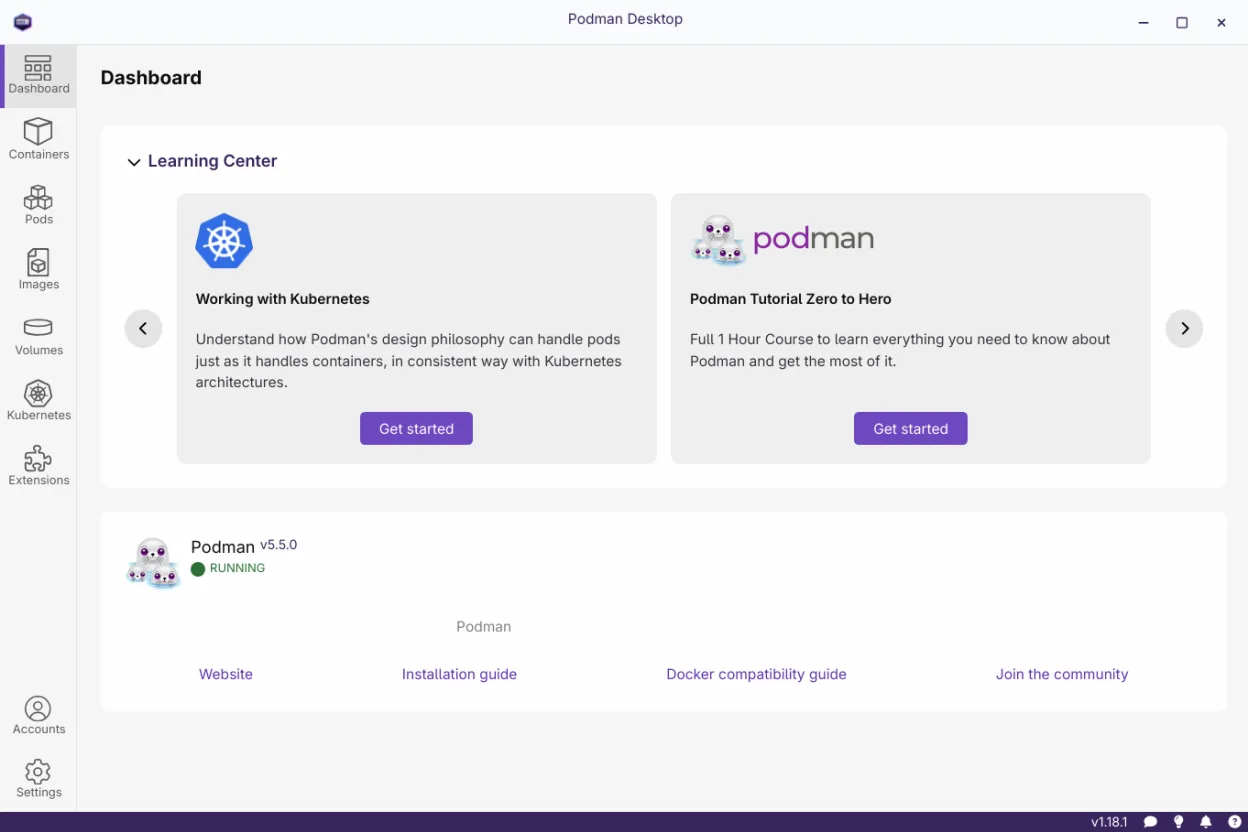
- Graphical interface for managing containers, images, and pods
- Supports building from Dockerfile and Containerfile
- Terminal access and log inspection for running containers
- Push/pull images to OCI-compliant registries
- Plugin support, including Docker Desktop extensions
Was anders ist
- No requirement for a daemon, reducing overhead and improving security
- Rootless by design, avoiding sudo or root privileges
- Systemd integration is possible but less automated than Docker Desktop
- Proxy and resource configuration in Podman Desktop is still a work in progress
- No built-in Kubernetes cluster (relies on external or user-managed clusters)
Ihre Docker Desktop for Windows-Dateien öffnen
Podman Desktop reads Dockerfile and Containerfile directly, so projects created for Docker Desktop work without changes. Image builds and container configurations using standard OCI formats are fully compatible. You can import and run containers from Docker registries without conversion. However, Docker Desktop-specific project files or exported containers in Docker-specific formats may not transfer directly if they rely on Docker-only features or Windows-specific volumes and networking.
Von Docker Desktop for Windows zu Podman Desktop wechseln – Schritt für Schritt
- Install Podman and Podman Desktop using your distro's package manager or Flathub
- Import existing Docker images using 'podman import' or pull from registries
- Use Podman Desktop to build, run, and manage containers via GUI
- Configure registries and proxies in Podman Desktop settings
- Enable systemd integration manually for auto-starting containers
- Test Docker extensions or plugins for compatibility
Wichtige Funktionen von Podman Desktop
- Images aus Containerfile oder Dockerfile erstellen
- Images zu OCI‑Registries pullen und pushen
- Container und Pods starten, stoppen, neu starten
- Terminalzugriff innerhalb von Containern
- Logs und Ressourcennutzung inspizieren
- Mehrere Container‑Engines verwalten (Podman, Docker, Lima)
- Registries und Proxy‑Einstellungen konfigurieren
- Unterstützung für Plug‑ins und Docker Desktop‑Extensions
Podman Desktop unter Linux installieren
flatpak install flathub io.podman_desktop.PodmanDesktopsudo apt install libpodsudo apt install podmansudo dnf install podmansudo pacman -S podman-dockersudo zypper install podmanHäufige Fragen
Can Podman Desktop run Docker images?
Yes, Podman Desktop can pull, run, and manage Docker images because it supports the OCI standard, which Docker also uses. No conversion is needed.
Does Podman Desktop require Docker to be installed?
No, Podman Desktop works independently with Podman. It can also connect to Docker if installed, but Docker is not required.
Is Kubernetes support built-in?
Podman Desktop supports deploying to Kubernetes, but you need a separate Kubernetes cluster (e.g., Minikube, OpenShift, or k3s) — it doesn't include one like Docker Desktop does.