
 ShotwellLinux
vs
Windows Photo GalleryWindows
ShotwellLinux
vs
Windows Photo GalleryWindows
Shotwell als Linux-Alternative zu Windows Photo Gallery
Aktualisiert am
Unser Fazit
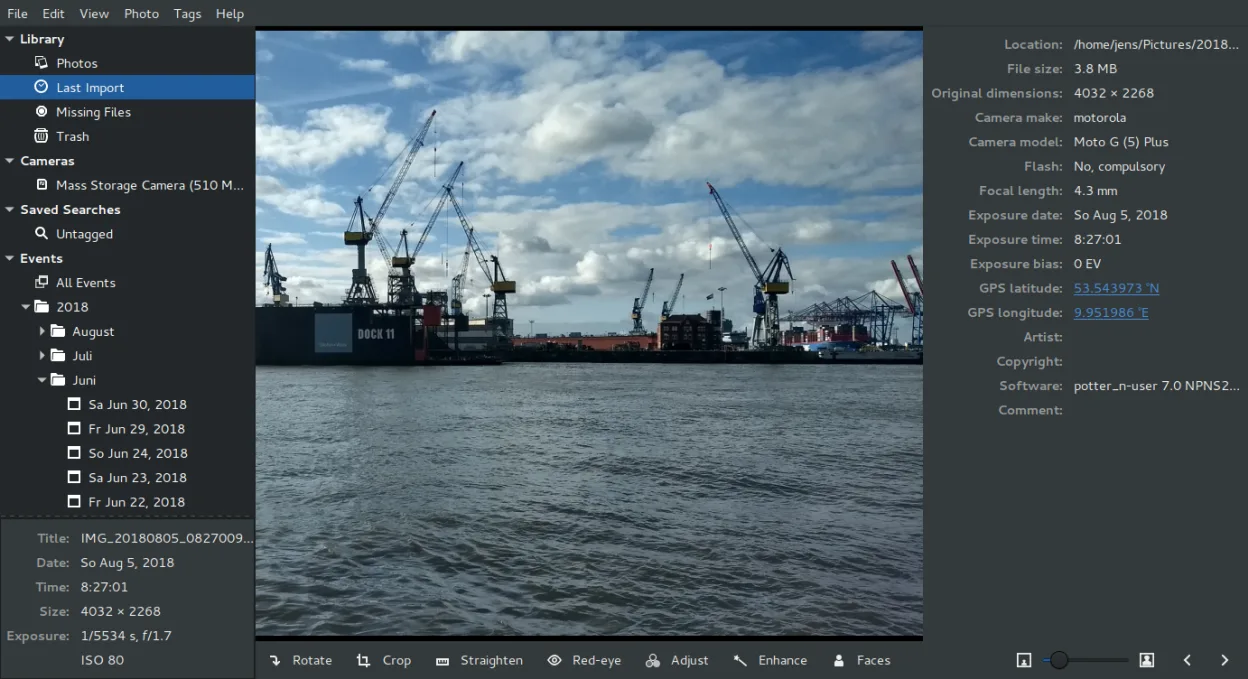
Shotwell is a solid replacement for Windows Photo Gallery if you're on a GNOME-based Linux system and want straightforward photo management. It handles importing, tagging, rating, and basic edits without bloat. The interface is simple, and it supports RAW files and common formats. While it lacks some polish and advanced features like face recognition or direct Picasa-style web albums, it covers the core needs of most casual users. Not ideal for power users needing deep metadata control or non-GNOME desktop users, but reliable for everyday photo organization.
- Lizenz
- LGPL-2.1+
- Preis
- Kostenlos
- Aktuelle Version
- 33.0 (13. September 2026)
- Bewertung
- —
Was gleich funktioniert
- Organizes photos by date, folder, and custom tags
- Supports image ratings and labels for sorting
- Offers basic non-destructive editing: crop, red-eye, exposure, color
- Imports directly from cameras and external storage
- Plays full-screen slideshows with keyboard navigation
Was anders ist
- No face recognition or people tagging
- Limited metadata editing compared to Windows Photo Gallery
- Uploads only to select services (Flickr, Google Photos), no Picasa support
- No built-in map view for geotagged photos
- Tighter integration with GNOME; less natural on KDE or other desktops
Ihre Windows Photo Gallery-Dateien öffnen
Shotwell reads JPEG, PNG, TIFF, and RAW formats commonly used in Windows Photo Gallery. If your photos were stored in standard folders or exported as regular image files, Shotwell can open them directly. It does not read proprietary database files from Windows Photo Gallery (.wpg), but since that program didn't use a closed format for images themselves, your actual photos are accessible. Metadata like ratings and tags won't carry over automatically unless embedded in the image files (e.g., as XMP or IPTC).
Von Windows Photo Gallery zu Shotwell wechseln – Schritt für Schritt
- Copy your photo folders from Windows to your Linux system
- Launch Shotwell and set the base import folder to your photos directory
- Use 'Import from Folder' to bring in existing photos
- Manually reapply ratings and tags in Shotwell if not embedded
- Enable 'Write metadata to XMP' in preferences for future tag sync
Wichtige Funktionen von Shotwell
- Fotos von Kamera oder Festplatte importieren
- Nach Datum, Tags und Bewertungen organisieren
- Nicht destruktives Zuschneiden, Rote-Augen-Korrektur, Farbe, Ausrichten
- Unterstützung für RAW, JPEG, PNG, TIFF
- Hochladen zu Flickr, Google Photos usw.
- Schnelle, leichte Benutzeroberfläche
- Integration in den GNOME-Dateimanager
Shotwell unter Linux installieren
flatpak install flathub org.gnome.Shotwellsudo apt install shotwellsudo apt install shotwellsudo dnf install shotwellsudo pacman -S shotwellsudo zypper install shotwellHäufige Fragen
Can Shotwell import my old Windows Photo Gallery library directly?
No, Shotwell can't read the Windows Photo Gallery library file. But it can import the actual image files. Ratings and tags are only preserved if they were written into the image metadata.
Does Shotwell support RAW files like my DSLR produces?
Yes, Shotwell supports many RAW formats through libraw. Most common camera models are covered, though very new cameras may require a newer version of the library.
Can I use Shotwell on non-GNOME desktops like KDE or XFCE?
Yes, but it may feel less integrated. Some features like drag-and-drop from file managers work best in GNOME. Performance is still good, but the look may not match your theme perfectly.
2 weitere Alternativen zu Windows Photo Gallery
 gThumb Image ViewergThumb is a GNOME‑integrated image viewer, editor and organizer for Linux.Open SourceKostenlosFlatpakgThumb Image Viewer vs. Windows Photo Gallery
 digiKamdigiKam ist ein umfassender KDE-Fotomanager zum Organisieren, Taggen und Bearbeiten digitaler Fotos mit…Open SourceKostenlosFlatpakdigiKam vs. Windows Photo Gallery