
 ZenLinux
vs
ZenLinux
vs
 Google ChromeWindows
Zen als Linux-Alternative zu Google Chrome
Aktualisiert am
Unser Fazit
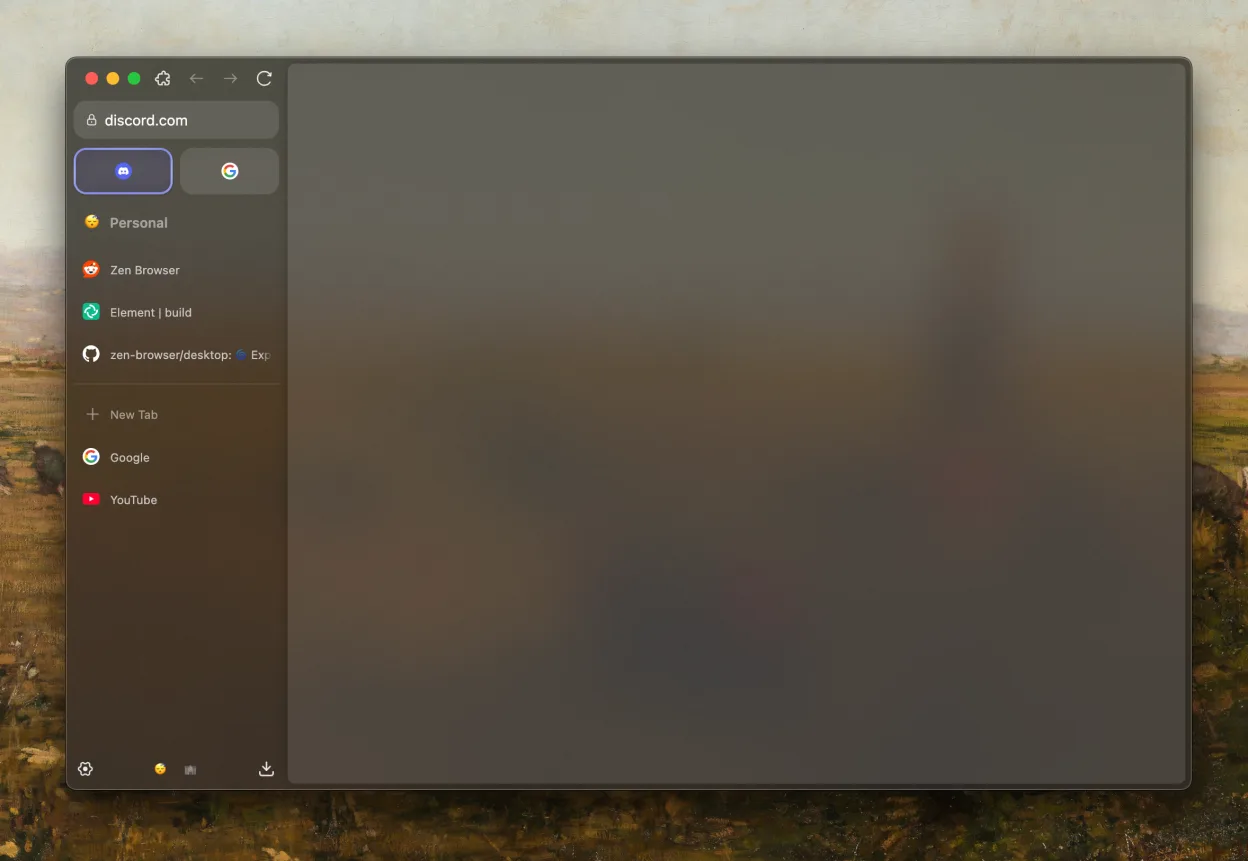
Zen can replace Google Chrome for users who want a lightweight, privacy‑focused browser with advanced tab management. It offers split view, web sidebar, tab groups, vertical tabs, and theme support, making it suitable for developers, students, or anyone who spends a lot of time multitasking in the browser. However, it lacks some Chrome extensions and the extensive ecosystem that Chrome users rely on, so it may not satisfy power users who depend on specific extensions or advanced developer tools.
- Lizenz
- MPL-2.0
- Preis
- Kostenlos
- Aktuelle Version
- 1.23.4b (21. Oktober 2026)
- Bewertung
- —
Was gleich funktioniert
- Both run on the Chromium engine
- Support for standard web technologies (HTML5, CSS3, JavaScript)
- Built‑in developer tools
- Extension support via Chromium extensions
- Cross‑platform availability (Linux, Windows, macOS)
Was anders ist
- Zen has a minimal data‑collection policy, whereas Chrome sends telemetry to Google
- Zen offers split view and web sidebar, Chrome does not
- Zen focuses on vertical tabs and tab groups, Chrome uses horizontal tabs
- Zen lacks the extensive Chrome Web Store ecosystem
- Zen’s extension support is limited to Chromium extensions, some Chrome‑specific extensions may not work
Ihre Google Chrome-Dateien öffnen
Zen can open standard web pages, bookmarks, and cookies from Chrome. Importing Chrome bookmarks and passwords is possible via the import wizard. Exporting Zen data back to Chrome is not directly supported; users must export bookmarks or use a third‑party sync service. Unknown if Zen can read Chrome's proprietary profile format directly.
Von Google Chrome zu Zen wechseln – Schritt für Schritt
- Export bookmarks and passwords from Chrome via Settings > Bookmarks > Export.
- Install Zen from Flathub with
flatpak install flathub io.github.zenbrowser. - Open Zen and run the import wizard to bring over bookmarks and passwords.
- Set Zen as your default browser in Settings > Default Applications.
- Reinstall any critical Chrome extensions that are available in the Chromium extension store.
- Test your favorite sites to ensure they load correctly in Zen.
Wichtige Funktionen von Zen
- Split‑View für Multitasking
- Web‑Sidebar für schnelle Navigation
- Tab‑Gruppen zur Organisation von Sitzungen
- Anpassbare Oberfläche mit Themes
- Vertikale Tabs für besseren Platzverbrauch
- Datenschutzorientiertes Design mit minimaler Datensammlung
Zen unter Linux installieren
flatpak install flathub app.zen_browser.zenHäufige Fragen
Does Zen support Chrome extensions?
Zen uses the Chromium extension system, so most extensions from the Chrome Web Store will work, but some may fail if they rely on Google APIs or specific Chrome features.
Will Zen sync my browsing data across devices?
Zen can sync bookmarks and passwords via its own sync service or by using a third‑party sync tool; it does not use Google’s sync infrastructure.
Is Zen truly privacy‑focused?
Zen collects no telemetry, does not send usage data to the developers, and allows you to disable third‑party cookies and trackers by default.
8 weitere Alternativen zu Google Chrome
 ChromiumChromium ist das Open-Source-Browserprojekt hinter Chrome und Edge und bietet ein schnelles, modernes…Open SourceKostenlosFlatpakChromium vs. Google Chrome
 SeaMonkeySeaMonkey ist eine kostenlose Internet-Suite mit Browser, E‑Mail und HTML‑Editor, basierend auf dem alten…Open SourceKostenlosSeaMonkey vs. Google Chrome
 EpiphanyEpiphany (GNOME Web) ist ein schlanker, auf GNOME basierender Webbrowser, der auf WebKit aufbaut.Open SourceKostenlosEpiphany vs. Google Chrome
 OperaOpera GX ist ein proprietärer Linux‑Browser für Gamer, der Leistungs‑Steuerungen, Anpassungsmöglichkeiten und…KostenlosFlatpakOpera vs. Google Chrome
 Mozilla FirefoxMozilla Firefox ist ein quelloffener Webbrowser, der nativ auf Linux läuft und ein schnelles, sicheres…Open SourceKostenlosMozilla Firefox vs. Google Chrome
 FirefoxFirefox ist ein schneller, privatsphärenfreundlicher Webbrowser, der von Mozilla entwickelt wurde.Open SourceKostenlosFlatpakFirefox vs. Google Chrome
 BraveBrave ist ein schneller, datenschutzorientierter Webbrowser, der standardmäßig Anzeigen und Tracker blockiert…Open SourceKostenlosFlatpakBrave vs. Google Chrome
 KonquerorKonqueror ist ein Webbrowser und Dateimanager von KDE mit Unterstützung für lokale und entfernte…Open SourceKostenlosKonqueror vs. Google Chrome