
 GIMPLinux
vs
Luminar AIWindows
GIMP como alternativa Linux a Luminar AI
Actualizado el
Nuestra opinión
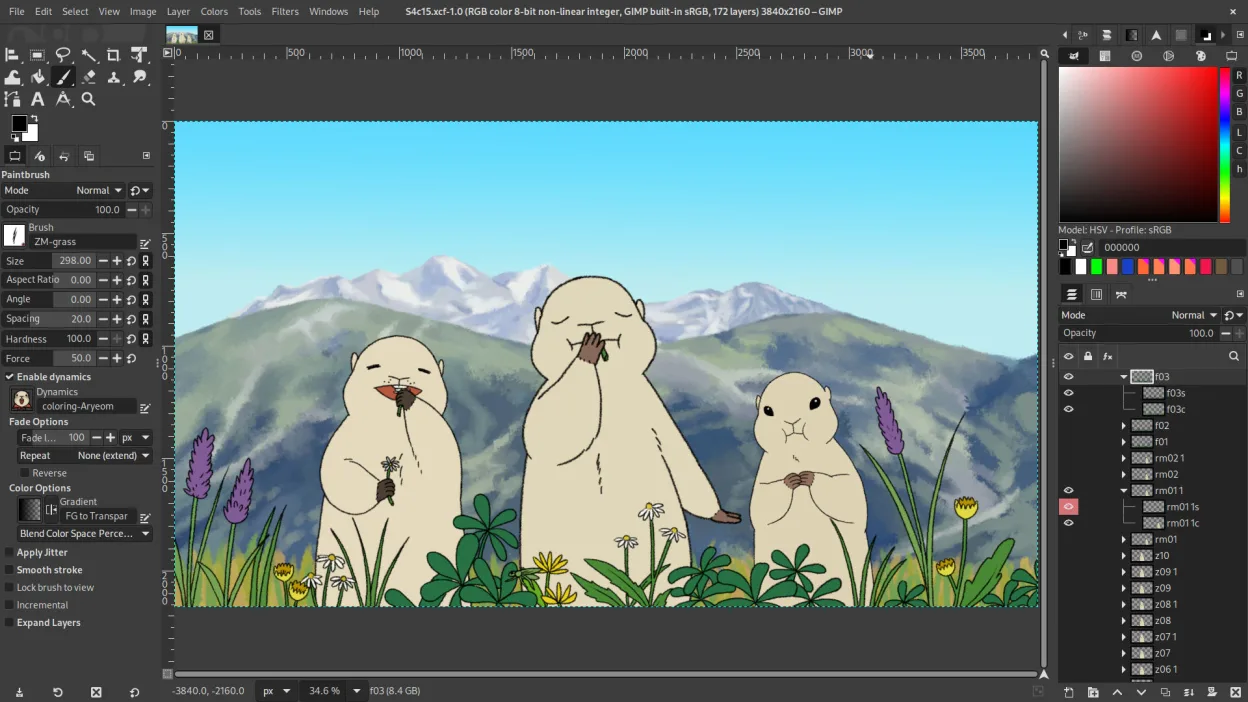
GIMP is not a direct replacement for Luminar AI for users who rely on AI-powered automation for sky replacement, face editing, or one-click style application. It excels as a manual photo editor with deep layer and mask control, making it suitable for advanced users comfortable with hands-on retouching. However, those seeking automated, AI-driven workflows will find GIMP lacking. It's a strong alternative for technical image manipulation, but not for simplicity or AI assistance. Use GIMP if you prioritize control over convenience.
- Licencia
- GPL-3.0+ AND LGPL-3.0+
- Precio
- Gratis
- Última versión
- 3.2.8 (2 de noviembre de 2026)
- Valoración
- —
Lo que funciona igual
- Layer-based editing with masks and blending modes
- Support for non-destructive editing via plug-ins like G'MIC
- Batch processing using scripting (Script-Fu, Python)
- Advanced retouching and color adjustment tools
- Extensive file format support including PSD, TIFF, JPEG
Lo que cambia
- No built-in AI for sky or face editing
- No portrait-specific enhancement tools with automatic detection
- No native preset automation or style templates like Luminar AI
- Steeper learning curve; less focused on quick, automated results
- Interface is more complex and less optimized for photo-only workflows
Abrir tus archivos de Luminar AI
GIMP does not natively open Luminar AI project files (.luminar or similar). There is no known converter or compatibility layer for importing Luminar-specific edits. You can export images from Luminar AI as TIFF, PSD, or JPEG and edit them in GIMP, but non-destructive adjustments and layer structures from Luminar will not transfer. For ongoing workflows, treat GIMP as a separate editor rather than a drop-in replacement for project files.
Pasar de Luminar AI a GIMP, paso a paso
- Export your Luminar AI images as TIFF or PSD with layers if needed
- Install GIMP from your distribution's repository or Flathub
- Add G'MIC plug-in for enhanced filters and non-destructive editing
- Use GIMP's layer masks and brush tools to manually replicate effects
- Automate repetitive tasks with Python scripts or Script-Fu
Funciones clave de GIMP
- Edición basada en capas con máscaras, modos de fusión y transparencia
- Motor de pinceles avanzado para pintura digital y retoque
- Soporte de plug‑ins compatibles con Photoshop (a través de capas de compatibilidad)
- Procesamiento por lotes y scripting con Script‑Fu, Python o GEGL
- Edición no destructiva posible mediante plug‑ins como G'MIC
- Soporte de formato extenso: PNG, JPEG, TIFF, PSD, WebP y más
- Interfaz personalizable con paneles acoplables y temas
- Gestión de color con soporte de perfiles ICC
Cómo instalar GIMP en Linux
flatpak install flathub org.gimp.GIMPsudo apt install gimpsudo apt install gimpsudo dnf install gimpsudo pacman -S gimpsudo zypper install gimpPreguntas frecuentes
Can GIMP do sky replacement like Luminar AI?
No, GIMP has no built-in AI sky replacement. You must manually composite skies using layers, masks, and selection tools, which requires more skill and time.
Is GIMP good for portrait editing?
Yes, but manually. GIMP supports detailed retouching with brushes and filters, but lacks automatic face detection or enhancement tools found in Luminar AI.
Can I use Luminar AI presets in GIMP?
No. GIMP doesn't support Luminar AI presets. You can mimic styles using G'MIC or create custom scripts, but automation is limited.
Otras 4 alternativas a Luminar AI
 darktabledarktable es un editor de fotos gratuito y de código abierto que gestiona archivos raw y ofrece un flujo de…Código abiertoGratisFlatpakdarktable vs Luminar AI
 RawTherapeeRawTherapee es un programa de desarrollo fotográfico raw de código abierto y multiplataforma.Código abiertoGratisFlatpakRawTherapee vs Luminar AI
 digiKamdigiKam es un gestor de fotos de KDE integral para organizar, etiquetar y editar fotos digitales con un…Código abiertoGratisFlatpakdigiKam vs Luminar AI
 LightZoneLightZone es un editor de fotos RAW gratuito y de código abierto con un flujo de trabajo no destructivo…Código abiertoGratisFlatpakLightZone vs Luminar AI