
 GNOME System MonitorLinux
vs
GNOME System MonitorLinux
vs
 Windows Task ManagerWindows
GNOME System Monitor como alternativa Linux a Windows Task Manager
Actualizado el
Nuestra opinión
GNOME System Monitor is a solid, native Linux replacement for Windows Task Manager if you stick to basic monitoring. It handles process lists, CPU/memory graphs, and killing tasks well. However, it lacks advanced controls like setting CPU affinity or detailed per-process I/O stats found in Windows. For casual users checking system health or ending a frozen app, it works fine. Power users who rely on Task Manager for granular resource management will find it limiting and may need to supplement it with command-line tools like htop or nmon for deeper control.
- Licencia
- GPL-2.0
- Precio
- Gratis
- Última versión
- 51.1
- Valoración
- 5/5 (1)
Lo que funciona igual
- Lists running processes with PID, user, and resource usage
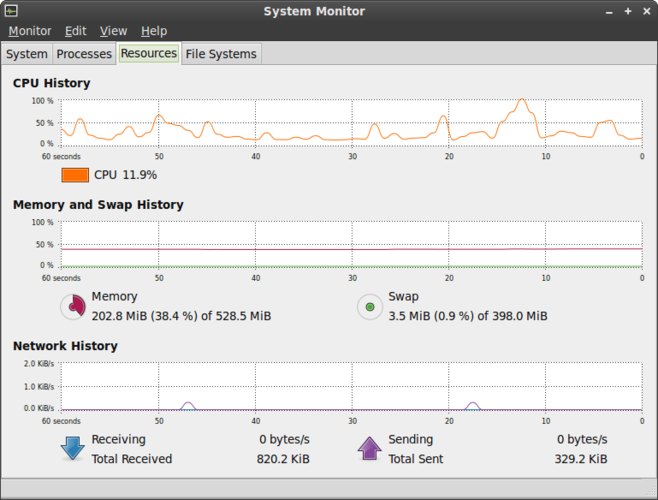
- Displays real-time CPU and memory load graphs
- Allows terminating or killing specific processes
- Shows system uptime and load average
Lo que cambia
- No interface for changing process priority or CPU affinity
- Lacks detailed per-process disk I/O and network throughput metrics
- Does not manage startup applications directly; use GNOME Settings or autostart directories instead
- No integrated GPU usage monitoring in the default view
- User session management is limited compared to Windows Task Manager's user tab
Abrir tus archivos de Windows Task Manager
Windows Task Manager does not generate exportable data files that GNOME System Monitor can open. Both are live monitoring tools, not data loggers. You cannot import a Task Manager snapshot into System Monitor. If you need historical data, you must use separate logging tools on both systems, as neither app natively saves or reads performance logs in a compatible format.
Pasar de Windows Task Manager a GNOME System Monitor, paso a paso
- Install GNOME System Monitor if it is not already present on your system
- Open the application from your application menu or desktop environment
- Use the Processes tab to view and sort running applications by CPU or memory
- Select a process and click the End Process button to terminate it
- Check the Resources tab for real-time CPU and memory graphs
- Refer to GNOME Settings for managing startup applications instead of Task Manager
Funciones clave de GNOME System Monitor
- Listar todos los procesos en ejecución con uso de CPU y memoria
- Ordenar procesos por nombre, PID, usuario o consumo de recursos
- Ver información detallada de un proceso específico
- Terminar o matar procesos en ejecución
- Monitorear carga de CPU y memoria a nivel de sistema
- Mostrar tiempo de actividad y promedio de carga del sistema
- Mostrar visión general de la actividad de red
- Integrarse con el entorno de escritorio GNOME
Cómo instalar GNOME System Monitor en Linux
sudo apt install gnome-system-monitorsudo apt install gnome-system-monitorsudo dnf install gnome-system-monitorsudo pacman -S gnome-system-monitorsudo zypper install gnome-system-monitorPreguntas frecuentes
Can I change CPU affinity in GNOME System Monitor?
No, the GUI does not support setting CPU affinity. You must use command-line tools like taskset or chrt to change process affinity on Linux.
Where do I manage startup apps since it is not in System Monitor?
Use the GNOME Settings application under the Startup section, or manage files in the ~/.config/autostart directory for user-specific startup tasks.
Does it show GPU usage like Windows Task Manager?
GNOME System Monitor does not display GPU usage by default. You need third-party tools or command-line utilities like nvidia-smi or rocm-smi to monitor GPU performance.