
 KRDCLinux
vs
Windows Remote AssistanceWindows
KRDCLinux
vs
Windows Remote AssistanceWindows
KRDC como alternativa Linux a Windows Remote Assistance
Actualizado el
Nuestra opinión
KRDC is a decent replacement for Windows Remote Assistance if you're helping someone already running an RDP or VNC server. It supports encrypted connections, remote control, and works across platforms. However, it lacks built-in invitation and firewall traversal features, so it's less ideal for non-technical users needing quick, ad-hoc help. Best suited for Linux users familiar with remote desktop protocols or in environments where RDP/VNC is already set up.
- Licencia
- GPL-2.0+
- Precio
- Gratis
- Última versión
- 26.04.3 (2 de julio de 2026)
- Valoración
- —
Lo que funciona igual
- Supports remote desktop viewing and full control
- Uses encrypted connections (TLS for RDP)
- Cross-platform: can connect to Windows, Linux, or other systems
- Graphical interface with display scaling and full-screen mode
- Requires user consent if server is configured to prompt
Lo que cambia
- No built-in invitation system or easy link/file sharing for quick access
- No automatic NAT traversal or firewall punching
- Does not integrate with Windows Remote Assistance (.msrcincident) files
- Setup assumes user knows server address and credentials
- KDE-centric; may feel out of place on non-KDE desktops
Abrir tus archivos de Windows Remote Assistance
KRDC does not support Windows Remote Assistance .msrcincident files. These files are specific to Windows and contain connection metadata for the Remote Assistance invitation system, which KRDC does not implement. There is no tool to convert or open these files on Linux. Users must extract connection details manually (if possible) and connect via RDP or VNC using the remote machine's IP and port.
Pasar de Windows Remote Assistance a KRDC, paso a paso
- Install KRDC via your distro's package manager or Flatpak
- Ensure the target machine runs an RDP (e.g., xrdp, Windows Remote Desktop) or VNC server
- Configure the server to require and prompt for user consent
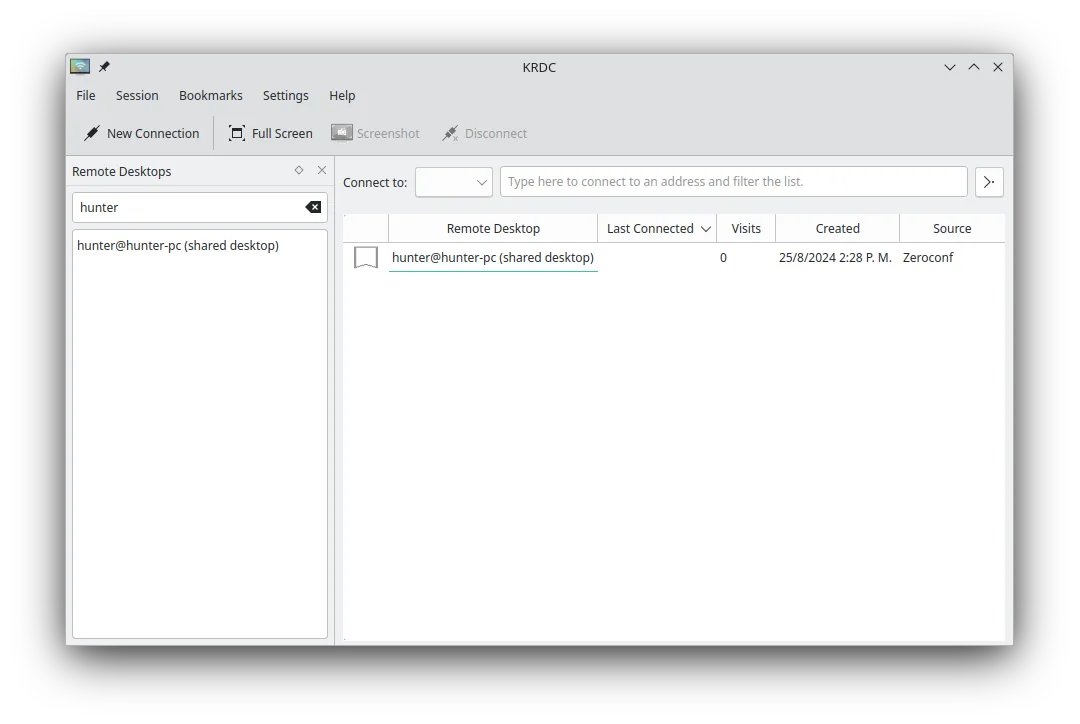
- Use KRDC to create a new connection with the remote IP and port
- Save the connection as a bookmark for future use
- Test control and encryption settings
Funciones clave de KRDC
- Soporta los protocolos RDP y VNC
- Interfaz gráfica con estilo KDE
- Gestión de marcadores para conexiones frecuentes
- Modos pantalla completa y ventana
- Soporte de atajos de teclado (Ctrl+Alt+Shift para entrada remota)
- Escalado dinámico de la pantalla remota
- Cifrado TLS para sesiones RDP
- Integración con KDE Wallet para almacenamiento de contraseñas
Cómo instalar KRDC en Linux
flatpak install flathub org.kde.krdcsudo apt install krdcsudo apt install krdcsudo dnf install krdcsudo pacman -S krdcsudo zypper install krdcPreguntas frecuentes
Can KRDC connect to a Windows machine without extra software?
Yes, if Remote Desktop is enabled. Windows includes an RDP server by default, which KRDC can connect to using the machine's IP and credentials.
Is user consent required when connecting with KRDC?
It depends on the server. On Windows, the user must approve incoming RDP sessions if Fast User Switching is enabled. VNC servers vary—some require manual approval, others don’t.
Can I use KRDC on non-KDE desktops like GNOME or XFCE?
Yes, KRDC runs on any Linux desktop, though it uses KDE libraries and may feel less integrated on non-KDE systems. The interface remains functional.
Otras 5 alternativas a Windows Remote Assistance
 RemminaRemmina es un cliente de escritorio remoto para Linux que soporta RDP, VNC, SSH y X2Go para conectarse a…Código abiertoGratisFlatpakRemmina vs Windows Remote Assistance
 TigerVNC ViewerTigerVNC Viewer es un cliente con licencia GPL para conectarse a escritorios VNC remotos en Linux.Código abiertoGratisFlatpakTigerVNC Viewer vs Windows Remote Assistance
 NoMachine PlayerNoMachine Player es un cliente propietario de escritorio remoto que se conecta a hosts Linux, Windows o macOS…FlatpakNoMachine Player vs Windows Remote AssistanceFreeRDPFreeRDP es una implementación de código abierto del Protocolo de Escritorio Remoto, que te permite conectarte…Código abiertoGratisFreeRDP vs Windows Remote Assistance
 VinagreVinagre es un visor de escritorio remoto para GNOME que soporta VNC, RDP, SSH y SPICE, y que ahora está…Código abiertoGratisAbandonadoVinagre vs Windows Remote Assistance