
 GIMPLinux
vs
Creative Cloud (Adobe Desktop App)Windows
GIMPLinux
vs
Creative Cloud (Adobe Desktop App)Windows
GIMP como alternativa Linux ao Creative Cloud (Adobe Desktop App)
Atualizado em
Nossa avaliação
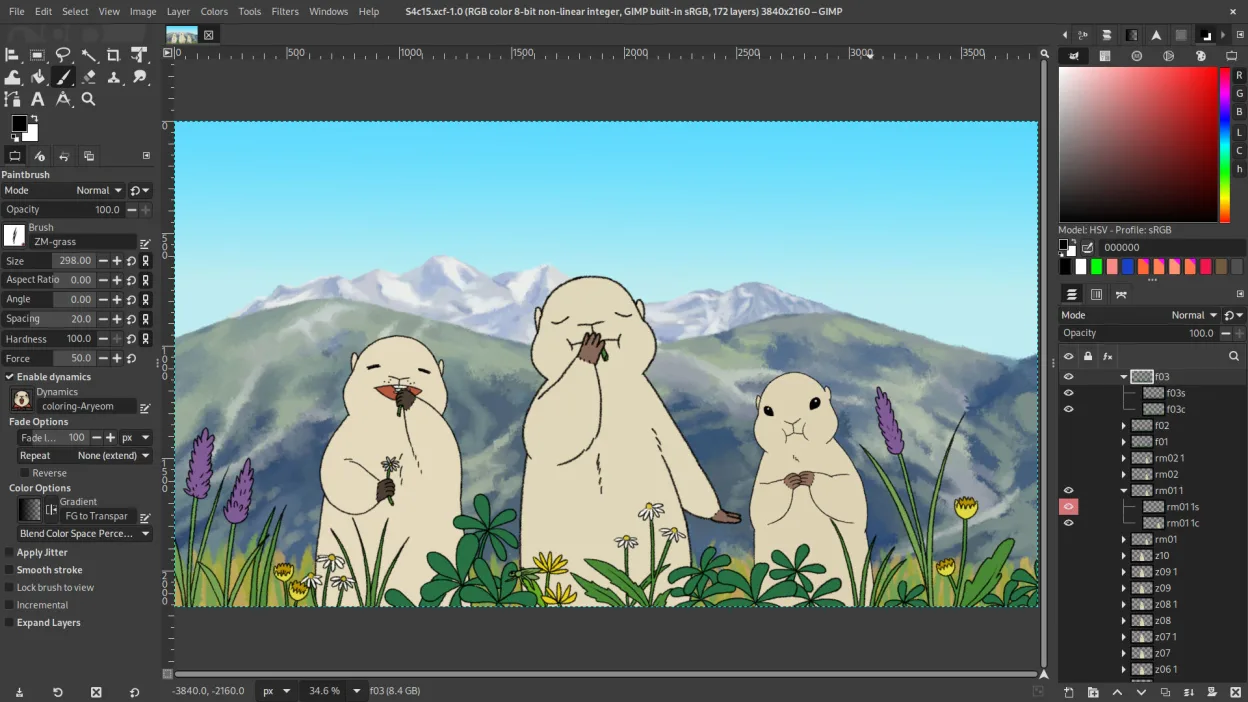
GIMP is a capable replacement for Adobe Creative Cloud if your primary need is raster image editing, such as photo retouching, digital painting, or basic compositing. It handles many Photoshop-like tasks and supports scripting, layers, masks, and PSD files. However, it does not replace the full Creative Cloud suite—you’ll need additional Linux apps for vector graphics, video editing, or page layout. It’s best suited for photographers, illustrators, or hobbyists who rely heavily on Photoshop but can work around missing features or use complementary tools.
- Licença
- GPL-3.0+ AND LGPL-3.0+
- Preço
- Grátis
- Versão mais recente
- 3.2.6 (10 de setembro de 2026)
- Avaliação
- —
O que funciona igual
- Layer-based editing with masks, blending modes, and transparency
- Support for PSD files and basic Photoshop plugin compatibility via G'MIC or others
- Advanced brush engine for digital painting and photo retouching
- Non-destructive editing possible using plug-ins like G'MIC
- Extensive format support including PNG, JPEG, TIFF, WebP, and PSD
O que muda
- No native vector graphics editing—use Inkscape instead
- No video editing capabilities—requires separate software like Kdenlive
- No built-in page layout or typography tools—Scribus is a partial alternative
- Interface is less polished and can feel dated compared to Adobe apps
- No cloud sync, font library, or centralized update manager like Creative Cloud
Abrindo seus arquivos do Creative Cloud (Adobe Desktop App)
GIMP can open and edit PSD files with reasonable fidelity, preserving layers, masks, and blending modes, though complex effects or smart objects may not translate perfectly. It exports to PSD as well, making collaboration with Photoshop users feasible for basic to intermediate workflows. Other formats like PNG, JPEG, TIFF, and WebP are fully supported. While it doesn’t handle AI (Illustrator) or INDD (InDesign) files, conversion tools or companion apps are needed for those.
Trocando o Creative Cloud (Adobe Desktop App) pelo GIMP, passo a passo
- Install GIMP from your distro’s repository or Flathub
- Install G'MIC and Resynthesizer plug-ins for enhanced filtering and healing tools
- Import custom brushes and color profiles from your existing setup
- Use Scribus for page layout, Inkscape for vector work, and Kdenlive for video
- Test PSD round-tripping between GIMP and any collaborators using Photoshop
Principais recursos do GIMP
- Edição baseada em camadas com máscaras, modos de mesclagem e transparência
- Motor avançado de pincéis para pintura digital e retoque
- Suporte a plug‑ins compatíveis com Photoshop (via camadas de compatibilidade)
- Processamento em lote e scripting com Script-Fu, Python ou GEGL
- Edição não destrutiva possível via plug‑ins como G'MIC
- Suporte extensivo a formatos: PNG, JPEG, TIFF, PSD, WebP e mais
- Interface customizável com painéis ancoráveis e temas
- Gerenciamento de cores com suporte a perfis ICC
Como instalar o GIMP no Linux
flatpak install flathub org.gimp.GIMPsudo apt install gimpsudo apt install gimpsudo dnf install gimpsudo pacman -S gimpsudo zypper install gimpPerguntas frequentes
Can GIMP open Photoshop files?
Yes, GIMP can open most PSD files, preserving layers, masks, and basic blending modes. Complex features like smart objects or advanced typography may not import correctly.
Is GIMP good for photo editing?
Yes, especially for retouching, color correction, and compositing. With G'MIC and other plug-ins, it supports non-destructive editing and advanced filters.
What do I use instead of Illustrator or InDesign on Linux?
Use Inkscape for vector graphics and Scribus for page layout. Both are free and actively maintained, though they have steeper learning curves.
Outras 4 alternativas ao Creative Cloud (Adobe Desktop App)
 InkscapeInkscape é um editor de gráficos vetoriais livre e de código aberto que rivaliza com o Adobe Illustrator e o…Código abertoGrátisFlatpakInkscape vs Creative Cloud (Adobe Desktop App)
 KritaKrita é um programa de pintura digital e ilustração de código aberto com recursos completos.Código abertoGrátisFlatpakKrita vs Creative Cloud (Adobe Desktop App)
 darktabledarktable é um editor de fotos gratuito e de código aberto que gerencia arquivos RAW e oferece um fluxo de…Código abertoGrátisFlatpakdarktable vs Creative Cloud (Adobe Desktop App)
 ScribusScribus é um programa gratuito e de código aberto para editoração eletrônica com layout de páginas…Código abertoGrátisFlatpakScribus vs Creative Cloud (Adobe Desktop App)