
 GIMPLinux
vs
Microsoft PaintWindows
GIMPLinux
vs
Microsoft PaintWindows
GIMP como alternativa Linux ao Microsoft Paint
Atualizado em
Nossa avaliação
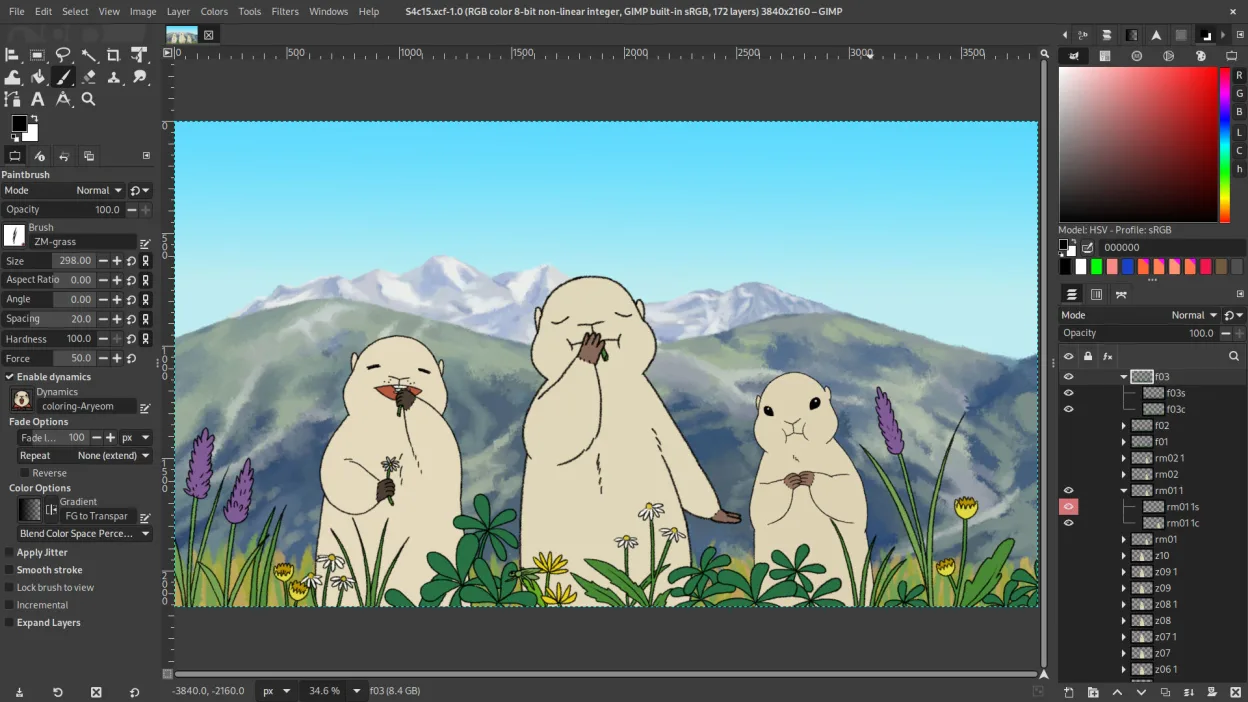
GIMP is a capable replacement for Microsoft Paint, but it's significantly more complex. If you only need basic drawing or cropping, GIMP will do it — and much more — but its interface and features are aimed at advanced users. For casual users who open Paint to make quick edits, screenshots, or simple drawings, GIMP may feel overwhelming. However, for those willing to learn or who need advanced tools, GIMP offers a powerful, free alternative that far exceeds Paint’s capabilities.
- Licença
- GPL-3.0+ AND LGPL-3.0+
- Preço
- Grátis
- Versão mais recente
- 3.2.6 (10 de setembro de 2026)
- Avaliação
- —
O que funciona igual
- Both can create and edit raster images from scratch
- Support for basic painting tools like brush, pencil, eraser, and shape tools
- Ability to crop, resize, and rotate images
- Native support for common formats like PNG and JPEG
- Free and available on multiple platforms
O que muda
- GIMP has a steep learning curve compared to Paint’s simplicity
- Paint has no layer support; GIMP offers full layer and mask editing
- GIMP lacks a true 'simple mode' — interface is always advanced
- Paint allows quick, single-action edits; GIMP requires more steps for basic tasks
- GIMP does not include a built-in 'doodle over desktop' feature like Paint in Windows 11
Abrindo seus arquivos do Microsoft Paint
GIMP can open and edit Microsoft Paint’s default .BMP files without issue, and it supports saving to .PNG and .JPEG, which are also commonly used in Paint. While Paint doesn’t use layers or advanced features, GIMP handles flat images correctly. You can export from GIMP to formats that Paint can open, ensuring backward compatibility. However, if a .BMP file uses an unusual color mode (like indexed with a custom palette), minor rendering differences may occur, but these are rare.
Trocando o Microsoft Paint pelo GIMP, passo a passo
- Install GIMP via your package manager (e.g., sudo apt install gimp)
- Open a BMP or PNG file to test basic editing
- Use the Toolbox to try brush, shape, and text tools
- Explore Layers panel to understand non-destructive editing
- Export to PNG or JPEG for sharing with others using basic editors
Principais recursos do GIMP
- Edição baseada em camadas com máscaras, modos de mesclagem e transparência
- Motor avançado de pincéis para pintura digital e retoque
- Suporte a plug‑ins compatíveis com Photoshop (via camadas de compatibilidade)
- Processamento em lote e scripting com Script-Fu, Python ou GEGL
- Edição não destrutiva possível via plug‑ins como G'MIC
- Suporte extensivo a formatos: PNG, JPEG, TIFF, PSD, WebP e mais
- Interface customizável com painéis ancoráveis e temas
- Gerenciamento de cores com suporte a perfis ICC
Como instalar o GIMP no Linux
flatpak install flathub org.gimp.GIMPsudo apt install gimpsudo apt install gimpsudo dnf install gimpsudo pacman -S gimpsudo zypper install gimpPerguntas frequentes
Can I use GIMP just like Microsoft Paint for quick drawings?
Yes, but it’s like using a full toolbox for a single screw. You can draw and save simply, but you’ll see advanced panels by default. Stick to the brush and save as PNG to keep it simple.
Is GIMP safe and free from malware?
Yes, especially when installed from your distribution’s official repositories or Flathub. Avoid third-party download sites, which may bundle unwanted software.
Why does GIMP look so different from Paint?
GIMP is designed for detailed image work, not just quick sketches. Its multi-window layout and layer system reflect that. You can dock panels and customize the workspace, but it won’t mimic Paint’s single-window simplicity.
Outras 5 alternativas ao Microsoft Paint
 PintaPinta é um editor de bitmap gratuito e de código aberto que imita o Paint.NET com uma interface simples e…Código abertoGrátisFlatpakPinta vs Microsoft Paint
 KritaKrita é um programa de pintura digital e ilustração de código aberto com recursos completos.Código abertoGrátisFlatpakKrita vs Microsoft Paint
 DrawpileDrawpile is a collaborative drawing application that lets multiple users paint together on the same canvas in…Código abertoGrátisFlatpakDrawpile vs Microsoft Paint
 MyPaintMyPaint é um programa rápido, gratuito e de código aberto para pintura raster, focado na dinâmica dos pincéis…Código abertoGrátisFlatpakMyPaint vs Microsoft PaintmtPaintmtPaint is a lightweight raster graphics editor for painting and photo editing, originally inspired by…Código abertoGrátismtPaint vs Microsoft Paint