
 GNOME System MonitorLinux
vs
Task ManagerWindows
GNOME System Monitor como alternativa Linux ao Task Manager
Atualizado em
Nossa avaliação
GNOME System Monitor is a solid, native replacement for basic Task Manager tasks. It handles process listing, resource monitoring, and killing unresponsive apps effectively. However, it lacks dedicated tabs for GPU utilization, startup management, and service control, which are standard in Windows. For users who only need to check CPU, memory, and terminate processes, it is sufficient. Power users needing detailed GPU stats or service management will find it limiting and may need to supplement it with other tools like htop or systemctl.
- Licença
- GPL-2.0
- Preço
- Grátis
- Versão mais recente
- 51.1
- Avaliação
- 5/5 (1)
O que funciona igual
- Lists running processes with real-time CPU and memory usage
- Allows terminating or killing unresponsive processes
- Displays system-wide resource load and uptime
- Provides a graphical interface for monitoring system health
O que muda
- No dedicated GPU utilization tracking tab
- Lacks built-in management for startup applications
- Does not provide a direct interface for managing system services
- Limited ability to set process priorities or CPU affinity compared to Windows
Abrindo seus arquivos do Task Manager
Task Manager does not generate exportable files in the traditional sense, so there is no direct file compatibility to worry about. GNOME System Monitor is a live monitoring tool, not a data archive. If you have saved logs from Windows Performance Monitor, they are not directly readable by System Monitor, but you can use command-line tools to view similar live data.
Trocando o Task Manager pelo GNOME System Monitor, passo a passo
- Install GNOME System Monitor if not pre-installed using your distribution's package manager
- Open the application from your application menu
- Use the 'Processes' tab to view and sort running applications
- Select a process and click 'End Process' to terminate unresponsive apps
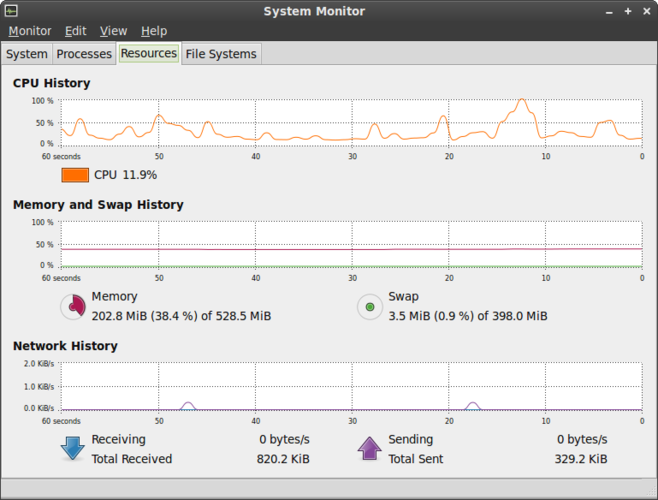
- Check the 'Resources' tab for overall CPU and memory usage graphs
Principais recursos do GNOME System Monitor
- Listar todos os processos em execução com uso de CPU e memória
- Ordenar processos por nome, PID, usuário ou consumo de recursos
- Visualizar informações detalhadas sobre um processo específico
- Encerrar ou matar processos em execução
- Monitorar a carga total de CPU e memória do sistema
- Exibir o tempo de atividade do sistema e a média de carga
- Mostrar uma visão geral da atividade de rede
- Integrar com o ambiente de desktop GNOME
Como instalar o GNOME System Monitor no Linux
sudo apt install gnome-system-monitorsudo apt install gnome-system-monitorsudo dnf install gnome-system-monitorsudo pacman -S gnome-system-monitorsudo zypper install gnome-system-monitorPerguntas frequentes
Can I see GPU usage in GNOME System Monitor?
No, GNOME System Monitor does not have a dedicated GPU tab. You may need to use a separate utility or command-line tools for detailed GPU tracking.
How do I manage startup applications?
GNOME System Monitor does not manage startup apps. Use the GNOME Settings application or the autostart directory to manage programs that run at login.
Can I change process priorities?
The interface does not offer a simple dropdown to change priorities like Windows. You would typically use command-line tools like renice for this task.