
 PidginLinux
vs
PidginLinux
vs
 Google Talk (GTalk)Windows
Pidgin como alternativa Linux ao Google Talk (GTalk)
Atualizado em
Nossa avaliação
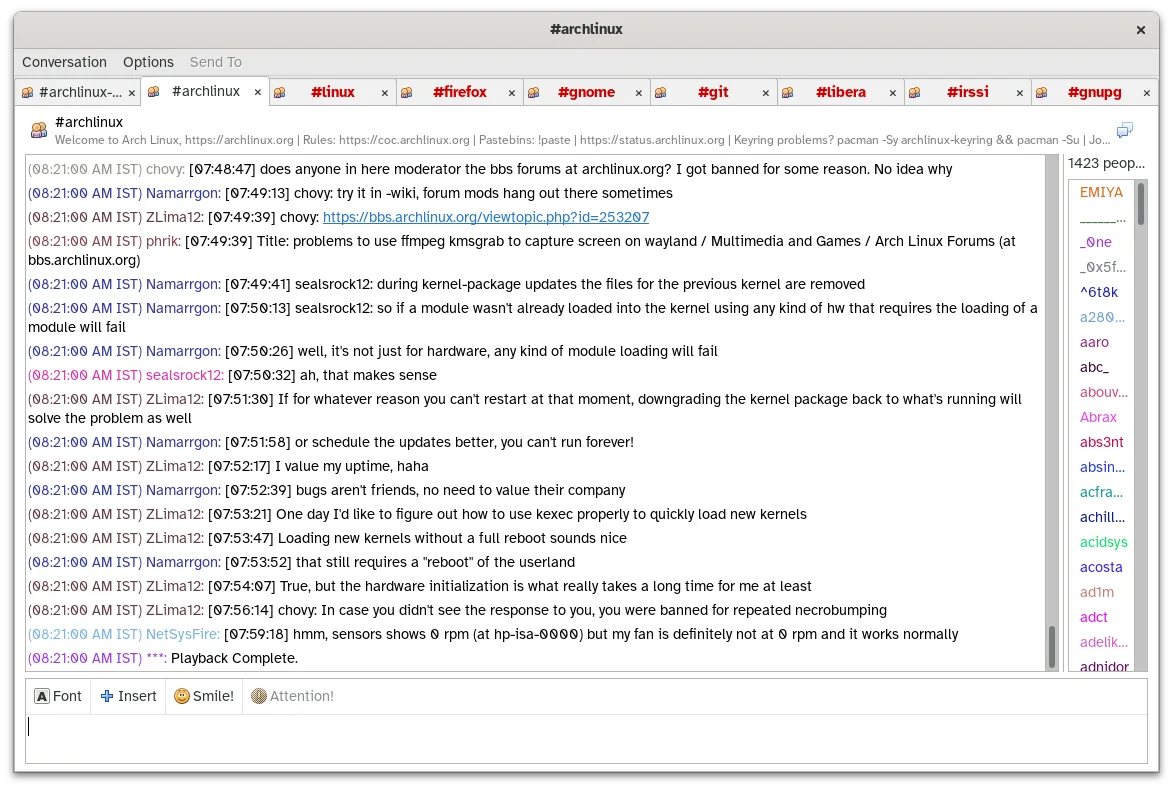
Pidgin is a solid replacement for Google Talk for users who need basic XMPP chat, presence, and occasional file transfers. It works well on Linux, supports multiple accounts, and can handle the core GTalk features without the Google‑specific UI. It’s best for people comfortable with a generic client and who don’t rely on Google’s integrated voice calls or Hangouts‑style video. If you only used GTalk for text chat and simple file sharing, Pidgin will feel familiar; if you need tight integration with other Google services, you’ll miss some convenience.
- Licença
- GPL-2.0
- Preço
- Grátis
- Versão mais recente
- 2.14.14 (23 de janeiro de 2025)
- Avaliação
- —
O que funciona igual
- XMPP (Jabber) text messaging
- Presence/status updates
- Contact list (buddy) management
- File transfer for supported protocols
- Group chat via XMPP
O que muda
- No built‑in Google Voice/VoIP integration; requires XMPP Jingle support or external plugins
- No direct Hangouts or Google Meet replacement
- Limited support for Google-specific features like chat history sync across devices
- No official Google account sign‑in UI; you must configure XMPP manually
- Voice call quality depends on server and plugin support
Abrindo seus arquivos do Google Talk (GTalk)
Google Talk stored chat logs in a proprietary XML format that is not directly readable by Pidgin. There is no official exporter, so you would need to locate the old GTalk log files and manually convert them, for example by using a script to transform the XML into Pidgin’s plain‑text log format. If you have no logs, this step can be skipped.
Trocando o Google Talk (GTalk) pelo Pidgin, passo a passo
- Install Pidgin from your distribution’s repository or via Flathub.
- Add a new account in Pidgin, select XMPP/Jabber, and enter your full Google email address and password (or app‑specific password if 2FA is enabled).
- Enable the "Google Talk" plugin if offered, or ensure the libpurple XMPP plugin is active.
- Import any existing chat logs manually if you have them, placing them in ~/.purple/logs.
- Test sending a message and, if needed, install the "Jingle" plugin for voice calls.
- Configure buddy groups and preferences to match your old GTalk setup.
Principais recursos do Pidgin
- Suporte a mais de 30 protocolos de chat via libpurple
- Login simultâneo em múltiplas contas
- Sistema de plugins para extensões (ex.: criptografia OTR, verificação ortográfica)
- Agrupamento de amigos e mensagens de status
- Transferência de arquivos para protocolos suportados
- Temas e emoticons personalizáveis
- Registro de chats em arquivos locais
- Versão portátil via Flatpak
Como instalar o Pidgin no Linux
flatpak install flathub im.pidgin.Pidginsudo apt install pidginsudo apt install pidginsudo dnf install pidginsudo zypper install pidginPerguntas frequentes
Can Pidgin make voice calls to Google Talk contacts?
Only if the XMPP server supports Jingle and you have the appropriate plugin; otherwise voice calls are not available.
Do I need a Google account to use Pidgin?
Yes, you still log in with your Google email, but you must use the XMPP settings manually; there is no single‑click Google sign‑in.
Will my contact list sync automatically?
Pidgin pulls the roster from the XMPP server, so contacts appear, but any Google‑specific groups or labels are not transferred.
Outras 4 alternativas ao Google Talk (GTalk)
 PsiPsi é um cliente de mensagens instantâneas XMPP/Jabber leve e compatível com padrões, feito para Linux.Código abertoGrátisPsi vs Google Talk (GTalk)
 CoccinellaCoccinella é um cliente de mensagens instantâneas XMPP/Jabber de código aberto com um quadro branco integrado.Código abertoGrátisDescontinuadoCoccinella vs Google Talk (GTalk)
 KopeteKopete é um cliente de mensagens instantâneas multi-protocolo descontinuado, projetado para o ambiente de…Código abertoGrátisDescontinuadoKopete vs Google Talk (GTalk)
 EmpathyEmpathy era o cliente IM e VoIP padrão do GNOME, suportando múltiplos protocolos.Código abertoGrátisDescontinuadoEmpathy vs Google Talk (GTalk)