
 digiKamLinux
vs
Windows Photo GalleryWindows
digiKamLinux
vs
Windows Photo GalleryWindows
digiKam als Linux-Alternative zu Windows Photo Gallery
Aktualisiert am
Unser Fazit
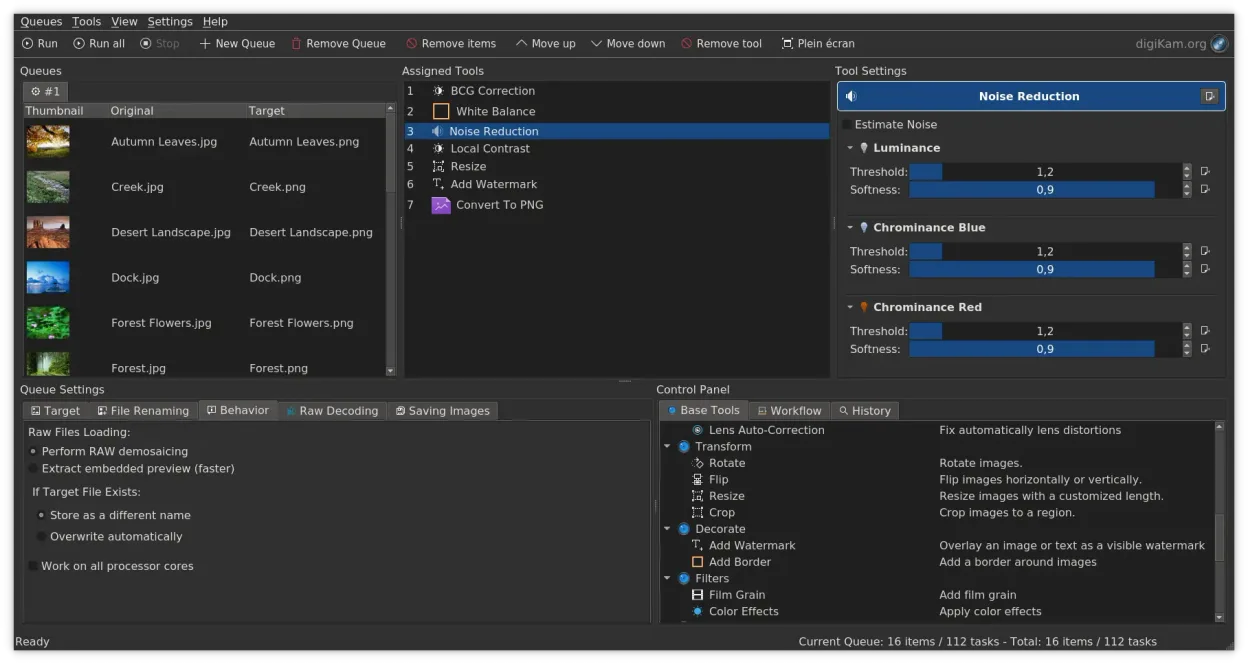
digiKam is a strong replacement for Windows Photo Gallery, especially for users who want more control over photo organization and editing. It covers all core needs: viewing by date, folder, or tags; rating and labeling; basic editing; and RAW support. The interface is more complex than Windows Photo Gallery, so casual users may need time to adjust. But for anyone serious about managing large photo libraries, digiKam offers powerful tools that go well beyond the basic features of the discontinued Microsoft app.
- Lizenz
- GPL-2.0+
- Preis
- Kostenlos
- Aktuelle Version
- 9.1.0 (7. Juni 2026)
- Bewertung
- —
Was gleich funktioniert
- Both allow viewing photos by date, folder, and tags
- Support for JPEG, PNG, and RAW formats
- Basic editing tools like crop and red-eye removal
- Full-screen slideshow functionality
- Metadata and keyword tagging
Was anders ist
- digiKam has a steeper learning curve and denser interface
- No direct import of Windows Photo Gallery database files
- Advanced search by EXIF, IPTC, XMP not present in Windows Photo Gallery
- digiKam supports non-destructive editing; Windows Photo Gallery did not
- digiKam includes video cataloging, which Windows Photo Gallery lacked
Ihre Windows Photo Gallery-Dateien öffnen
digiKam reads JPEG, PNG, and RAW files directly, so photos originally managed by Windows Photo Gallery will open without issue. It does not import the Windows Photo Gallery database (.wdp files), so ratings and tags created there won't transfer automatically. However, if metadata was written to the image files (like EXIF or XMP sidecar files), digiKam can read and use that data. Most users start fresh with digiKam, re-tagging and organizing within the app.
Von Windows Photo Gallery zu digiKam wechseln – Schritt für Schritt
- Export your photos from Windows Photo Gallery to a folder structure on an external drive
- Install digiKam via your package manager or Flathub
- Set up a new digiKam library pointing to your photo folder
- Use digiKam's import tool to scan and index existing photos
- Reapply tags, ratings, and labels manually or via batch tools
- Enable metadata writing to files so future apps can read your edits
Wichtige Funktionen von digiKam
- Direkter Import von Kameras, SD-Karten und USB-Laufwerken mit konfigurierbaren Regeln
- Fortgeschrittenes Tagging, Bewertung und Label-System für komplexe Bibliotheksorganisation
- Leistungsstarker Such-Engine, die EXIF, IPTC und XMP-Metadatakriterien unterstützt
- Nicht-destruktive Bearbeitung mit Farbkorrekturen, Zuschneiden und Schärfen
- Native RAW-Unterstützung über LibRaw zum Dekodieren und Voransicht
- Videokatalogisierung und Metadatenerfassung mit FFmpeg-Backends
- Albumorganisation mit Drag-and-Drop-Oberfläche
- Plattformübergreifende Verfügbarkeit für Linux, Windows und macOS
digiKam unter Linux installieren
flatpak install flathub org.kde.digikamsudo apt install digikamsudo apt install digikamsudo dnf install digikamsudo pacman -S digikamsudo zypper install digikamHäufige Fragen
Can digiKam import my old Windows Photo Gallery library directly?
No, digiKam cannot read Windows Photo Gallery database files (.wdp). You must export your photos to a folder and import them into digiKam as files.
Does digiKam support RAW files like Windows Photo Gallery did?
Yes, digiKam supports RAW files through LibRaw, often with better quality and more camera models than Windows Photo Gallery ever supported.
Is digiKam suitable for someone who just wants to view and organize family photos?
Yes, but expect a learning curve. Once set up, digiKam is excellent for long-term organization with tags, dates, and ratings.
2 weitere Alternativen zu Windows Photo Gallery
 gThumb Image ViewergThumb is a GNOME‑integrated image viewer, editor and organizer for Linux.Open SourceKostenlosFlatpakgThumb Image Viewer vs. Windows Photo Gallery
 ShotwellShotwell ist ein GNOME-Fotoverwaltungstool zum Importieren, Organisieren und leichten Bearbeiten von Bildern.Open SourceKostenlosFlatpakShotwell vs. Windows Photo Gallery