
 TigerVNC ViewerLinux
vs
UltraVNCWindows
TigerVNC ViewerLinux
vs
UltraVNCWindows
TigerVNC Viewer als Linux-Alternative zu UltraVNC
Aktualisiert am
Unser Fazit
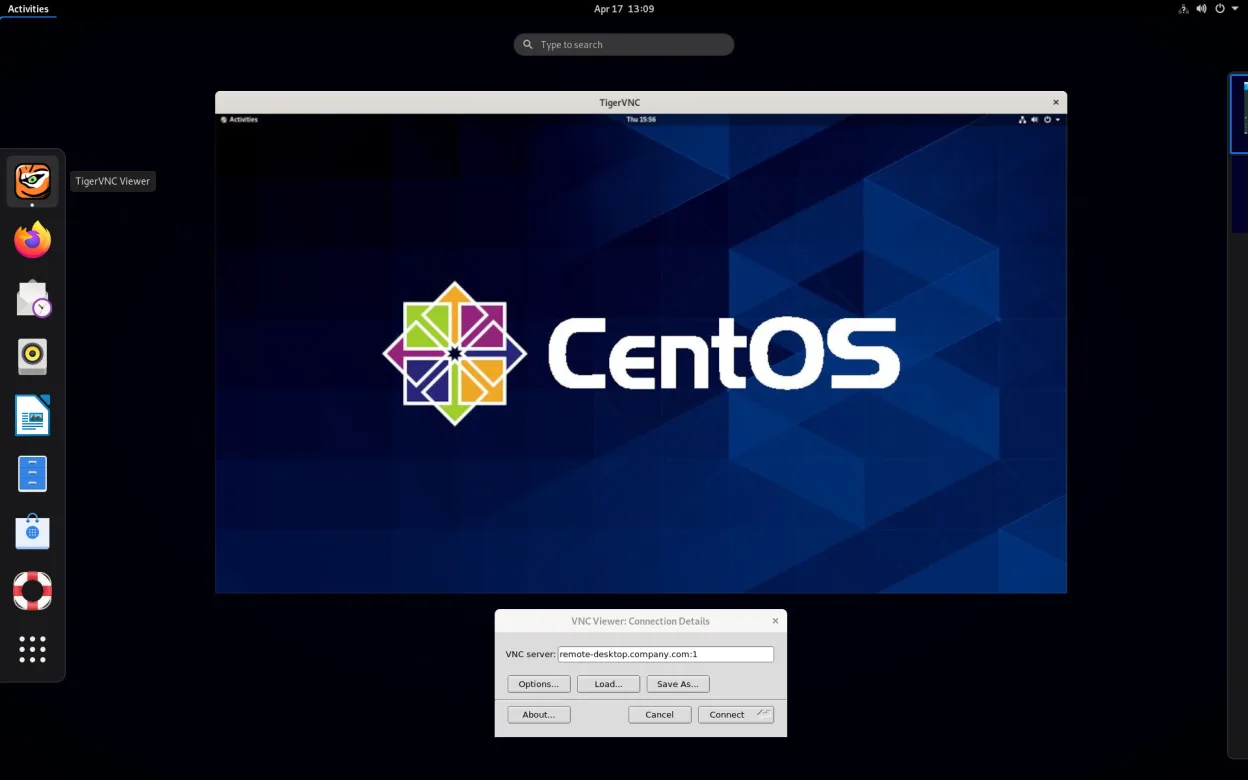
TigerVNC Viewer is a solid replacement for UltraVNC on Linux. It handles the core tasks UltraVNC users need: connecting to VNC servers, encrypting sessions via TLS, sharing the clipboard, and supporting multiple monitors with scaling options. It also runs as a daemon and offers a command‑line interface for scripting, which is useful for occasional remote support. Users who rely on UltraVNC’s file‑transfer feature will need an additional tool, but otherwise TigerVNC covers the majority of use cases.
Funktionsabdeckung
- Lizenz
- GPL-2.0-or-later
- Preis
- Kostenlos
- Aktuelle Version
- 1.14.0 (24. Juli 2024)
- Bewertung
- —
Was gleich funktioniert
- Both clients connect to VNC servers and support multiple monitors
- Both provide TLS encryption for secure sessions
- Both allow clipboard sharing between local and remote machines
- Both support configurable scaling and color depth
Was anders ist
- TigerVNC lacks a built‑in file‑transfer protocol; UltraVNC includes a dedicated file‑transfer feature
- UltraVNC can run as a Windows service; TigerVNC runs as a Linux daemon but requires separate configuration
- UltraVNC is Windows‑only; TigerVNC is cross‑platform but the Linux version is native
- UltraVNC uses its own proprietary extensions for certain features; TigerVNC follows standard VNC/TightVNC specifications
Ihre UltraVNC-Dateien öffnen
UltraVNC does not use any special configuration files that TigerVNC can import; connection details must be entered manually or via a generic VNC URI. No export or import of UltraVNC‑specific settings is available.
Von UltraVNC zu TigerVNC Viewer wechseln – Schritt für Schritt
- Install TigerVNC Viewer from your distribution’s package manager (e.g., apt install tigervnc-viewer).
- Open the application and enter the VNC server address (hostname or IP).
- If you used UltraVNC’s encryption, enable TLS in TigerVNC’s connection settings.
- Test the connection, adjust scaling or monitor settings as needed.
- If you need file transfer, install a separate tool such as WinSCP or use the VNC file‑transfer extension if available.
Wichtige Funktionen von TigerVNC Viewer
- Unterstützt Tight‑Kodierung, beschleunigt durch libjpeg‑turbo
- TLS‑Verschlüsselung für sichere Sitzungen
- Zwischenablage‑Freigabe zwischen lokal und remote
- Mehrmonitor‑Unterstützung
- Konfigurierbare Skalierung und Farbtiefe
- Tastaturlayout‑Übersetzung
- Cross‑platform‑Client (Linux, Windows, macOS)
- Befehlszeilenoptionen für Skripting
TigerVNC Viewer unter Linux installieren
Flatpak (Flathub)
flatpak install flathub org.tigervnc.vncviewerUbuntu / Mint
sudo apt install tigervncDebian
sudo apt install tigervncFedora
sudo dnf install tigervncArch / Manjaro
sudo pacman -S tigervncopenSUSE
sudo zypper install tigervnc4 weitere Alternativen zu UltraVNC
 RemminaRemmina ist ein Linux-Remote-Desktop-Client, der RDP, VNC, SSH und X2Go unterstützt, um von GTK-basierten…Open SourceKostenlosFlatpakRemmina vs. UltraVNC
 KRDCKRDC ist ein KDE-Remote-Desktop-Client, der sich über RDP oder VNC mit Windows- oder Linux-Computern…Open SourceKostenlosFlatpakKRDC vs. UltraVNCx11vncEin VNC-Server für X11, der es Ihnen ermöglicht, Ihren Linux-Desktop aus jedem VNC-Client heraus…Open SourceKostenlosx11vnc vs. UltraVNC
 VinagreVinagre ist ein GNOME‑Remote‑Desktop‑Betrachter für VNC, RDP, SSH und SPICE, der jetzt eingestellt wurde.Open SourceKostenlosEingestelltVinagre vs. UltraVNC
TigerVNC Viewer bewerten
Als Erste(r) bewerten
Guter Ersatz für UltraVNC?
10