
 VLC media playerLinux
vs
Windows Media PlayerWindows
VLC media playerLinux
vs
Windows Media PlayerWindows
VLC media player als Linux-Alternative zu Windows Media Player
Aktualisiert am
Unser Fazit
VLC is an excellent replacement for Windows Media Player for most Linux users. It plays MP3, MP4, AVI, MKV, FLAC, and WMV files without extra codecs, which Windows Media Player needs on some systems. The interface is straightforward, and basic controls are easy to access. It’s lightweight enough for daily use and runs natively on Linux. Users who only need local playback with occasional subtitle or streaming use will find VLC more capable than Windows Media Player. It’s ideal for those who want one app that just works across formats without fuss.
- Lizenz
- GPL-2.0+
- Preis
- Kostenlos
- Aktuelle Version
- 3.0.23 (1. Januar 2026)
- Bewertung
- —
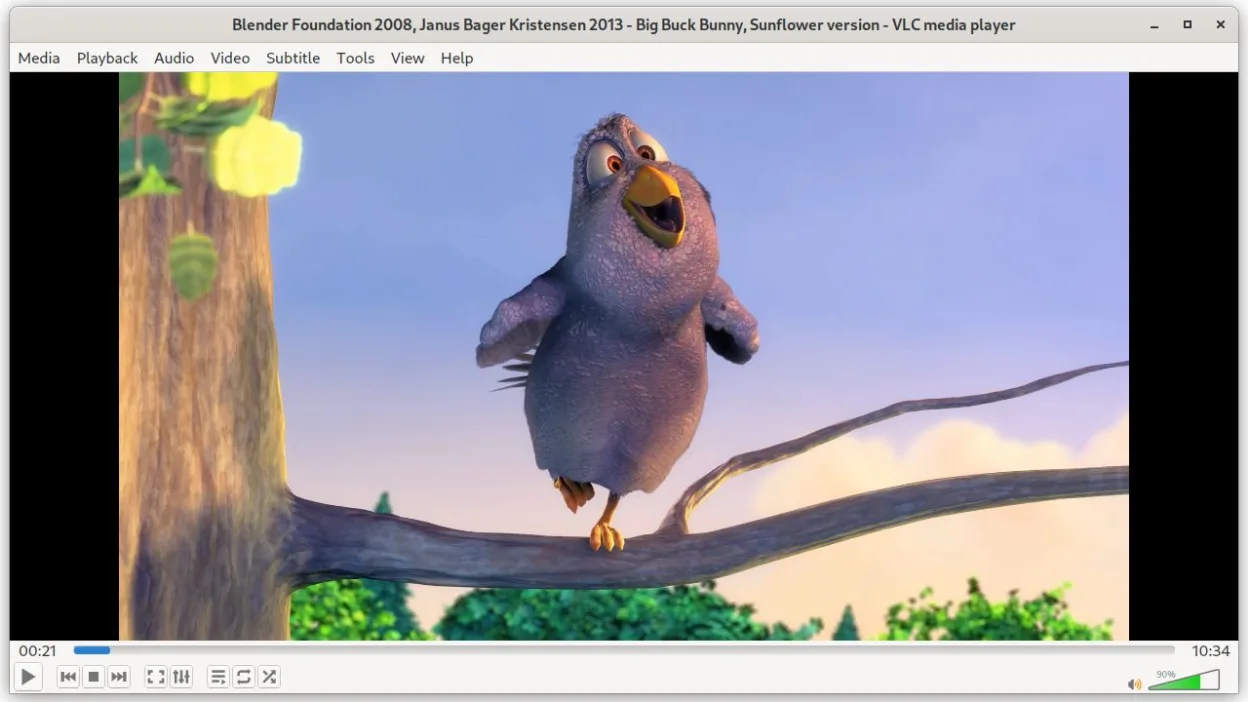
Was gleich funktioniert
- Plays common formats like MP3, MP4, AVI, and MKV out of the box
- Provides basic playback controls: play, pause, stop, seek
- Supports local file playback from disk
- Has a simple, built-in interface suitable for casual use
- Handles playlist creation and management
Was anders ist
- VLC supports far more formats and codecs than Windows Media Player by default
- Includes advanced features like streaming, transcoding, and network playback not found in Windows Media Player
- Lacks tight integration with a Windows-like media library or metadata indexer
- Does not natively organize large music collections like Windows Media Player's library view
- Interface is functional but less polished for absolute beginners
Ihre Windows Media Player-Dateien öffnen
VLC opens all common files that Windows Media Player handles—MP3, MP4, AVI, MKV, FLAC, and WMV—without additional setup. It also supports less common or partially corrupted files that Windows Media Player often rejects. You can directly open these files from file managers or command line. VLC doesn’t rely on system codecs, so compatibility is consistent across Linux distributions. Exporting or converting files is possible through VLC’s 'Convert' or 'Stream' functions, though batch processing requires manual work.
Von Windows Media Player zu VLC media player wechseln – Schritt für Schritt
- Install VLC via your distribution’s package manager or Flathub
- Copy media files from Windows system to Linux home directory
- Open VLC and drag files into the window or use 'Open File'
- Use the playlist panel to manage multiple items
- Enable subtitle support in Preferences if needed
Wichtige Funktionen von VLC media player
- Spielt die meisten Audio‑ und Videoformate sofort ab
- Unterstützt DVDs, Audio‑CDs, VCDs und Netzwerkstreams
- Integrierte Untertitelunterstützung mit Synchronisation
- Medienkonvertierung und grundlegende Bearbeitung
- Streaming‑Server‑Funktionen
- Erweiterbar über Plugins und Skins
- Kommandozeilen‑Interface für Skripte
VLC media player unter Linux installieren
flatpak install flathub org.videolan.VLCHäufige Fragen
Can VLC play WMV files?
Yes, VLC plays WMV files without extra codecs. It handles all common Windows Media formats directly.
Does VLC support playlists?
Yes, VLC supports M3U and other common playlist formats and lets you save playback lists directly.
Is VLC safe and open source?
Yes, VLC is released under the GPL-2.0+ license, developed by VideoLAN, and audited regularly for security.
6 weitere Alternativen zu Windows Media Player
 mpvmpv ist ein kostenloser, quelloffener, plattformübergreifender Mediaplayer, der nahezu jedes Video- oder…Open SourceKostenlosFlatpakmpv vs. Windows Media Player
 CelluloidCelluloid ist ein leichter Mediaplayer für Linux, der die mpv‑Engine und GTK für eine saubere GNOME‑ähnliche…Open SourceKostenlosFlatpakCelluloid vs. Windows Media Player
 Clementine Music PlayerClementine ist ein plattformübergreifender Musik‑Player, der lokale Dateien, Internetradio abspielt und…Open SourceKostenlosFlatpakClementine Music Player vs. Windows Media Player
 AudaciousEin schlanker, Winamp-ähnlicher Audioplayer für Linux, der Plugins, Skins und zahlreiche Audioformate…Open SourceKostenlosFlatpakAudacious vs. Windows Media PlayerParoleParole ist ein leichtgewichtiger, einfacher Mediaplayer für Audio- und Videodateien, der für grundlegende…Open SourceKostenlosParole vs. Windows Media Player
 BansheeBanshee ist ein veralteter GNOME-Mediaplayer und Bibliotheksmanager, der auf Mono und GStreamer basiert.Open SourceKostenlosEingestelltBanshee vs. Windows Media Player