
 VLC media playerLinux
vs
Windows Media PlayerWindows
VLC media playerLinux
vs
Windows Media PlayerWindows
VLC media player as a Linux alternative to Windows Media Player
Updated
Our verdict
VLC is an excellent replacement for Windows Media Player for most Linux users. It plays MP3, MP4, AVI, MKV, FLAC, and WMV files without extra codecs, which Windows Media Player needs on some systems. The interface is straightforward, and basic controls are easy to access. It’s lightweight enough for daily use and runs natively on Linux. Users who only need local playback with occasional subtitle or streaming use will find VLC more capable than Windows Media Player. It’s ideal for those who want one app that just works across formats without fuss.
- License
- GPL-2.0+
- Price
- Free
- Latest version
- 3.0.23 (January 1, 2026)
- Rating
- —
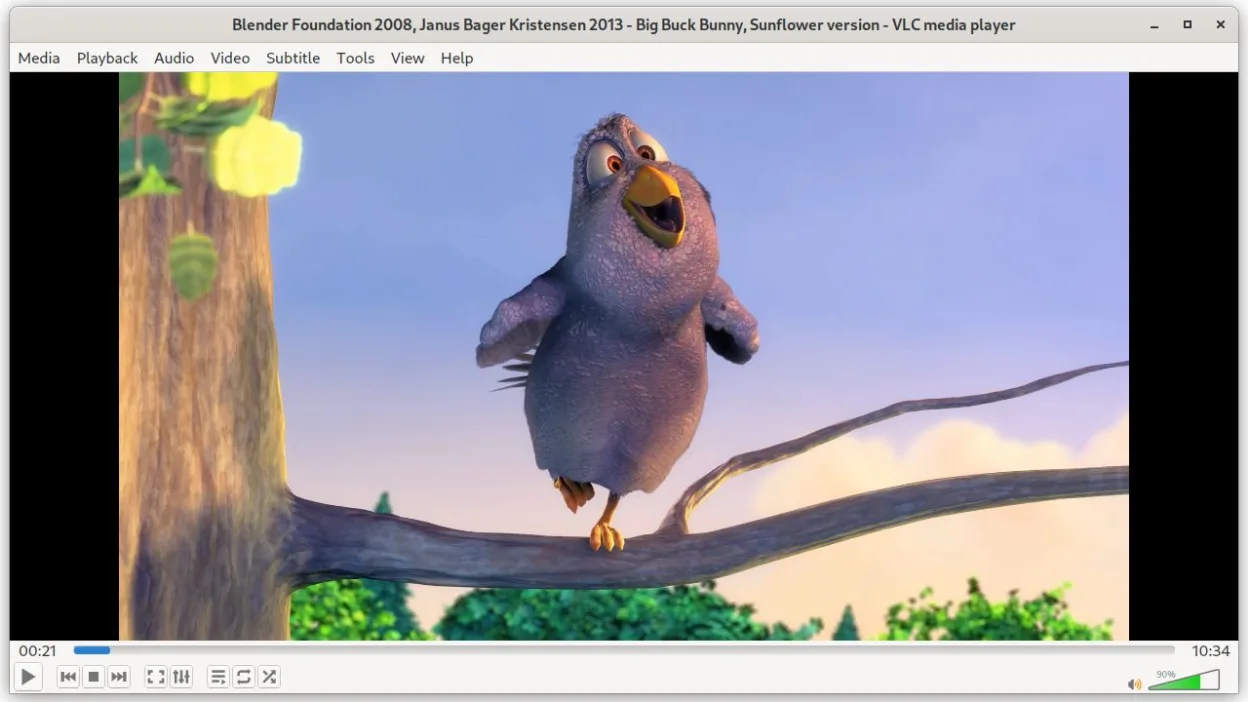
What works the same
- Plays common formats like MP3, MP4, AVI, and MKV out of the box
- Provides basic playback controls: play, pause, stop, seek
- Supports local file playback from disk
- Has a simple, built-in interface suitable for casual use
- Handles playlist creation and management
What is different
- VLC supports far more formats and codecs than Windows Media Player by default
- Includes advanced features like streaming, transcoding, and network playback not found in Windows Media Player
- Lacks tight integration with a Windows-like media library or metadata indexer
- Does not natively organize large music collections like Windows Media Player's library view
- Interface is functional but less polished for absolute beginners
Opening your Windows Media Player files
VLC opens all common files that Windows Media Player handles—MP3, MP4, AVI, MKV, FLAC, and WMV—without additional setup. It also supports less common or partially corrupted files that Windows Media Player often rejects. You can directly open these files from file managers or command line. VLC doesn’t rely on system codecs, so compatibility is consistent across Linux distributions. Exporting or converting files is possible through VLC’s 'Convert' or 'Stream' functions, though batch processing requires manual work.
Switching from Windows Media Player to VLC media player, step by step
- Install VLC via your distribution’s package manager or Flathub
- Copy media files from Windows system to Linux home directory
- Open VLC and drag files into the window or use 'Open File'
- Use the playlist panel to manage multiple items
- Enable subtitle support in Preferences if needed
Key features of VLC media player
- Plays most audio and video formats out of the box
- Supports DVDs, Audio CDs, VCDs and network streams
- Built‑in subtitle support with synchronization
- Media conversion and basic editing
- Streaming server capabilities
- Extensible via plugins and skins
- Command‑line interface for scripting
How to install VLC media player on Linux
flatpak install flathub org.videolan.VLCFrequently asked questions
Can VLC play WMV files?
Yes, VLC plays WMV files without extra codecs. It handles all common Windows Media formats directly.
Does VLC support playlists?
Yes, VLC supports M3U and other common playlist formats and lets you save playback lists directly.
Is VLC safe and open source?
Yes, VLC is released under the GPL-2.0+ license, developed by VideoLAN, and audited regularly for security.
6 other alternatives to Windows Media Player
 mpvmpv is a free, open‑source, cross‑platform media player that plays almost any video or audio format.Open sourceFreeFlatpakmpv vs Windows Media Player
 CelluloidCelluloid is a lightweight media player for Linux that uses the mpv engine and GTK for a clean GNOME‑style…Open sourceFreeFlatpakCelluloid vs Windows Media Player
 Clementine Music PlayerClementine is a cross‑platform music player that plays local files, internet radio, and supports cloud…Open sourceFreeFlatpakClementine Music Player vs Windows Media Player
 AudaciousA lightweight, Winamp-style audio player for Linux that supports plugins, skins, and extensive audio formats.Open sourceFreeFlatpakAudacious vs Windows Media PlayerParoleParole is a lightweight, simple media player for audio and video files, designed for basic playback needs on…Open sourceFreeParole vs Windows Media Player
 BansheeBanshee is a discontinued GNOME media player and library manager built on Mono and GStreamer.Open sourceFreeDiscontinuedBanshee vs Windows Media Player