
 digiKamLinux
vs
Lightroom CCWindows
digiKamLinux
vs
Lightroom CCWindows
digiKam, alternative Linux à Lightroom CC
Mis à jour le
Notre avis
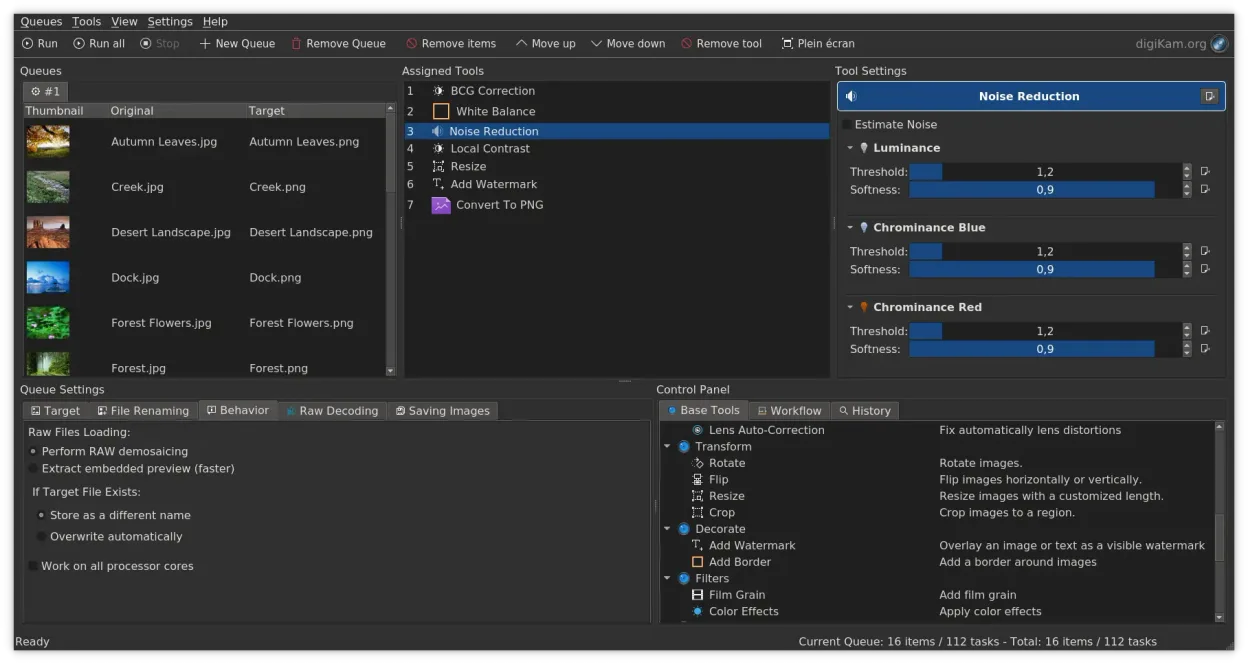
digiKam can replace Lightroom CC for photographers who want a free, open‑source solution that handles RAW development, non‑destructive editing, and large libraries. It offers robust tagging, metadata editing, and batch export, but lacks the cloud sync, mobile app, and advanced color grading presets that Lightroom CC provides. Users who prefer a desktop‑centric workflow and are comfortable with KDE will find digiKam a solid alternative.
- Licence
- GPL-2.0+
- Prix
- Gratuit
- Dernière version
- 9.1.0 (7 juin 2026)
- Note
- —
Ce qui fonctionne pareil
- Both support RAW file development with non‑destructive editing
- Both provide extensive metadata tagging and search capabilities
- Both allow batch processing and exporting to common formats
- Both organize photos into albums or collections
Ce qui change
- digiKam does not offer cloud sync or mobile app integration
- Lightroom CC has advanced color grading presets and HDR merging tools absent in digiKam
- digiKam’s color grading is basic compared to Lightroom’s curves and HSL panels
- Lightroom CC provides a subscription model with Adobe Creative Cloud services
- digiKam relies on local storage and does not have built‑in online backup options
Ouvrir vos fichiers Lightroom CC
digiKam cannot open Lightroom CC catalog files (.lrcat). It can import RAW and JPEG files exported from Lightroom, but there is no direct import of Lightroom projects. Exporting from digiKam to common formats (JPEG, TIFF, RAW) is fully supported.
Passer de Lightroom CC à digiKam, étape par étape
- Export all Lightroom photos to a folder as JPEG/RAW with metadata intact
- Copy the exported folder to your Linux machine
- Launch digiKam and use the Import feature to add the folder, setting rules if desired
- Organize imported photos into albums and apply tags in digiKam
- Recreate any Lightroom presets manually or via digiKam's color adjustment tools
Fonctionnalités clés de digiKam
- Import direct depuis les appareils photo, cartes SD et clés USB avec des règles configurables
- Systèmes avancés d'étiquetage, de notation et de libellés pour une organisation complexe de la bibliothèque
- Moteur de recherche puissant prenant en charge les critères de métadonnées EXIF, IPTC et XMP
- Retouche non destructive avec ajustements de couleur, recadrage et netteté
- Prise en charge native des fichiers RAW via LibRaw pour le décodage et l'aperçu
- Catalogage vidéo et extraction de métadonnées à l'aide de backends FFmpeg
- Organisation des albums avec une interface glisser-déposer
- Disponibilité interplateformes pour Linux, Windows et macOS
Installer digiKam sous Linux
flatpak install flathub org.kde.digikamsudo apt install digikamsudo apt install digikamsudo dnf install digikamsudo pacman -S digikamsudo zypper install digikamQuestions fréquentes
Can I use Lightroom presets in digiKam?
No direct import, but you can manually recreate adjustments or use third‑party scripts to apply similar settings.
Does digiKam support video editing?
It can catalog and display video metadata, but it does not provide full video editing features.
Will digiKam handle large libraries the same way Lightroom does?
Yes, digiKam can manage millions of photos, but performance depends on hardware and database configuration.
4 autres alternatives à Lightroom CC
 darktabledarktable est un éditeur photo gratuit et open‑source qui gère les fichiers RAW et propose un flux de travail…Open sourceGratuitFlatpakdarktable ou Lightroom CC
 RawTherapeeRawTherapee est un programme de développement de photos raw open‑source et multiplateforme.Open sourceGratuitFlatpakRawTherapee ou Lightroom CC
 GIMPGIMP est un éditeur de graphiques raster gratuit et open source, conçu pour la retouche photo, la peinture…Open sourceGratuitFlatpakGIMP ou Lightroom CC
 KritaKrita est un programme de peinture numérique et d'illustration open‑source complet.Open sourceGratuitFlatpakKrita ou Lightroom CC