
 digiKamLinux
vs
Windows PhotosWindows
digiKamLinux
vs
Windows PhotosWindows
digiKam, alternative Linux à Windows Photos
Mis à jour le
Notre avis
digiKam is not a direct replacement for Windows Photos for casual users seeking simplicity, but it's an excellent alternative for users who want far more control over photo organization and editing. If you manage large photo libraries, use metadata, or work with RAW files, digiKam excels. However, its complexity and resource use make it overkill for quick viewing. For lightweight tasks, tools like eog or nomacs are better. But if you're serious about photo management, digiKam offers deep features Windows Photos lacks.
- Licence
- GPL-2.0+
- Prix
- Gratuit
- Dernière version
- 9.1.0 (7 juin 2026)
- Note
- —
Ce qui fonctionne pareil
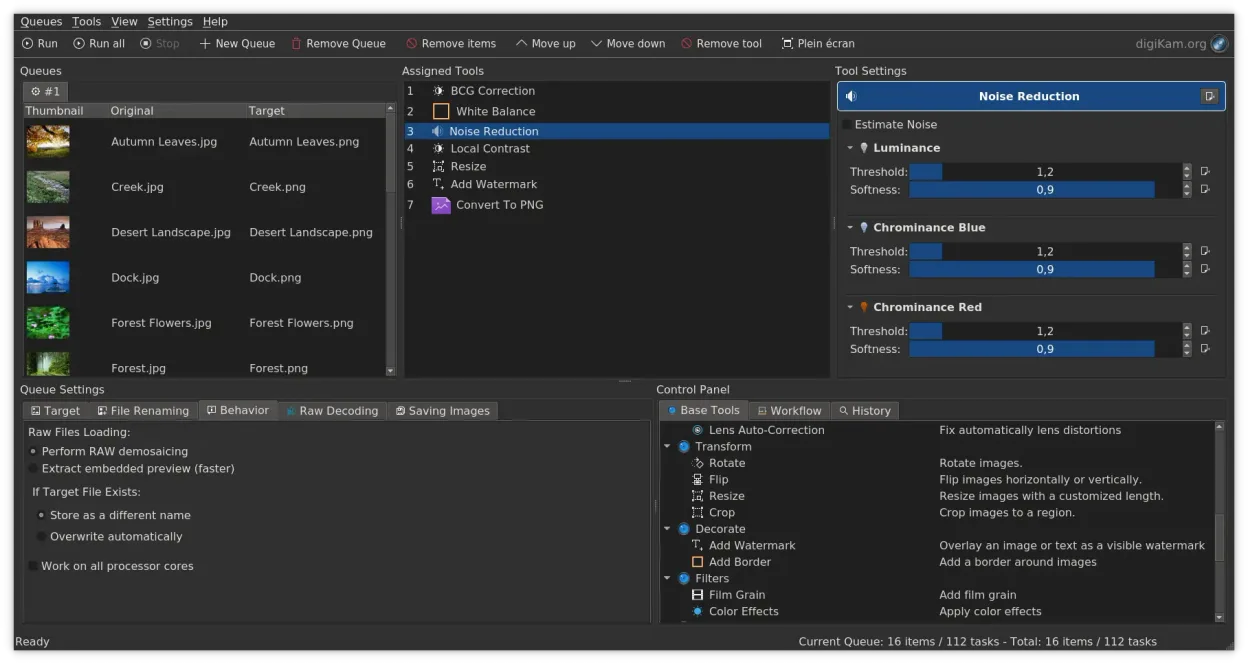
- Supports common formats like JPEG, PNG, and WebP
- Basic editing tools include crop, rotate, and resize
- Allows tagging and rating photos for organization
- Can import directly from cameras and SD cards
- Includes video support for cataloging and playback
Ce qui change
- digiKam is much more complex and resource-heavy than Windows Photos
- Face recognition requires manual setup and is not as automated
- Batch processing is powerful but not as intuitive for beginners
- No built-in sharing to social media or cloud services like OneDrive
- Interface is dense; not optimized for quick, casual browsing
Ouvrir vos fichiers Windows Photos
digiKam opens all standard formats used in Windows Photos, including JPEG, PNG, and WebP, without issue. It also reads metadata and thumbnails correctly from these files. You can export edited versions in common formats, and it preserves EXIF, IPTC, and XMP metadata using Exiv2 and ExifTool. If you're moving from Windows Photos, your existing files will import cleanly. Video formats supported by FFmpeg are also handled well, though exact codec support depends on your system's FFmpeg setup.
Passer de Windows Photos à digiKam, étape par étape
- Install digiKam via your package manager or Flatpak
- Create a new library folder to store your photo collection
- Use the import tool to bring in photos from your current folders or SD cards
- Enable face detection in Settings > Configure digiKam > Face Detection
- Tag and organize existing photos using keywords and albums
- Use the search tool to filter by date, tag, or metadata as needed
Fonctionnalités clés de digiKam
- Import direct depuis les appareils photo, cartes SD et clés USB avec des règles configurables
- Systèmes avancés d'étiquetage, de notation et de libellés pour une organisation complexe de la bibliothèque
- Moteur de recherche puissant prenant en charge les critères de métadonnées EXIF, IPTC et XMP
- Retouche non destructive avec ajustements de couleur, recadrage et netteté
- Prise en charge native des fichiers RAW via LibRaw pour le décodage et l'aperçu
- Catalogage vidéo et extraction de métadonnées à l'aide de backends FFmpeg
- Organisation des albums avec une interface glisser-déposer
- Disponibilité interplateformes pour Linux, Windows et macOS
Installer digiKam sous Linux
flatpak install flathub org.kde.digikamsudo apt install digikamsudo apt install digikamsudo dnf install digikamsudo pacman -S digikamsudo zypper install digikamQuestions fréquentes
Can digiKam replace Windows Photos for simple photo viewing?
Not ideally. For quick viewing, use eog or nomacs. digiKam is powerful but overkill for simple tasks.
Does digiKam support face recognition out of the box?
It supports face detection and recognition, but you must enable it manually and train the system over time.
Is digiKam lightweight and fast for everyday use?
No. It's resource-intensive, especially with large libraries. It's built for depth, not speed.
4 autres alternatives à Windows Photos
 ShotwellShotwell est un gestionnaire de photos GNOME pour l'importation, l'organisation et l'édition légère d'images.Open sourceGratuitFlatpakShotwell ou Windows Photos
 GIMPGIMP est un éditeur de graphiques raster gratuit et open source, conçu pour la retouche photo, la peinture…Open sourceGratuitFlatpakGIMP ou Windows Photos
 darktabledarktable est un éditeur photo gratuit et open‑source qui gère les fichiers RAW et propose un flux de travail…Open sourceGratuitFlatpakdarktable ou Windows Photoseogeog (Eye of GNOME) est un visionneuse d'images légère pour le bureau GNOME, capable d'ouvrir des formats…Open sourceGratuiteog ou Windows Photos