
 GIMPLinux
vs
Adobe FrescoWindows
GIMP, alternative Linux à Adobe Fresco
Mis à jour le
Notre avis
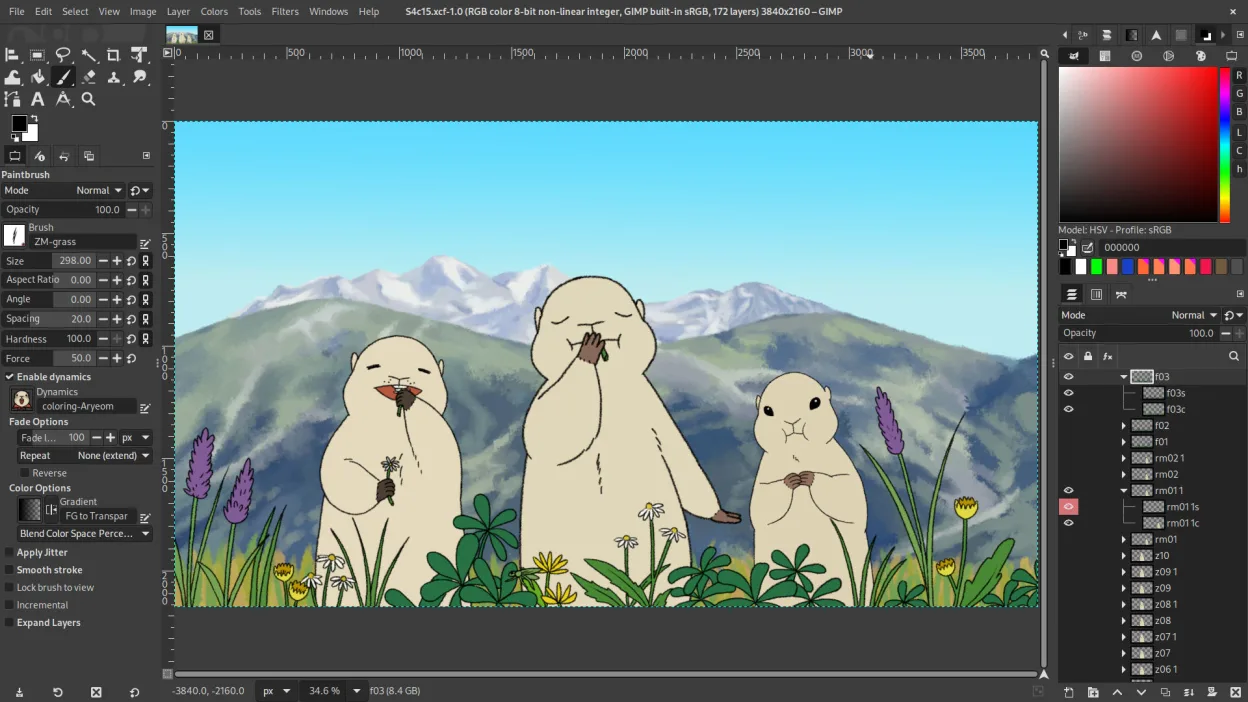
GIMP is a capable replacement for Adobe Fresco if you focus on raster painting and layered image work, but it's not designed primarily as a natural drawing experience. It supports pressure-sensitive brushes, custom brushes, layers with blending modes and masks, and exports to PSD, PNG, and JPEG. Digital painters who rely on vector tools and real-time vector-raster interplay in Fresco will miss that fluidity. GIMP suits users comfortable with a steeper learning curve and who prioritize control and scripting over tablet-first ergonomics.
- Licence
- GPL-3.0+ AND LGPL-3.0+
- Prix
- Gratuit
- Dernière version
- 3.2.8 (2 novembre 2026)
- Note
- —
Ce qui fonctionne pareil
- Supports pressure-sensitive raster brushes for digital painting
- Layer-based editing with blending modes, opacity, and layer masks
- Exports to common formats including PSD, PNG, and JPEG
- Allows creation and use of custom brushes
- Integrates with graphics tablets and stylus input (via GTK and input drivers)
Ce qui change
- No native vector shape tools — vector work requires workarounds or external tools
- Brush engine optimized for raster, not real-time live vector brushes like Fresco
- Interface is desktop-oriented, not designed specifically for touch or tablet-first use
- No built-in non-destructive editing by default — requires plug-ins like G'MIC or careful layer management
- Lacks Fresco’s seamless integration with Adobe ecosystem and cloud sync
Ouvrir vos fichiers Adobe Fresco
GIMP can open and export PSD files, so you can exchange layered projects with Adobe Fresco users, but complex layer effects or smart objects created in Fresco may not translate perfectly. There is no direct support for Adobe’s native .fresco file format, and no known converter exists. You can work around this by exporting to PSD or PNG from Fresco and importing into GIMP. Any vector layers in PSDs become rasterized if they were not preserved as editable paths.
Passer de Adobe Fresco à GIMP, étape par étape
- Install GIMP from your distribution’s repository or Flathub
- Set up tablet pressure sensitivity using system settings and GIMP’s input dynamics
- Import custom brushes by placing them in GIMP’s brush folder or using the brush manager
- Use layer groups and masks for non-destructive workflows
- Export to PSD for compatibility with Adobe users when needed
Fonctionnalités clés de GIMP
- Édition par calques avec masques, modes de fusion et transparence
- Moteur de pinceau avancé pour la peinture numérique et la retouche
- Prise en charge des plug-ins compatibles Photoshop (via des couches de compatibilité)
- Traitement par lots et scriptage avec Script-Fu, Python ou GEGL
- Édition non destructive possible grâce à des plug-ins comme G'MIC
- Prise en charge étendue des formats : PNG, JPEG, TIFF, PSD, WebP et plus
- Interface personnalisable avec panneaux ancrables et thèmes
- Gestion des couleurs avec prise en charge des profils ICC
Installer GIMP sous Linux
flatpak install flathub org.gimp.GIMPsudo apt install gimpsudo apt install gimpsudo dnf install gimpsudo pacman -S gimpsudo zypper install gimpQuestions fréquentes
Can GIMP handle both painting and photo editing like Adobe Fresco?
Yes, GIMP excels at raster painting and photo editing, but it doesn’t blend vector and raster as fluidly as Fresco. It’s strong in control and precision, but less intuitive for stylus-first illustrators.
Does GIMP support Wacom and other graphics tablets?
Yes, GIMP supports Wacom, Huion, XP-Pen, and other tablets via the operating system’s input drivers. Pressure sensitivity works out of the box on most Linux setups.
Can I create and save custom brushes in GIMP?
Yes, GIMP allows full custom brush creation using images or parameters. You can define spacing, shape, dynamics, and pressure response, making it suitable for digital painters.
5 autres alternatives à Adobe Fresco
 KritaKrita est un programme de peinture numérique et d'illustration open‑source complet.Open sourceGratuitFlatpakKrita ou Adobe Fresco
 MyPaintMyPaint est un programme de peinture raster rapide, gratuit et open‑source, axé sur la dynamique des pinceaux…Open sourceGratuitFlatpakMyPaint ou Adobe Fresco
 InkscapeInkscape est un éditeur de graphiques vectoriels gratuit et open source qui rivalise avec Adobe Illustrator…Open sourceGratuitFlatpakInkscape ou Adobe Fresco
 Pencil2DPencil2D est un outil open source d'animation 2D destiné aux graphismes vectoriels et bitmap dessinés à la…Open sourceGratuitFlatpakPencil2D ou Adobe Fresco
 PixeloramaPixelorama is a free, open-source pixel art editor and animation tool for Linux, suitable for sprites and…Open sourceGratuitFlatpakPixelorama ou Adobe Fresco