
 GIMPLinux
vs
Corel PaintShop Pro 2022Windows
GIMP, alternative Linux à Corel PaintShop Pro 2022
Mis à jour le
Notre avis
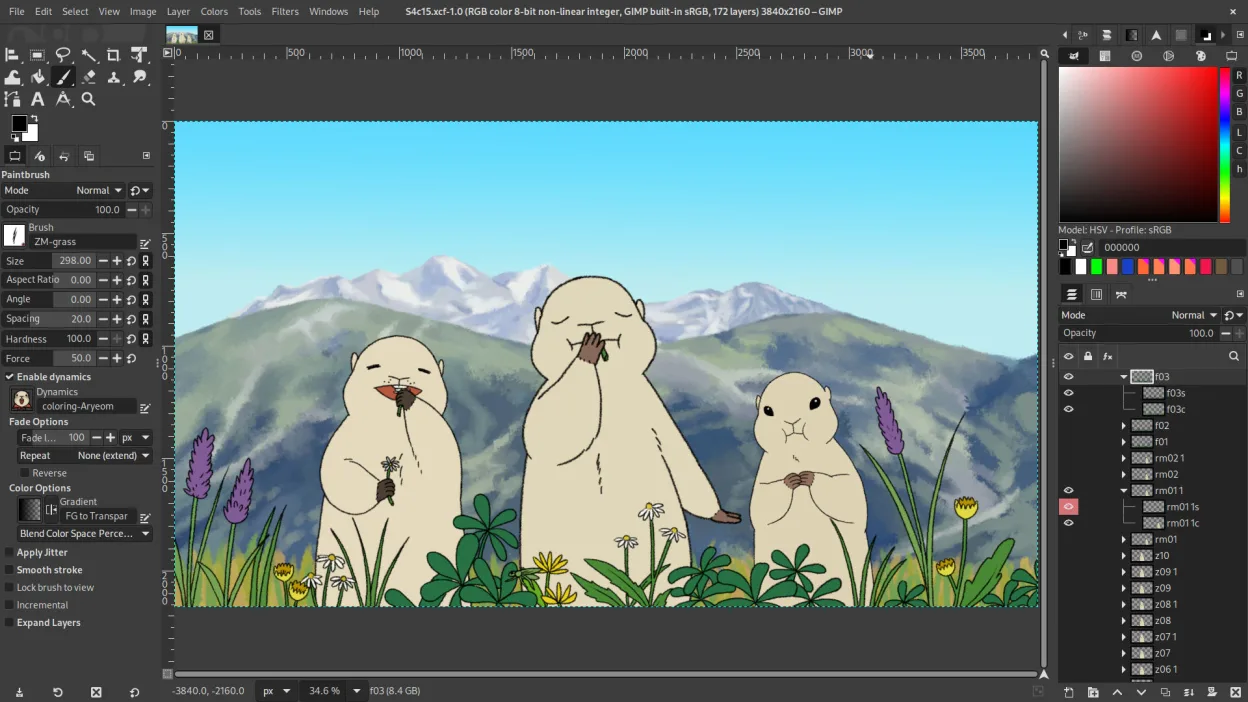
GIMP is a solid replacement for Corel PaintShop Pro 2022 if you are comfortable with a steeper learning curve. It covers all core raster editing tasks, including layer management, retouching, and batch processing. The interface feels less polished than PaintShop Pro, and the workflow is less intuitive for beginners. However, the feature set is extensive, and the open-source nature allows for deep customization. It is ideal for users willing to invest time in learning shortcuts and scripting to match their previous efficiency.
- Licence
- GPL-3.0+ AND LGPL-3.0+
- Prix
- Gratuit
- Dernière version
- 3.2.8 (2 novembre 2026)
- Note
- —
Ce qui fonctionne pareil
- Layer-based raster editing with masks and blending modes
- Comprehensive photo retouching tools including healing, clone, and dodge/burn
- Support for common formats like JPEG, PNG, TIFF, and PSD
- Batch processing capabilities via scripting or menu options
- Extensive filter and effect libraries for digital art and photo manipulation
Ce qui change
- GIMP lacks a unified, beginner-friendly interface; panels are dockable but can feel cluttered initially
- Non-destructive editing is not as integrated by default as in PaintShop Pro, often requiring plug-ins like G'MIC
- PaintShop Pro includes more guided, step-by-step tutorials for specific photo effects out of the box
- GIMP’s brush engine is powerful but requires more manual configuration for specific digital painting styles
- Corel’s ecosystem includes cloud storage and mobile app integration, which GIMP lacks
Ouvrir vos fichiers Corel PaintShop Pro 2022
GIMP natively supports opening and exporting JPEG, PNG, TIFF, and WebP files without issue. It can open PSD files, preserving layers and masks, though complex effects or smart objects may be flattened or lost. Corel’s proprietary .PSP format is not natively supported, so you must save your work as PSD or TIFF in PaintShop Pro before migrating to GIMP to retain layer structure.
Passer de Corel PaintShop Pro 2022 à GIMP, étape par étape
- Export all existing projects from PaintShop Pro as PSD or TIFF files to preserve layers
- Install GIMP via your distribution’s package manager or Flathub for the latest version
- Import your PSD/TIFF files into GIMP and verify that layers and masks are intact
- Set up your preferred color profile in GIMP’s color management settings to match your monitor
- Learn the default keyboard shortcuts for retouching tools to speed up your workflow
- Test batch processing on a small set of images using the Batch Processing dialog or Script-Fu
Fonctionnalités clés de GIMP
- Édition par calques avec masques, modes de fusion et transparence
- Moteur de pinceau avancé pour la peinture numérique et la retouche
- Prise en charge des plug-ins compatibles Photoshop (via des couches de compatibilité)
- Traitement par lots et scriptage avec Script-Fu, Python ou GEGL
- Édition non destructive possible grâce à des plug-ins comme G'MIC
- Prise en charge étendue des formats : PNG, JPEG, TIFF, PSD, WebP et plus
- Interface personnalisable avec panneaux ancrables et thèmes
- Gestion des couleurs avec prise en charge des profils ICC
Installer GIMP sous Linux
flatpak install flathub org.gimp.GIMPsudo apt install gimpsudo apt install gimpsudo dnf install gimpsudo pacman -S gimpsudo zypper install gimpQuestions fréquentes
Can GIMP open Corel PaintShop Pro files directly?
No, GIMP does not natively open .PSP files. You must convert them to PSD or TIFF in PaintShop Pro first to maintain layer integrity.
Is GIMP’s batch processing as easy to use as PaintShop Pro’s?
GIMP’s batch processing is powerful but less intuitive. It uses a dialog-based interface or scripting (Python/Script-Fu), which requires more setup but offers greater flexibility.
Does GIMP support non-destructive editing?
GIMP supports non-destructive editing through plug-ins like G'MIC and by using layer masks, but it is not as seamlessly integrated into the core workflow as in PaintShop Pro.
3 autres alternatives à Corel PaintShop Pro 2022
 KritaKrita est un programme de peinture numérique et d'illustration open‑source complet.Open sourceGratuitFlatpakKrita ou Corel PaintShop Pro 2022
 darktabledarktable est un éditeur photo gratuit et open‑source qui gère les fichiers RAW et propose un flux de travail…Open sourceGratuitFlatpakdarktable ou Corel PaintShop Pro 2022
 RawTherapeeRawTherapee est un programme de développement de photos raw open‑source et multiplateforme.Open sourceGratuitFlatpakRawTherapee ou Corel PaintShop Pro 2022