
 SlackLinux
vs
Microsoft Teams ClassicWindows
SlackLinux
vs
Microsoft Teams ClassicWindows
Slack, alternative Linux à Microsoft Teams Classic
Mis à jour le
Notre avis
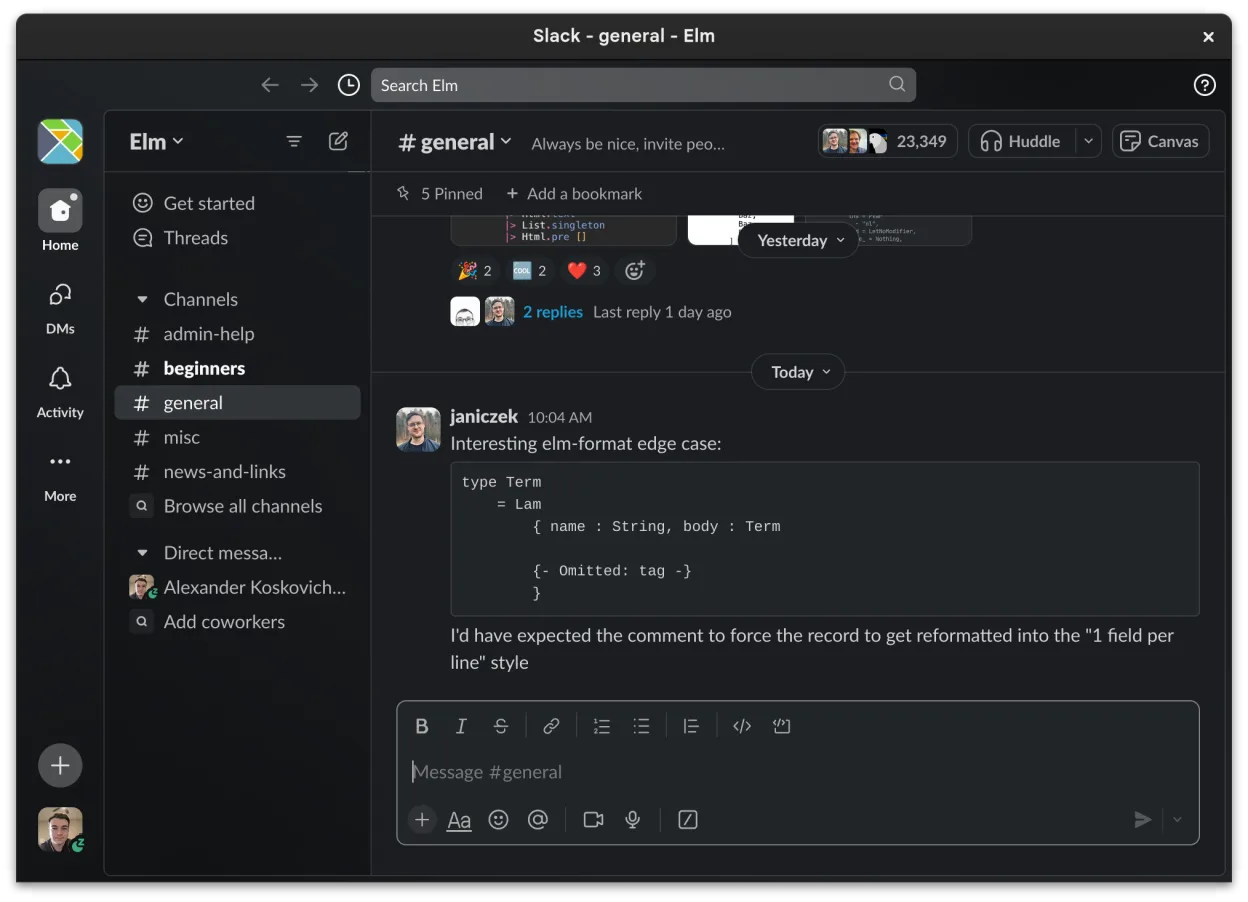
Slack is a solid replacement for Microsoft Teams Classic for teams focused on messaging, integrations, and workflow organization. It handles direct and group chats, file sharing, screen sharing, and video calls adequately, though the Linux client is officially in beta and may lack polish compared to Windows or macOS versions. It works well for organizations not deeply embedded in the Microsoft 365 ecosystem. Users needing deep Office integration or enterprise calling features may find gaps, but for general collaboration, Slack is functional and familiar.
- Licence
- LicenseRef-proprietary
- Prix
- freemium
- Dernière version
- 4.52.178 (8 octobre 2026)
- Note
- —
Ce qui fonctionne pareil
- Both support persistent group and direct messaging with read receipts and reactions
- Offer voice and video calls with screen sharing across platforms
- Enable file sharing with previews and cloud storage integration
- Support integrations with third-party tools and productivity apps
- Sync messages and notifications across devices
Ce qui change
- Slack’s Linux client is in beta and may have stability or feature delays
- No native integration with Microsoft Office apps like Word, Excel, or OneNote
- Lacks PSTN calling and advanced telephony features found in Teams
- Channels in Slack are user-created and flat, while Teams ties structure to Office groups
- Slack relies more on threads; Teams keeps conversations linear by default
Ouvrir vos fichiers Microsoft Teams Classic
Files shared in Slack (documents, spreadsheets, PDFs) can be downloaded and opened if you have compatible software, such as LibreOffice or OnlyOffice for Microsoft Office formats. Slack supports previews for common file types, similar to Teams. However, there's no direct way to export chat history or files from Teams to Slack. Migration tools exist but require admin setup and may not preserve metadata perfectly. Office files created in Teams with real-time co-authoring may lose edit history when moved.
Passer de Microsoft Teams Classic à Slack, étape par étape
- Export important files and chat history from Microsoft Teams using admin tools or manual download
- Create a new Slack workspace and invite team members via email
- Set up channels to mirror key Teams groups or projects
- Install and configure Slack apps for any critical integrations (e.g., Google Workspace)
- Train team members on Slack workflows, especially thread usage and notifications
Fonctionnalités clés de Slack
- Organisation par canaux pour les sujets et les projets
- Messagerie directe avec accusés de lecture et réactions
- Partage de fichiers avec prise en charge de l'aperçu pour les formats courants
- Intégration avec des outils tiers via Slack Apps
- Conversations en fil pour garder les canaux principaux non encombrés
- Synchronisation multi-appareils pour les messages et les notifications
- Paramètres de notifications personnalisables par canal ou message direct
- Client Linux en bêta avec ajouts de fonctionnalités en cours
Installer Slack sous Linux
flatpak install flathub com.slack.SlackQuestions fréquentes
Can I use Slack on Linux without issues?
Yes, but the Linux client is in beta. It works well for core messaging and file sharing, but occasional bugs or missing features may occur. The web app is a reliable alternative.
Does Slack support video meetings like Teams?
Yes, Slack supports voice and video calls with screen sharing, but it relies on WebRTC and doesn’t include dial-in numbers or full PSTN support like Teams with Microsoft Calling Plans.
Can I integrate Slack with Microsoft Office files?
You can share and view Office files in Slack, and preview them inline. Real-time co-editing requires uploading to OneDrive or SharePoint manually, as Slack doesn’t host Office integrations natively.
4 autres alternatives à Microsoft Teams Classic
 MattermostMattermost est une plateforme de collaboration open source et auto-hébergée, conçue pour les équipes de…Open sourceGratuitFlatpakMattermost ou Microsoft Teams Classic
 Rocket.ChatPlateforme open source de communication d'équipe pour le chat, la vidéo et la collaboration, souvent utilisée…Open sourceGratuitFlatpakRocket.Chat ou Microsoft Teams Classic
 ZulipZulip est une application de messagerie de groupe open source qui utilise des conversations en fil pour gérer…Open sourceGratuitFlatpakZulip ou Microsoft Teams Classic
 ElementElement est un client de messagerie et de visioconférence basé sur Matrix, open source, pour Linux.Open sourceGratuitFlatpakElement ou Microsoft Teams Classic