
 TigerVNC ViewerLinux
vs
Windows Remote AssistanceWindows
TigerVNC ViewerLinux
vs
Windows Remote AssistanceWindows
TigerVNC Viewer, alternative Linux à Windows Remote Assistance
Mis à jour le
Notre avis
TigerVNC Viewer can replace Windows Remote Assistance for remote desktop support, but with caveats. It provides secure, encrypted remote control and cross-platform access, making it suitable for technical users helping others. However, it lacks built-in user consent prompts and NAT traversal tools, requiring manual setup. It works best when both parties are on the same network or have port forwarding configured. For non-technical users or those needing quick, firewall-friendly help sessions, it’s less ideal. Use it if you control the network or set up the remote machine yourself.
- Licence
- GPL-2.0-or-later
- Prix
- Gratuit
- Dernière version
- 1.14.0 (24 juillet 2024)
- Note
- —
Ce qui fonctionne pareil
- Allows remote desktop viewing and control
- Supports encrypted connections via TLS
- Enables clipboard sharing between local and remote systems
- Available on multiple platforms including Linux, Windows, and macOS
- Offers configurable display settings like scaling and color depth
Ce qui change
- TigerVNC requires a VNC server pre-installed and running on the remote machine, unlike Windows Remote Assistance which initiates on demand
- No built-in mechanism for user consent or invitation links
- No automatic firewall or NAT traversal; manual port forwarding often needed
- Lacks integration with Windows Help features or user session handoff
- Does not support .msrcincident files used by Windows Remote Assistance
Ouvrir vos fichiers Windows Remote Assistance
TigerVNC Viewer cannot open .msrcincident files, which are used by Windows Remote Assistance to initiate sessions. These files contain connection metadata and encryption keys specific to the Windows Remote Assistance protocol. TigerVNC uses its own connection method based on VNC server addresses and passwords or TLS certificates. There is no tool to convert .msrcincident files for use with TigerVNC. Users must establish connections manually via IP address and port.
Passer de Windows Remote Assistance à TigerVNC Viewer, étape par étape
- Install a VNC server (like TigerVNC or x11vnc) on the remote Linux machine
- Configure the server to start securely with a password and TLS if possible
- Open the necessary port (usually 5900+) on the remote firewall and router if behind NAT
- Share the IP address and port with the helper
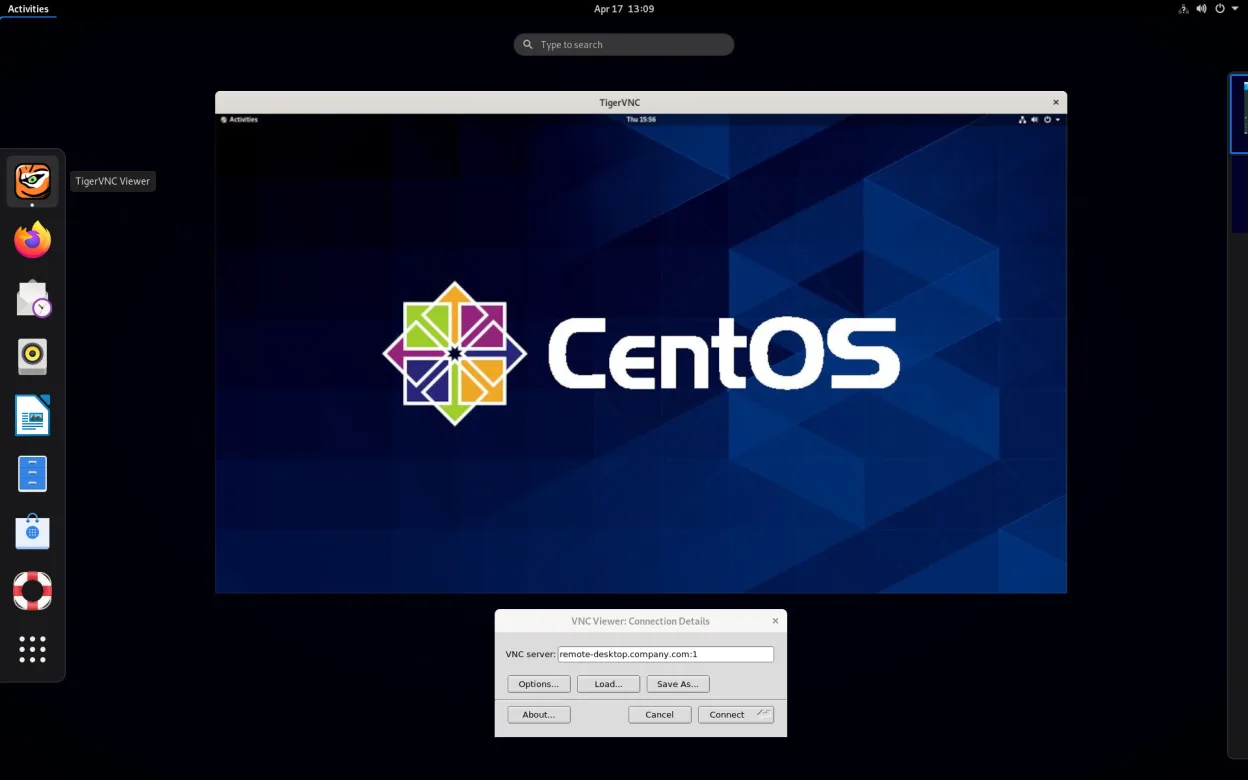
- On the local machine, launch TigerVNC Viewer and connect using the remote IP:port
Fonctionnalités clés de TigerVNC Viewer
- Prend en charge l’encodage Tight accéléré par libjpeg‑turbo
- Chiffrement TLS pour des sessions sécurisées
- Partage du presse‑papier entre local et distant
- Gestion multi‑moniteurs
- Redimensionnement et profondeur de couleur configurables
- Traduction de la disposition clavier
- Client multiplateforme (Linux, Windows, macOS)
- Options en ligne de commande pour le scripting
Installer TigerVNC Viewer sous Linux
flatpak install flathub org.tigervnc.vncviewersudo apt install tigervncsudo apt install tigervncsudo dnf install tigervncsudo pacman -S tigervncsudo zypper install tigervncQuestions fréquentes
Can I use TigerVNC Viewer to help a Windows user like with Windows Remote Assistance?
Only if the Windows machine runs a VNC server. TigerVNC can't connect to Windows Remote Assistance directly. The remote user must install and configure VNC software first, which is harder for non-technical people.
Is the connection secure with TigerVNC Viewer?
Yes, if configured with TLS encryption. By default, VNC connections may use password-only protection, which is less secure. Enable TLS in the server settings to match the encryption level of Windows Remote Assistance.
Can the remote user see when someone connects via TigerVNC?
Yes, if the VNC server is running on the user's desktop session. The screen will show the incoming connection, but there's no built-in prompt to accept or reject it unless the server supports such a feature.
5 autres alternatives à Windows Remote Assistance
 RemminaRemmina est un client de bureau à distance Linux prenant en charge RDP, VNC, SSH et X2Go pour se connecter à…Open sourceGratuitFlatpakRemmina ou Windows Remote Assistance
 NoMachine PlayerNoMachine Player est un client de bureau à distance propriétaire qui se connecte à des hôtes Linux, Windows…FlatpakNoMachine Player ou Windows Remote AssistanceFreeRDPFreeRDP est une implémentation open-source du protocole Remote Desktop Protocol, vous permettant de vous…Open sourceGratuitFreeRDP ou Windows Remote Assistance
 KRDCKRDC est un client de bureau distant pour KDE qui se connecte aux machines Windows ou Linux via RDP ou VNC.Open sourceGratuitFlatpakKRDC ou Windows Remote Assistance
 VinagreVinagre est un outil GNOME de visualisation de bureau distant pour VNC, RDP, SSH et SPICE, désormais…Open sourceGratuitAbandonnéVinagre ou Windows Remote Assistance