
 GPartedLinux
vs
EaseUS Partition MasterWindows
GPartedLinux
vs
EaseUS Partition MasterWindows
GParted as a Linux alternative to EaseUS Partition Master
Updated
Our verdict
GParted is a solid replacement for EaseUS Partition Master for most Linux users who need to create, delete, extend, and shrink partitions and work with FAT, NTFS, and exFAT file systems. It offers a free, open‑source GUI and live‑USB support, making it suitable for system maintenance and storage expansion. Users who rely on advanced backup features or a highly polished Windows‑style interface may prefer the commercial tool, but for everyday partition tasks GParted covers the core needs.
- License
- GPL-3.0
- Price
- Free
- Latest version
- 1.8.1
- Rating
- —
What works the same
- Both allow creation, deletion, resizing, and moving of partitions
- Both support FAT, NTFS, and exFAT file systems
- Both provide a graphical user interface for partition management
What is different
- GParted is open‑source and free, whereas EaseUS is commercial
- GParted lacks a built‑in backup wizard; users must back up manually
- EaseUS offers a more polished, Windows‑style UI
- GParted supports a wider range of Linux file systems (ext4, XFS, Btrfs, etc.)
- EaseUS provides additional disk health tools not in GParted
Opening your EaseUS Partition Master files
EaseUS Partition Master stores its project data in proprietary XML files that GParted cannot read. To migrate, you must manually recreate the partitions in GParted; no direct import/export is available.
Switching from EaseUS Partition Master to GParted, step by step
- 1. Back up all data from the partitions you plan to modify.
- 2. Boot a GParted live‑USB or install GParted on your Linux system.
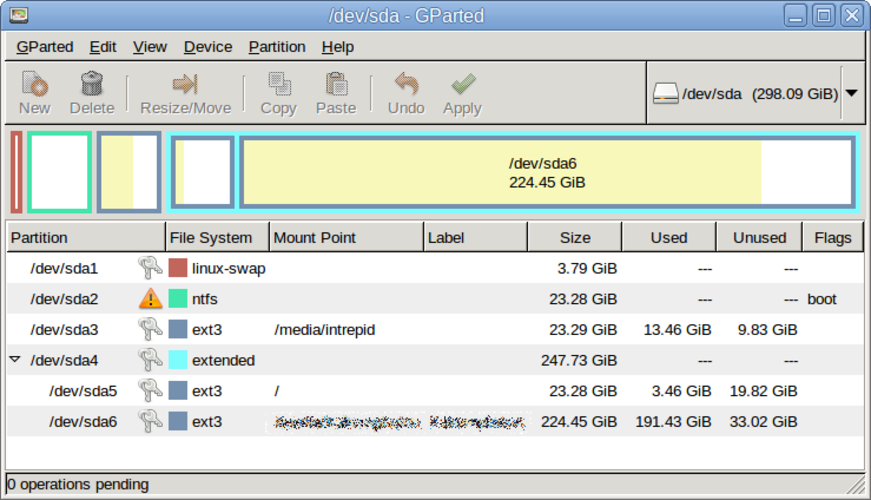
- 3. Open GParted and locate the disks you want to edit.
- 4. Use GParted’s tools to create, delete, resize, or copy partitions as needed.
- 5. Apply all pending operations and reboot into your operating system.
- 6. Verify data integrity and adjust mount points if necessary.
Key features of GParted
- GTK front‑end to GNU Parted
- Supports resizing, moving, copying, and deleting partitions
- File‑system‑agnostic: ext4, NTFS, FAT32, XFS, Btrfs, etc.
- Live‑USB support for pre‑boot editing
- Undo/redo for partition operations
- Checksum verification for data integrity
- Batch mode via command line for scripting
How to install GParted on Linux
sudo apt install gpartedsudo apt install gpartedsudo dnf install gpartedsudo pacman -S gpartedsudo zypper install gpartedFrequently asked questions
Can GParted handle Windows partitions?
Yes, GParted can resize, move, and delete FAT, NTFS, and exFAT partitions, but it does not perform Windows‑specific recovery tasks.
Does GParted need a backup before resizing?
While GParted does not offer an automatic backup wizard, it is strongly recommended to back up data manually before making changes.
Is GParted suitable for dual‑boot setups?
Absolutely. GParted can create free space for a new OS, resize existing partitions, and manage bootloader configurations when used alongside other tools.