
 KrusaderLinux
vs
WinSCP ProWindows
KrusaderLinux
vs
WinSCP ProWindows
Krusader as a Linux alternative to WinSCP Pro
Updated
Our verdict
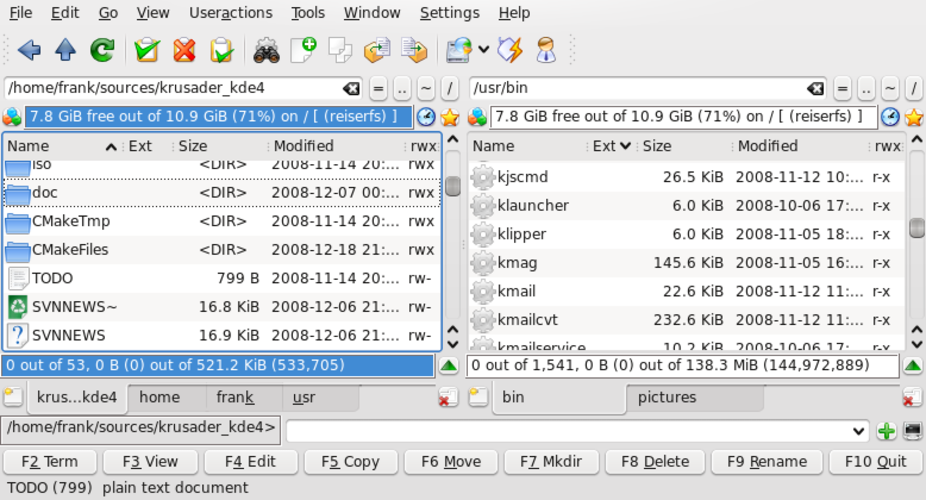
Krusader can replace WinSCP Pro for users who prefer a full‑featured file manager with built‑in FTP/SFTP support. It offers a graphical dual‑pane view, drag‑and‑drop, directory sync and remote editing, which covers most everyday WinSCP tasks. Power users who rely heavily on scripted transfers or need a dedicated, lightweight client may find Krusader bulkier, but for typical file‑browsing, sync and occasional uploads/downloads it is a solid Linux alternative.
- License
- GPL-3.0
- Price
- Free
- Latest version
- 2.9.0
- Rating
- —
What works the same
- Both provide graphical SFTP/FTP access
- Drag‑and‑drop file transfer between local and remote panes
- Support for directory synchronization
- Remote file editing with external editors
- Resumeable transfers with integrity checks
What is different
- Krusader is a full file manager, not a dedicated transfer client, so the UI is more complex
- WinSCP includes a built‑in scripting language and command‑line interface; Krusader relies on external scripts or its own limited batch actions
- WinSCP offers explicit session logging and detailed transfer reports; Krusader’s logging is minimal
- Krusader’s FTP/SFTP support is provided via KDE libraries and may lack some advanced protocol options found in WinSCP
- WinSCP integrates tightly with Windows authentication mechanisms (e.g., Pageant); Krusader uses the standard SSH agent on Linux
Opening your WinSCP Pro files
Krusader does not use a proprietary project file format, so there is nothing to import or export from WinSCP. You can simply reconnect to the same servers using the same credentials and continue transferring files. Any saved site lists from WinSCP would need to be recreated manually in Krusader’s session manager.
Switching from WinSCP Pro to Krusader, step by step
- Install Krusader from your distribution’s repository (e.g., apt install krusader).
- Launch Krusaver and open the Network pane (F4) to add a new FTP/SFTP connection.
- Enter the same host, username, password or key file you used in WinSCP.
- Configure any required transfer options (passive mode, resume, etc.) in the connection dialog.
- Test the connection, then drag files between the local and remote panes as needed.
- If you need scripted transfers, write shell scripts that call 'krusader --copy' or use standard command‑line tools like scp/sftp.
Key features of Krusader
- Dual‑pane interface with split view
- Built‑in archive handling (zip, tar, rar, etc.)
- FTP/SFTP client support
- Directory synchronization and comparison
- Batch renaming with regex
- Advanced search and preview
- Configurable keybindings
- Plugin architecture for extensions
How to install Krusader on Linux
sudo apt install krusadersudo apt install krusadersudo dnf install krusadersudo pacman -S krusadersudo zypper install krusaderFrequently asked questions
Can Krusader run headless or be used in scripts like WinSCP?
Krusader itself is a GUI program; for headless automation you should use command‑line tools (scp, sftp, rsync) or write scripts that invoke Krusader’s DBus interface, but it is not as straightforward as WinSCP’s built‑in scripting.
Does Krusader support key‑based SSH authentication?
Yes, it uses the system SSH agent, so any keys loaded with ssh‑add are available for SFTP connections.
Is there a way to import WinSCP site profiles automatically?
No direct import exists; you need to recreate the sites manually in Krusader’s session manager.
3 other alternatives to WinSCP Pro
 FileZillaFileZilla is a free, open‑source graphical FTP/FTPS/SFTP client for Linux and other platforms.Open sourceFreeFlatpakFileZilla vs WinSCP Prolftplftp is a powerful command-line FTP, SFTP, and HTTP client for reliable file transfers on Linux.Open sourceFreelftp vs WinSCP Pro
 NautilusNautilus (Files) is GNOME's default graphical file manager for browsing local and remote storage.Open sourceFreeNautilus vs WinSCP Pro