

Linux · System Tools
TestDisk
TestDisk is a free, open‑source command‑line tool for recovering lost partitions and repairing corrupted filesystems on Linux and other OSes.
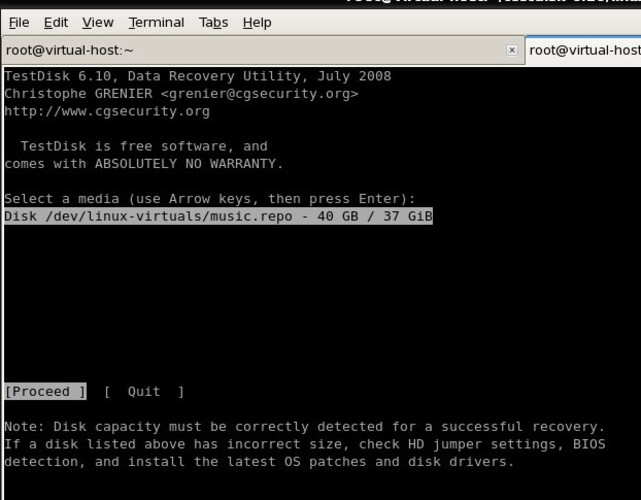
What is TestDisk?
TestDisk was first released in the early 2000s by Christophe Grenier and has since become a staple in the data‑recovery community. It works by analyzing disk structures, rebuilding partition tables, and can even recover deleted files with high accuracy. The program is maintained actively, with regular updates across major distributions.
The tool is aimed at power users, system administrators, and anyone who needs to recover data from a failing or mis‑partitioned drive. It runs in a terminal, so it feels more like a Unix utility than a Windows GUI.
Compared to Windows tools like Recuva, TestDisk offers deeper access to the underlying disk. It can fix partition tables and recover entire file systems, whereas Recuva focuses on file recovery from a single partition. The learning curve is steeper, but the results are often more comprehensive.
Best for: Recovering lost partitions or repairing corrupted file systems when a GUI tool is insufficient.
Key features of TestDisk
- Command‑line interface
- Cross‑platform support (Linux, Windows, macOS, BSD, Solaris)
- Recovers lost partitions and rebuilds partition tables
- Can repair corrupted file systems
- Supports GPT, MBR, Apple, and Xbox partition schemes
- Works on non‑partitioned media
- Includes PhotoRec for file‑level recovery
- Detailed logs for technician analysis
Pros
- Free and open‑source
- Active development across distributions
- Handles a wide range of partition types
- Works on both partitioned and non‑partitioned media
- Detailed recovery logs
- High accuracy in file recovery
Cons
- No graphical interface
- Steep learning curve for beginners
- Requires terminal knowledge
- Recovery can be time‑consuming on large drives
Windows programs TestDisk replaces
 Recuva
How to install TestDisk on Linux
sudo apt install testdisksudo apt install testdisksudo dnf install testdisksudo pacman -S testdisksudo zypper install testdiskTips for Windows users
If you’re used to Recuva’s drag‑and‑drop interface, you’ll need to switch to a terminal. TestDisk works with the same file systems, so recovered files will be in their original formats. Use the -r flag in PhotoRec to resume interrupted recoveries. The workflow is linear: analyze → list partitions → recover. Shortcuts are keyboard‑based; press ? for help. The tool outputs logs you can email to a technician if needed.
TestDisk: frequently asked questions
Can TestDisk recover files from a Windows NTFS partition?
Yes, it can read and recover files from NTFS, FAT, ext2/3/4, HFS+, and many other file systems.
Do I need to boot from a live CD to use TestDisk?
No, you can run it on a running system, but booting from a live environment is safer if the drive is in use.
Is TestDisk safe to use on a live system?
It is safe, but avoid writing to the same drive you are recovering from until you have a backup.
How do I install TestDisk on Ubuntu?
Install via sudo apt install testdisk – the package is available in the official repositories.
Updated