
 Mission CenterLinux
vs
Process ExplorerWindows
Mission CenterLinux
vs
Process ExplorerWindows
Mission Center as a Linux alternative to Process Explorer
Updated
Our verdict
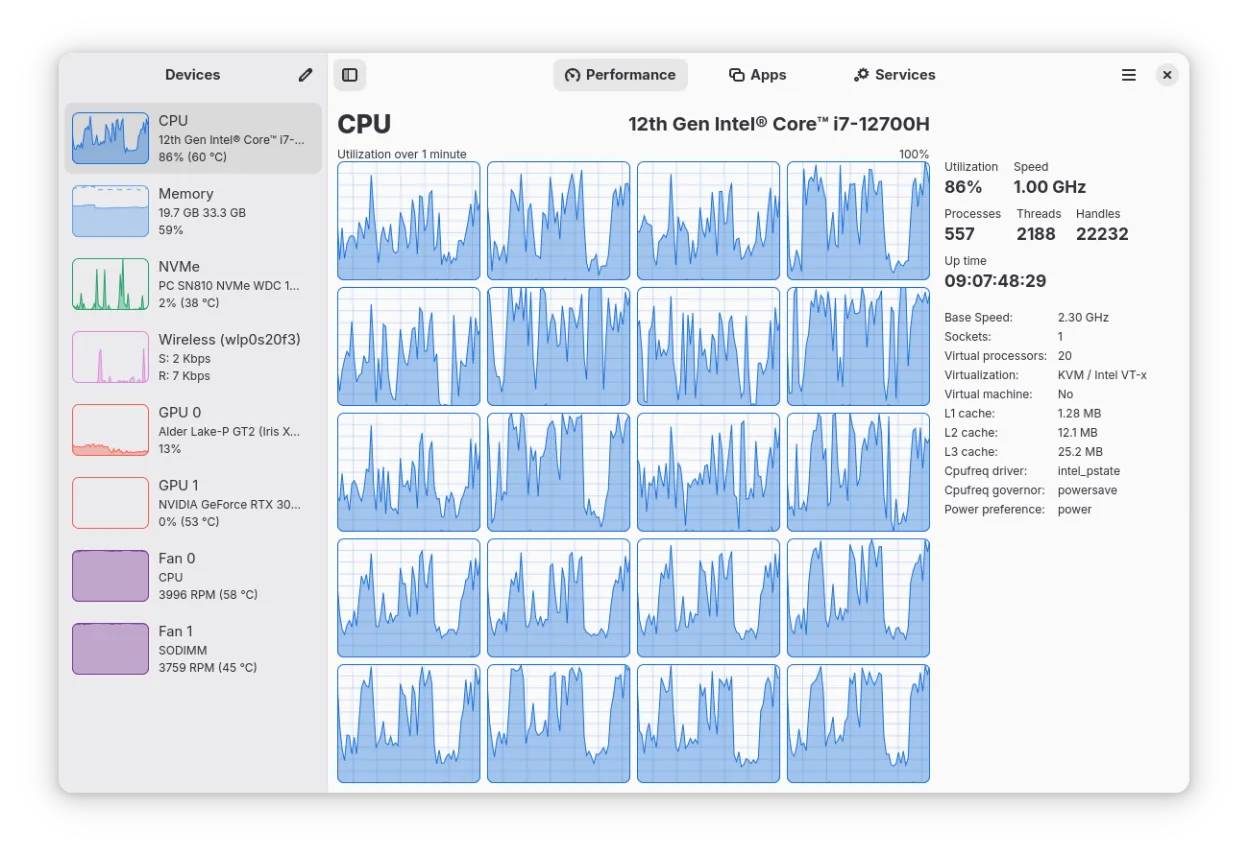
Mission Center can replace Process Explorer for users who need a Linux‑native monitor that shows per‑process CPU, memory, threads, handles, and network usage. It covers most of the same data, but it lacks a direct DLL/shared‑library view and the ability to inspect individual handles in the same detail. It is best suited for system administrators or power users who want real‑time resource tracking on Linux, not for casual users who only need a simple task manager.
- License
- GPL-3.0-or-later
- Price
- Free
- Latest version
- 1.2.0 (July 24, 2026)
- Rating
- —
What works the same
- Per‑process CPU and memory usage
- Thread and handle counts
- Network connection details
- Process tree with parent/child relationships
- Real‑time updates
What is different
- No DLL/shared‑library list for each process
- Handles are not shown as individual file/socket entries
- No built‑in search/filter UI for processes
- No support for exporting data to a file format compatible with Process Explorer
- Limited Intel GPU monitoring
Opening your Process Explorer files
Process Explorer produces proprietary .txt or .csv logs that are not directly readable by Mission Center. Mission Center can export its own CSV or JSON reports, but it cannot import Process Explorer files. Users would need to re‑collect data within Mission Center.
Switching from Process Explorer to Mission Center, step by step
- Install Mission Center from Flathub or your distro’s package manager.
- Open the application and enable the per‑process view.
- Use the search box to locate specific processes by name or PID.
- Configure the graph refresh rate to match your monitoring needs.
- Export data to CSV if you need to share reports.
- Close Process Explorer and rely on Mission Center for future monitoring.
Key features of Mission Center
- Monitors CPU, RAM, Swap, Disk, Network, and GPU usage
- Provides per-app and per-process resource breakdowns
- Displays detailed network interface info including Wi-Fi stats
- Shows GPU encoder/decoder usage and power via NVTOP
- Tracks system fans, uptime, and clock speeds
- Hardware-accelerated graph rendering to reduce CPU load
- Supports a minified summary view for quick checks
- Built with Rust, GTK4, and Libadwaita
How to install Mission Center on Linux
flatpak install flathub io.missioncenter.MissionCentersudo pacman -S mission-centerFrequently asked questions
Does Mission Center show DLLs or shared libraries loaded by a process?
No, it does not provide a DLL or shared‑library list. It focuses on resource usage statistics rather than detailed module inspection.
Can I see individual file or socket handles for a process?
Mission Center shows the total handle count per process but does not list each handle individually.
Is Mission Center suitable for monitoring GPU usage on Intel cards?
Intel GPU monitoring is limited to Broadwell and newer GPUs and does not include VRAM, power, or temperature data.
3 other alternatives to Process Explorer
 GNOME System MonitorGNOME System Monitor is the standard Linux utility for viewing running processes, CPU, memory, and system…Open sourceFreeGNOME System Monitor vs Process Explorer