
 digiKamLinux
vs
Luminar AIWindows
digiKam como alternativa Linux ao Luminar AI
Atualizado em
Nossa avaliação
digiKam can replace Luminar AI for users who need solid RAW handling, non‑destructive adjustments, and strong organization tools, but it lacks the AI‑driven sky replacement, face‑aware portrait retouching, and style presets that define Luminar AI. If you are comfortable using separate plugins or command‑line tools for AI effects, digiKam will serve as a capable photo manager and basic editor. For photographers who rely on one‑click AI enhancements, digiKam will feel incomplete.
- Licença
- GPL-2.0+
- Preço
- Grátis
- Versão mais recente
- 9.1.0 (7 de junho de 2026)
- Avaliação
- —
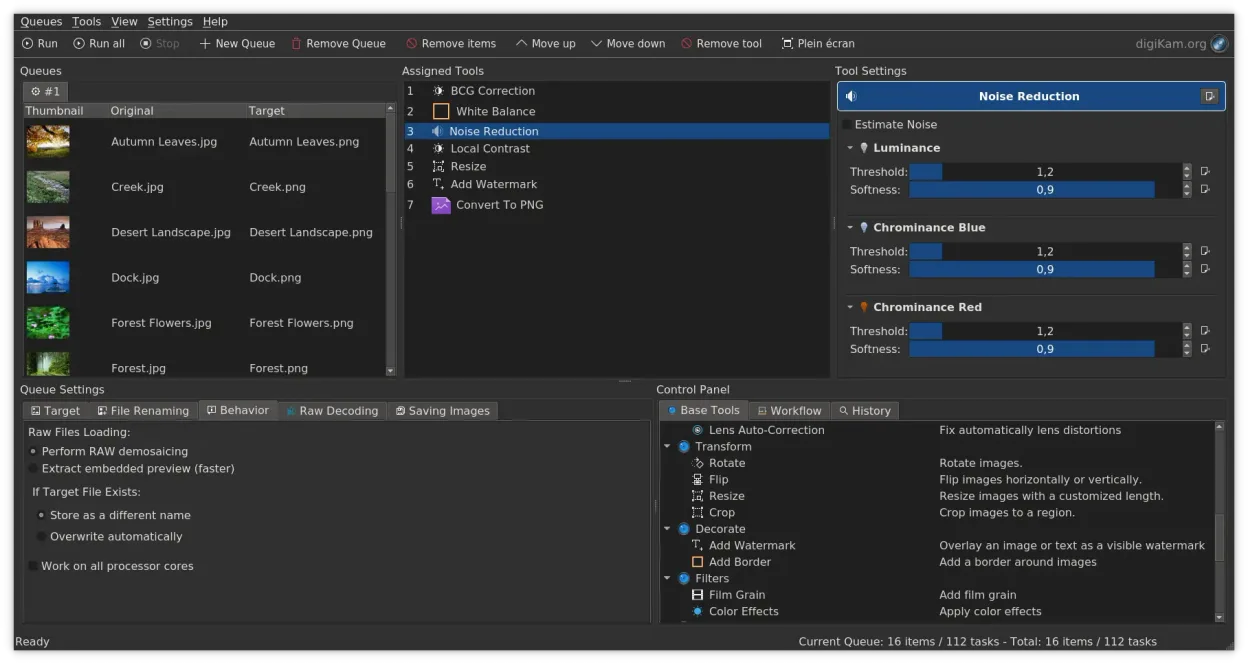
O que funciona igual
- Non‑destructive RAW editing
- Batch processing support
- Noise reduction and sharpening tools
- Layer‑like adjustments via stacked filters
- Export to common image formats (JPEG, TIFF, PNG)
O que muda
- No built‑in AI sky replacement or AI portrait enhancement
- Lacks ready‑made style presets and one‑click AI suggestions
- Editing UI is more geared toward cataloguing than creative retouching
- No dedicated AI‑driven face detection for automatic skin smoothing
- Presets are manual collections, not AI‑generated
Abrindo seus arquivos do Luminar AI
digiKam can open standard RAW, JPEG, TIFF, and PNG files that Luminar AI works with. Luminar AI’s proprietary .luminar project files are not documented, so digiKam cannot directly import them; you would need to export the edited images from Luminar AI to a common format before importing into digiKam.
Trocando o Luminar AI pelo digiKam, passo a passo
- Export your edited photos from Luminar AI as JPEG, TIFF, or PNG.
- Install digiKam from your distribution’s repository or via Flathub.
- Create a new album in digiKam and import the exported files.
- Use digiKam’s tagging and rating tools to recreate any organization you had in Luminar.
- If you need AI effects, apply them with external tools (e.g., GIMP plugins) before or after importing.
- Set up batch processing jobs in digiKam for any repetitive adjustments.
Principais recursos do digiKam
- Importação direta de câmeras, cartões SD e unidades USB com regras configuráveis
- Sistemas avançados de marcação, classificação e rótulos para organização complexa da biblioteca
- Motor de busca poderoso que suporta critérios de metadados EXIF, IPTC e XMP
- Edição não destrutiva com ajustes de cor, recorte e nitidez
- Suporte nativo a arquivos RAW via LibRaw para decodificação e pré‑visualização
- Catalogação de vídeos e extração de metadados usando back‑ends FFmpeg
- Organização de álbuns com interface de arrastar e soltar
- Disponibilidade multiplataforma para Linux, Windows e macOS
Como instalar o digiKam no Linux
flatpak install flathub org.kde.digikamsudo apt install digikamsudo apt install digikamsudo dnf install digikamsudo pacman -S digikamsudo zypper install digikamPerguntas frequentes
Can digiKam replace Luminar AI’s AI sky replacement?
No, digiKam does not include AI sky replacement. You would need a separate tool or plugin for that effect.
Is digiKam’s RAW editing quality comparable to Luminar AI?
Yes, digiKam uses LibRaw and offers full non‑destructive RAW editing with good color and exposure controls.
Will my Luminar AI presets transfer to digiKam?
Luminar AI presets are not compatible. You can recreate similar adjustments manually in digiKam, but there is no automatic import.
Outras 4 alternativas ao Luminar AI
 darktabledarktable é um editor de fotos gratuito e de código aberto que gerencia arquivos RAW e oferece um fluxo de…Código abertoGrátisFlatpakdarktable vs Luminar AI
 RawTherapeeRawTherapee é um programa de desenvolvimento de fotos raw de código aberto e multiplataforma.Código abertoGrátisFlatpakRawTherapee vs Luminar AI
 GIMPGIMP é um editor de gráficos raster gratuito e de código aberto para edição de fotos, pintura digital e…Código abertoGrátisFlatpakGIMP vs Luminar AI
 LightZoneO LightZone é um editor de fotos RAW gratuito e de código aberto, com um fluxo de trabalho baseado em uma…Código abertoGrátisFlatpakLightZone vs Luminar AI