
 digiKamLinux
vs
Luminar AIWindows
digiKam as a Linux alternative to Luminar AI
Updated
Our verdict
digiKam can replace Luminar AI for users who need solid RAW handling, non‑destructive adjustments, and strong organization tools, but it lacks the AI‑driven sky replacement, face‑aware portrait retouching, and style presets that define Luminar AI. If you are comfortable using separate plugins or command‑line tools for AI effects, digiKam will serve as a capable photo manager and basic editor. For photographers who rely on one‑click AI enhancements, digiKam will feel incomplete.
- License
- GPL-2.0+
- Price
- Free
- Latest version
- 9.1.0 (June 7, 2026)
- Rating
- —
What works the same
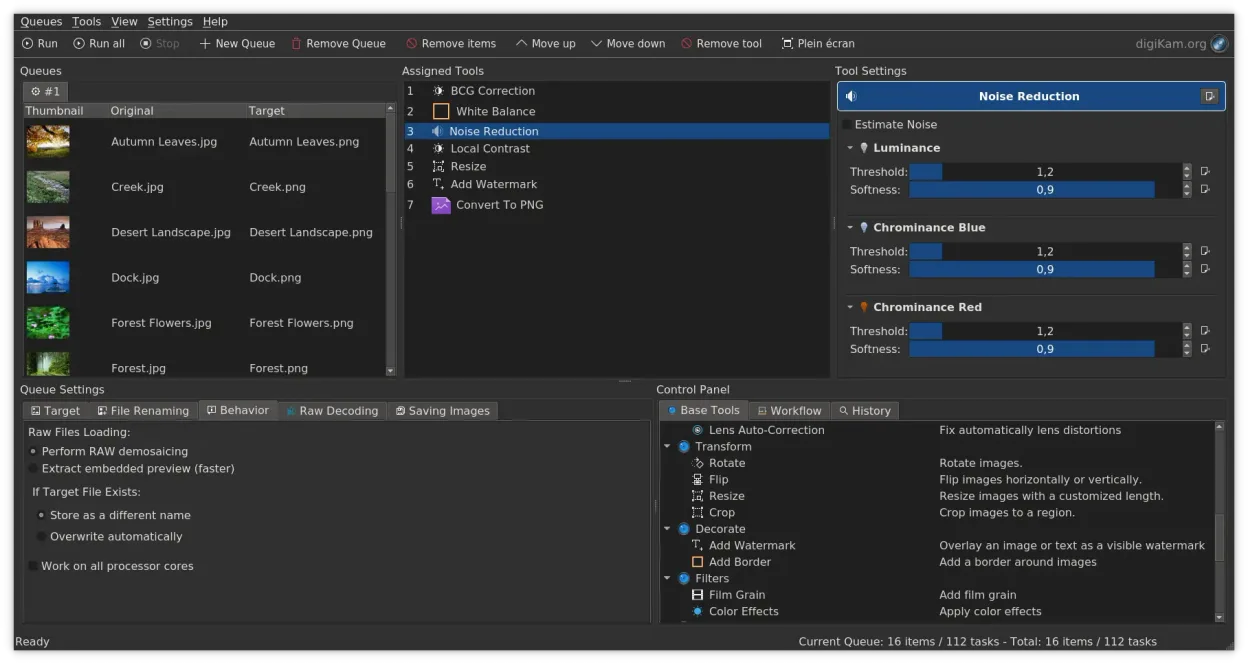
- Non‑destructive RAW editing
- Batch processing support
- Noise reduction and sharpening tools
- Layer‑like adjustments via stacked filters
- Export to common image formats (JPEG, TIFF, PNG)
What is different
- No built‑in AI sky replacement or AI portrait enhancement
- Lacks ready‑made style presets and one‑click AI suggestions
- Editing UI is more geared toward cataloguing than creative retouching
- No dedicated AI‑driven face detection for automatic skin smoothing
- Presets are manual collections, not AI‑generated
Opening your Luminar AI files
digiKam can open standard RAW, JPEG, TIFF, and PNG files that Luminar AI works with. Luminar AI’s proprietary .luminar project files are not documented, so digiKam cannot directly import them; you would need to export the edited images from Luminar AI to a common format before importing into digiKam.
Switching from Luminar AI to digiKam, step by step
- Export your edited photos from Luminar AI as JPEG, TIFF, or PNG.
- Install digiKam from your distribution’s repository or via Flathub.
- Create a new album in digiKam and import the exported files.
- Use digiKam’s tagging and rating tools to recreate any organization you had in Luminar.
- If you need AI effects, apply them with external tools (e.g., GIMP plugins) before or after importing.
- Set up batch processing jobs in digiKam for any repetitive adjustments.
Key features of digiKam
- Direct import from cameras, SD cards, and USB drives with configurable rules
- Advanced tagging, rating, and label systems for complex library organization
- Powerful search engine supporting EXIF, IPTC, and XMP metadata criteria
- Non-destructive editing with color adjustments, cropping, and sharpening
- Native RAW file support via LibRaw for decoding and preview
- Video cataloging and metadata extraction using FFmpeg backends
- Album organization with drag-and-drop interface
- Cross-platform availability for Linux, Windows, and macOS
How to install digiKam on Linux
flatpak install flathub org.kde.digikamsudo apt install digikamsudo apt install digikamsudo dnf install digikamsudo pacman -S digikamsudo zypper install digikamFrequently asked questions
Can digiKam replace Luminar AI’s AI sky replacement?
No, digiKam does not include AI sky replacement. You would need a separate tool or plugin for that effect.
Is digiKam’s RAW editing quality comparable to Luminar AI?
Yes, digiKam uses LibRaw and offers full non‑destructive RAW editing with good color and exposure controls.
Will my Luminar AI presets transfer to digiKam?
Luminar AI presets are not compatible. You can recreate similar adjustments manually in digiKam, but there is no automatic import.
4 other alternatives to Luminar AI
 darktabledarktable is a free, open‑source photo editor that manages raw files and offers a full non‑destructive…Open sourceFreeFlatpakdarktable vs Luminar AI
 RawTherapeeRawTherapee is an open‑source, cross‑platform raw photo development program.Open sourceFreeFlatpakRawTherapee vs Luminar AI
 GIMPGIMP is a free, open-source raster graphics editor for photo editing, digital painting, and image composition.Open sourceFreeFlatpakGIMP vs Luminar AI
 LightZoneLightZone is a free, open‑source RAW photo editor with a non‑destructive tool‑stack workflow.Open sourceFreeFlatpakLightZone vs Luminar AI