
 GIMPLinux
vs
MS PaintWindows
GIMPLinux
vs
MS PaintWindows
GIMP como alternativa Linux ao MS Paint
Atualizado em
Nossa avaliação
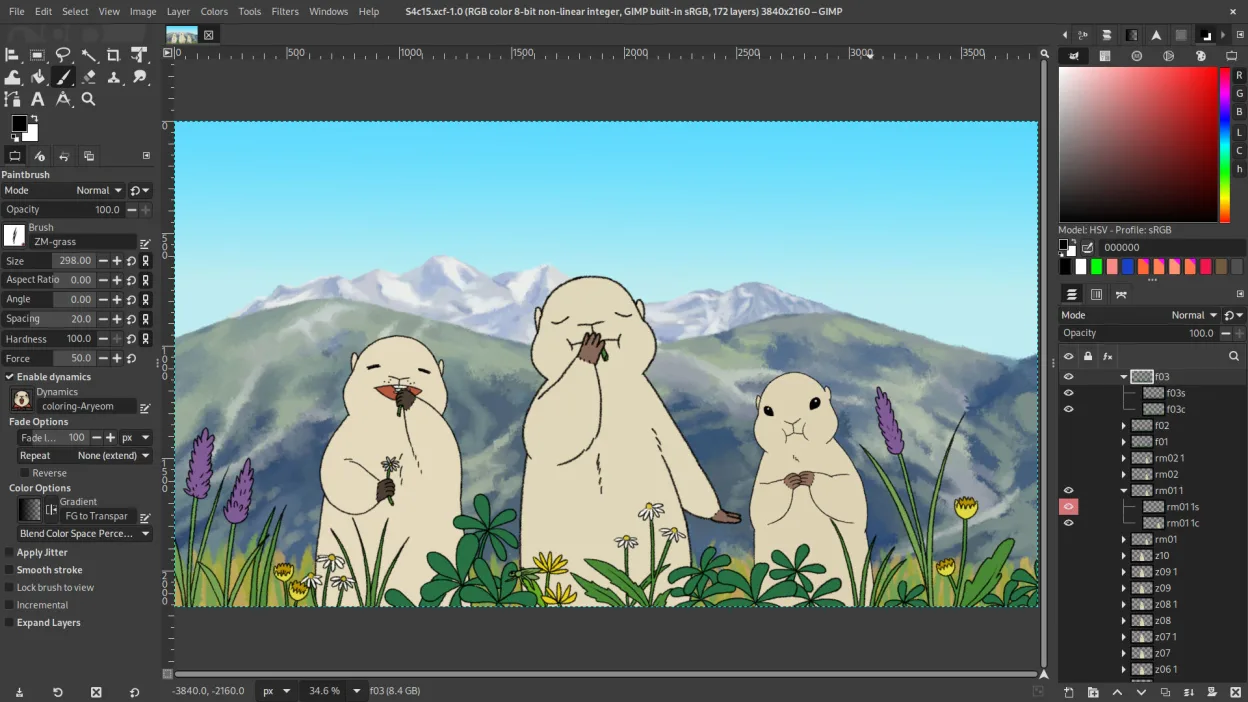
GIMP can replace MS Paint for anyone who needs more than the bare‑bones drawing tools that Paint offers. It handles all the basic operations—brush, pencil, shapes, text, crop, resize, and the common image formats—while adding layers, advanced brushes, and scripting for users who want to grow beyond simple sketches. Casual users who only ever draw quick doodles may find GIMP’s interface heavier, but for students, hobbyists, or anyone who might later need photo‑editing features, it’s a solid, free alternative.
- Licença
- GPL-3.0+ AND LGPL-3.0+
- Preço
- Grátis
- Versão mais recente
- 3.2.6 (10 de setembro de 2026)
- Avaliação
- —
O que funciona igual
- Both open and save BMP, JPEG, GIF, PNG, TIFF
- Basic drawing tools: brush, pencil, shape primitives
- Text insertion capability
- Simple cropping and image resizing
O que muda
- GIMP uses layers and masks; Paint works on a single flat canvas
- GIMP offers an extensive brush engine and plug‑in support; Paint is minimal
- No dedicated two‑color mode in GIMP’s UI
- GIMP’s interface is more complex and configurable, Paint is intentionally simple
Abrindo seus arquivos do MS Paint
GIMP can open all the raster formats Paint uses (BMP, JPEG, GIF, PNG, TIFF) without issue, and it can export to the same set. There is no proprietary Paint file format beyond standard images, so compatibility is straightforward. If a Paint file contains only standard bitmap data, GIMP will read it correctly; any Paint‑specific metadata is ignored but does not affect the image.
Trocando o MS Paint pelo GIMP, passo a passo
- Install GIMP from your distribution’s repository or Flathub.
- Launch GIMP and familiarize yourself with the toolbox layout.
- Open an existing Paint file via File → Open and verify the image displays correctly.
- Save new work using File → Export As and choose BMP, PNG, JPEG, GIF, or TIFF as needed.
- If you need a pure two‑color image, create a new image with a 1‑bit indexed palette and draw with black/white only.
Principais recursos do GIMP
- Edição baseada em camadas com máscaras, modos de mesclagem e transparência
- Motor avançado de pincéis para pintura digital e retoque
- Suporte a plug‑ins compatíveis com Photoshop (via camadas de compatibilidade)
- Processamento em lote e scripting com Script-Fu, Python ou GEGL
- Edição não destrutiva possível via plug‑ins como G'MIC
- Suporte extensivo a formatos: PNG, JPEG, TIFF, PSD, WebP e mais
- Interface customizável com painéis ancoráveis e temas
- Gerenciamento de cores com suporte a perfis ICC
Como instalar o GIMP no Linux
flatpak install flathub org.gimp.GIMPsudo apt install gimpsudo apt install gimpsudo dnf install gimpsudo pacman -S gimpsudo zypper install gimpPerguntas frequentes
Can GIMP replace Paint for quick doodles?
Yes, but expect a slower start‑up and a more feature‑rich UI; you can hide panels to keep it simple.
Does GIMP support the exact same file size limits as Paint?
GIMP has no hard limits beyond system memory, so it can handle larger images than Paint.
Is there a way to get a two‑color mode in GIMP?
Create a new image with an indexed 1‑bit palette or use the ‘Threshold’ filter to reduce colors to black and white.
Outras 4 alternativas ao MS Paint
 PintaPinta é um editor de bitmap gratuito e de código aberto que imita o Paint.NET com uma interface simples e…Código abertoGrátisFlatpakPinta vs MS Paint
 KolourPaintO KolourPaint é um editor de gráficos raster leve do KDE, ideal para desenhos rápidos e ajustes simples em…Código abertoGrátisFlatpakKolourPaint vs MS Paint
 MyPaintMyPaint é um programa rápido, gratuito e de código aberto para pintura raster, focado na dinâmica dos pincéis…Código abertoGrátisFlatpakMyPaint vs MS Paint
 KritaKrita é um programa de pintura digital e ilustração de código aberto com recursos completos.Código abertoGrátisFlatpakKrita vs MS Paint