
 GIMPLinux
vs
MS PaintWindows
GIMPLinux
vs
MS PaintWindows
GIMP as a Linux alternative to MS Paint
Updated
Our verdict
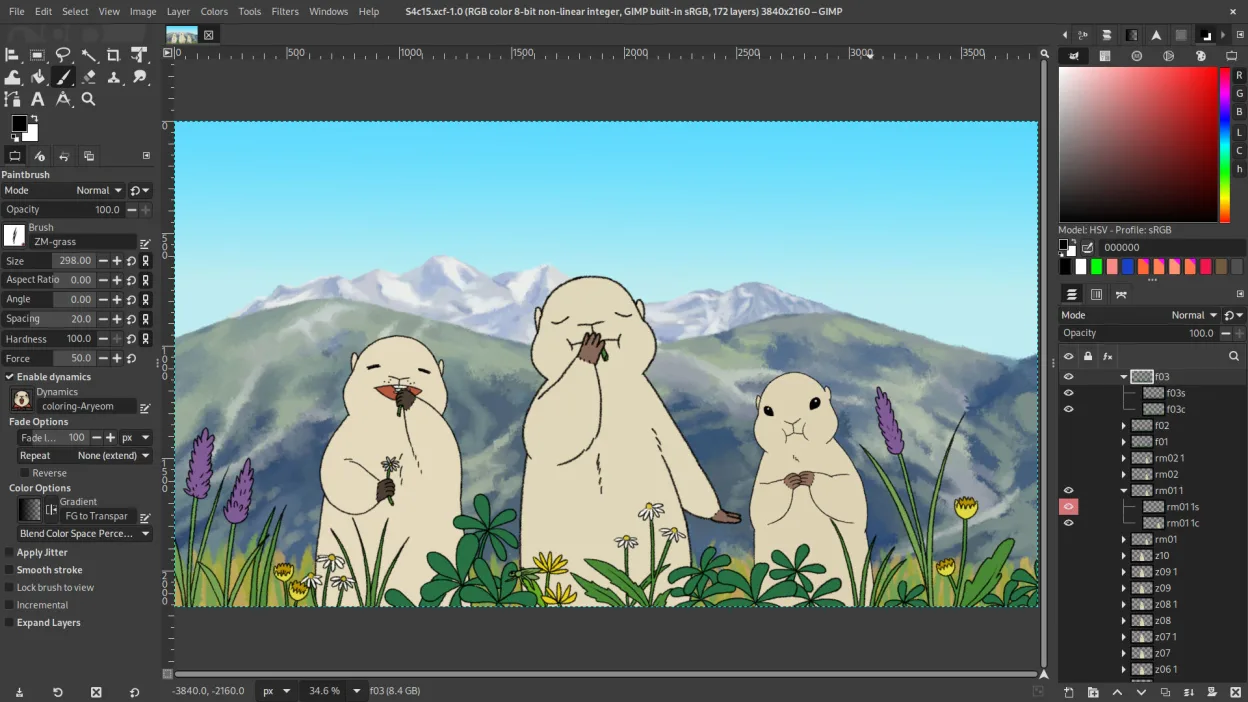
GIMP can replace MS Paint for anyone who needs more than the bare‑bones drawing tools that Paint offers. It handles all the basic operations—brush, pencil, shapes, text, crop, resize, and the common image formats—while adding layers, advanced brushes, and scripting for users who want to grow beyond simple sketches. Casual users who only ever draw quick doodles may find GIMP’s interface heavier, but for students, hobbyists, or anyone who might later need photo‑editing features, it’s a solid, free alternative.
- License
- GPL-3.0+ AND LGPL-3.0+
- Price
- Free
- Latest version
- 3.2.6 (September 10, 2026)
- Rating
- —
What works the same
- Both open and save BMP, JPEG, GIF, PNG, TIFF
- Basic drawing tools: brush, pencil, shape primitives
- Text insertion capability
- Simple cropping and image resizing
What is different
- GIMP uses layers and masks; Paint works on a single flat canvas
- GIMP offers an extensive brush engine and plug‑in support; Paint is minimal
- No dedicated two‑color mode in GIMP’s UI
- GIMP’s interface is more complex and configurable, Paint is intentionally simple
Opening your MS Paint files
GIMP can open all the raster formats Paint uses (BMP, JPEG, GIF, PNG, TIFF) without issue, and it can export to the same set. There is no proprietary Paint file format beyond standard images, so compatibility is straightforward. If a Paint file contains only standard bitmap data, GIMP will read it correctly; any Paint‑specific metadata is ignored but does not affect the image.
Switching from MS Paint to GIMP, step by step
- Install GIMP from your distribution’s repository or Flathub.
- Launch GIMP and familiarize yourself with the toolbox layout.
- Open an existing Paint file via File → Open and verify the image displays correctly.
- Save new work using File → Export As and choose BMP, PNG, JPEG, GIF, or TIFF as needed.
- If you need a pure two‑color image, create a new image with a 1‑bit indexed palette and draw with black/white only.
Key features of GIMP
- Layer-based editing with masks, blending modes, and transparency
- Advanced brush engine for digital painting and retouching
- Support for Photoshop-compatible plug-ins (via compatibility layers)
- Batch processing and scripting with Script-Fu, Python, or GEGL
- Non-destructive editing possible through plug-ins like G'MIC
- Extensive format support: PNG, JPEG, TIFF, PSD, WebP, and more
- Customizable interface with dockable panels and themes
- Color management with ICC profile support
How to install GIMP on Linux
flatpak install flathub org.gimp.GIMPsudo apt install gimpsudo apt install gimpsudo dnf install gimpsudo pacman -S gimpsudo zypper install gimpFrequently asked questions
Can GIMP replace Paint for quick doodles?
Yes, but expect a slower start‑up and a more feature‑rich UI; you can hide panels to keep it simple.
Does GIMP support the exact same file size limits as Paint?
GIMP has no hard limits beyond system memory, so it can handle larger images than Paint.
Is there a way to get a two‑color mode in GIMP?
Create a new image with an indexed 1‑bit palette or use the ‘Threshold’ filter to reduce colors to black and white.
4 other alternatives to MS Paint
 PintaPinta is a free, open‑source bitmap editor that mimics Paint.NET with a simple interface and layer support.Open sourceFreeFlatpakPinta vs MS Paint
 KolourPaintKolourPaint is a lightweight KDE raster graphics editor for quick drawing and simple image touch-ups.Open sourceFreeFlatpakKolourPaint vs MS Paint
 MyPaintMyPaint is a fast, free, open‑source raster painting program focused on brush dynamics and tablet use.Open sourceFreeFlatpakMyPaint vs MS Paint
 KritaKrita is a full‑featured open‑source digital painting and illustration program.Open sourceFreeFlatpakKrita vs MS Paint