
 SlackLinux
vs
Slack DesktopWindows
Slack as a Linux alternative to Slack Desktop
Updated
Our verdict
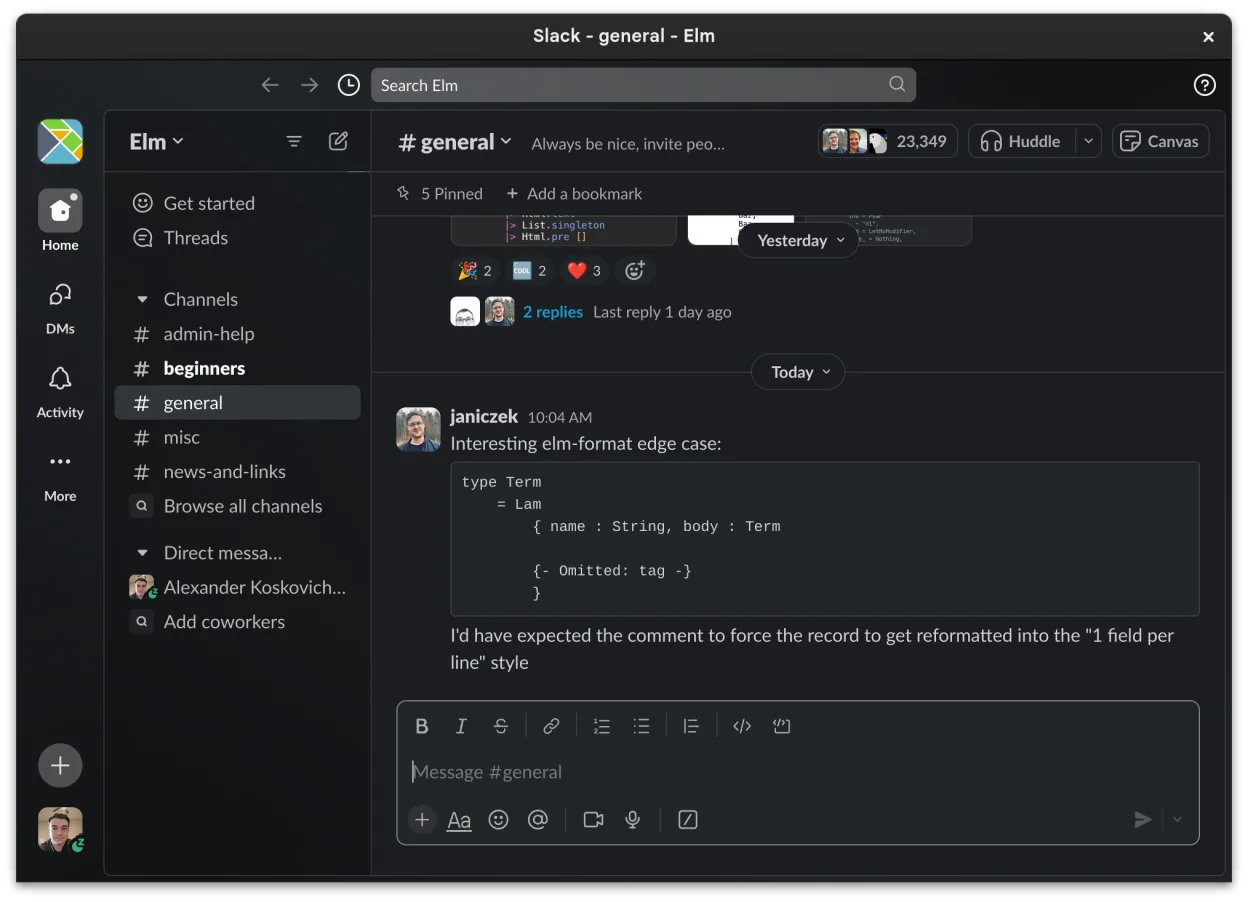
Slack’s Linux client is essentially the same service as the Windows desktop client, just built for Linux. It delivers real‑time channel and direct‑message chat, searchable history, file sharing, and notification controls that most users expect. Because it’s still in beta, a few polish items are missing, but for most teams the Linux client is a solid replacement. Power users who rely on every desktop‑only tweak may notice gaps, while everyday users will find it fully functional.
- License
- LicenseRef-proprietary=https://slack.com…
- Price
- freemium
- Latest version
- 4.53.280 (November 4, 2026)
- Rating
- —
What works the same
- Channel‑based messaging and direct messages
- Searchable conversation history
- File and image sharing with previews
- Customizable per‑channel/DM notifications
- Cross‑device synchronization of messages and settings
What is different
- Beta status means occasional UI glitches and slower feature rollout
- Some desktop‑only shortcuts and integrations are not yet present
- Limited offline message caching compared to the Windows client
- No native support for Windows‑only plugins or custom themes
- Occasional delay in receiving push notifications on Linux
Opening your Slack Desktop files
Slack stores files on its servers, not locally, so there is no special file format to open or export. Anything you can download from the Windows client (images, PDFs, etc.) can be downloaded from the Linux client as well. If you have local caches from the Windows app, you can still access them directly via the file system, but the Linux client does not import those caches automatically.
Switching from Slack Desktop to Slack, step by step
- Download the Slack Flatpak from Flathub or the official .deb package.
- Install the package using your package manager (e.g., flatpak install or sudo apt install).
- Log in with your existing workspace credentials.
- Verify that channels, DMs, and files appear as expected.
- Adjust notification and appearance settings to match your workflow.
- Optional: Pin the Slack icon to your desktop or panel for quick access.
Key features of Slack
- Channel-based organization for topics and projects
- Direct messaging with read receipts and reactions
- File sharing with preview support for common formats
- Integration with third-party tools via Slack Apps
- Threaded conversations to keep main channels uncluttered
- Cross-device sync for messages and notifications
- Customizable notification settings per channel or DM
- Beta Linux client with ongoing feature additions
How to install Slack on Linux
flatpak install flathub com.slack.SlackFrequently asked questions
Will my message history be lost when switching to Linux?
No. All messages are stored in Slack’s cloud; logging in on Linux gives you the same history as on Windows.
Can I use the same Slack apps and integrations?
Yes, most third‑party Slack apps work the same, though a few that rely on Windows‑only features may be unavailable.
Is the Linux client stable enough for daily work?
For most teams it is, but expect occasional bugs due to its beta status. Keep an eye on updates for fixes.

