
 VLC media playerLinux
vs
QuickTimeWindows
VLC media playerLinux
vs
QuickTimeWindows
VLC media player as a Linux alternative to QuickTime
Updated
Our verdict
VLC is a solid replacement for QuickTime's core playback role, especially since QuickTime for Windows is discontinued. It handles standard video and audio formats without needing extra codecs, making it ideal for general media consumption. However, it is not a direct swap for QuickTime Pro's editing suite. If you only need to watch files, VLC covers 90% of the use case. If you relied on QuickTime for screen recording or complex video editing, you will need separate Linux tools, as VLC's editing features are limited to basic trimming and conversion.
- License
- GPL-2.0+
- Price
- Free
- Latest version
- 3.0.23 (January 1, 2026)
- Rating
- —
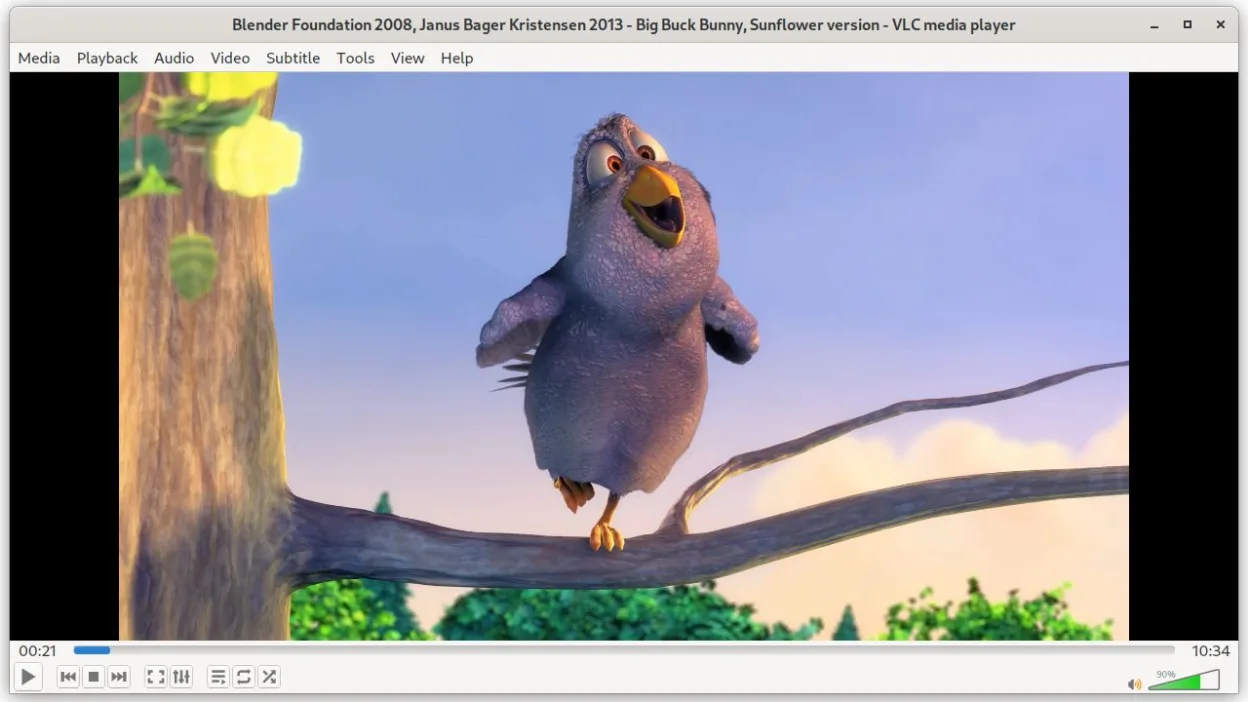
What works the same
- Plays standard video formats like MP4, MKV, and AVI out of the box
- Supports standard audio formats including MP3, FLAC, and AAC
- Handles subtitle synchronization and multiple audio tracks
- Provides basic media conversion and trimming capabilities
- Open-source and free to use on Linux
What is different
- Lacks a dedicated, user-friendly screen recording interface comparable to QuickTime Player
- Video editing is limited to basic trimming and format conversion, not full timeline editing
- Does not offer a built-in, polished audio editing suite for detailed waveform manipulation
- Interface is functional and dense rather than the minimalist design of QuickTime
- Hardware acceleration support varies by driver and distribution, requiring manual configuration in some cases
Opening your QuickTime files
VLC opens QuickTime-generated files (usually .mov) without issue, as it supports the underlying codecs. It can also export media to common formats like MP4 or MKV. If you have legacy .qt files, VLC will likely play them, but for professional workflows, you may need to convert them to more standard containers using VLC's conversion tool or a dedicated utility like FFmpeg.
Switching from QuickTime to VLC media player, step by step
- Install VLC from your Linux distribution's package manager or Flathub
- Test playback of your most common video and audio files to ensure codec support
- Configure hardware acceleration in VLC preferences if playback is stuttering
- Use VLC's 'Convert/Save' feature to trim or convert legacy QuickTime files to MP4
- Install a dedicated screen recorder (like SimpleScreenRecorder or OBS) if you previously used QuickTime for recording
- Install a full-featured editor (like Kdenlive) if you need more than basic trimming
Key features of VLC media player
- Plays most audio and video formats out of the box
- Supports DVDs, Audio CDs, VCDs and network streams
- Built‑in subtitle support with synchronization
- Media conversion and basic editing
- Streaming server capabilities
- Extensible via plugins and skins
- Command‑line interface for scripting
How to install VLC media player on Linux
flatpak install flathub org.videolan.VLCFrequently asked questions
Can VLC replace QuickTime for screen recording?
No, VLC is primarily a player. While it has some recording capabilities, it is not a robust screen recorder. Use OBS Studio or SimpleScreenRecorder for that task.
Does VLC handle hardware acceleration automatically?
VLC can use hardware acceleration, but it may need to be enabled in the video output settings. Performance depends on your specific GPU drivers and Linux distribution.
Is VLC's editing feature enough for replacing QuickTime Pro?
Only for very basic tasks like cutting a clip or changing the container format. For adding effects, transitions, or multi-track editing, you need a dedicated non-linear editor like Kdenlive or Shotcut.

