
 digiKamLinux
vs
Adobe Lightroom CCWindows
digiKam como alternativa Linux a Adobe Lightroom CC
Actualizado el
Nuestra opinión
digiKam can serve as a practical Lightroom replacement for photographers who need a free, Linux‑native tool for cataloguing and non‑destructive RAW editing. It shines for users comfortable with KDE/Qt environments and who value flexible tagging, powerful search, and batch processing. It lacks some of Lightroom’s cloud sync, built‑in mobile ecosystem, and the depth of Adobe’s preset marketplace, so it’s best for hobbyists, indie shooters, or professionals who can live without those services.
- Licencia
- GPL-2.0+
- Precio
- Gratis
- Última versión
- 9.1.0 (7 de junio de 2026)
- Valoración
- —
Lo que funciona igual
- Both store images in a central catalog and support keyword/tagging, rating, and labeling.
- Non‑destructive RAW editing with color, exposure, and cropping tools.
- Batch export and processing capabilities.
- Ability to create and apply user‑defined presets or profiles.
Lo que cambia
- Lightroom offers seamless cloud sync and mobile editing; digiKam is desktop‑only.
- Lightroom’s UI is geared toward a streamlined workflow; digiKam’s KDE interface can feel more complex.
- Lightroom includes a large marketplace of commercial presets and profiles; digiKam relies on community‑made filters.
- Lightroom can directly edit Adobe-specific side‑car files (XMP) tied to its catalog; digiKam’s handling of those files is limited.
Abrir tus archivos de Adobe Lightroom CC
digiKam can open standard RAW files that Lightroom supports, but it cannot read Lightroom-specific catalog files (.lrcat) or proprietary preset files (.lrtemplate). Exported JPEG/TIFF from Lightroom can be re‑imported without issue. If you need to preserve edits, you’ll have to export the edited images from Lightroom first.
Pasar de Adobe Lightroom CC a digiKam, paso a paso
- Export your Lightroom catalog as a set of JPEG/TIFF files with embedded XMP side‑car data.
- Copy the original RAW files and the exported images to your Linux machine.
- Install digiKam (e.g., via Flathub or your distro’s package manager).
- Use digiKam’s import wizard to bring in the RAW files, applying the XMP side‑cars if present.
- Re‑create tags, ratings, and albums using digiKam’s tagging tools.
- Save your new digiKam albums as projects for future reference.
Funciones clave de digiKam
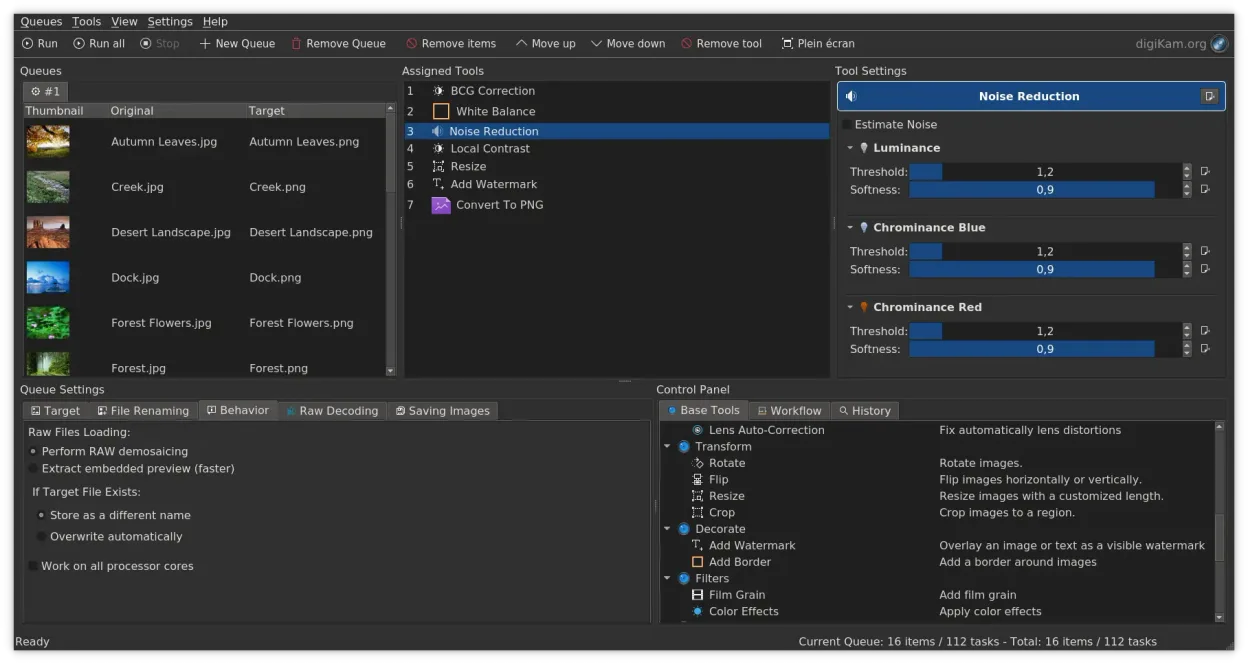
- Importación directa desde cámaras, tarjetas SD y unidades USB con reglas configurables
- Sistemas avanzados de etiquetado, calificación y etiquetas para la organización de bibliotecas complejas
- Potente motor de búsqueda que soporta criterios de metadatos EXIF, IPTC y XMP
- Edición no destructiva con ajustes de color, recorte y nitidez
- Soporte nativo para archivos RAW mediante LibRaw para decodificación y vista previa
- Catalogación de video y extracción de metadatos usando backends de FFmpeg
- Organización de álbumes con interfaz de arrastrar y soltar
- Disponibilidad multiplataforma para Linux, Windows y macOS
Cómo instalar digiKam en Linux
flatpak install flathub org.kde.digikamsudo apt install digikamsudo apt install digikamsudo dnf install digikamsudo pacman -S digikamsudo zypper install digikamPreguntas frecuentes
Can I sync my digiKam library across multiple computers?
digiKam does not provide built‑in cloud sync; you need to use a third‑party file‑sync service (e.g., Nextcloud, Syncthing) to share the database and image folders.
Does digiKam support video editing like Lightroom?
It can catalog video files and extract metadata, but it lacks advanced video editing features; you’ll need a separate video editor.
Are Lightroom mobile apps compatible with digiKam?
No. digiKam has no mobile companion; you would have to transfer images manually or use a generic file‑sync solution.
Otras 3 alternativas a Adobe Lightroom CC
 darktabledarktable es un editor de fotos gratuito y de código abierto que gestiona archivos raw y ofrece un flujo de…Código abiertoGratisFlatpakdarktable vs Adobe Lightroom CC
 RawTherapeeRawTherapee es un programa de desarrollo fotográfico raw de código abierto y multiplataforma.Código abiertoGratisFlatpakRawTherapee vs Adobe Lightroom CC
 ShotwellShotwell es un gestor de fotos de GNOME para importar, organizar y editar ligeramente imágenes.Código abiertoGratisFlatpakShotwell vs Adobe Lightroom CC