
 GIMPLinux
vs
Lightroom MobileWindows
GIMP, alternative Linux à Lightroom Mobile
Mis à jour le
Notre avis
GIMP can replace Lightroom Mobile for basic RAW editing and batch export, but it lacks the mobile‑first, cloud‑sync workflow that Lightroom offers. It is suitable for users who prefer a free, open‑source desktop editor and are comfortable with manual workflow steps. Those who need instant cloud backup, cross‑device sync, or a touch‑optimized interface will find GIMP insufficient.
- Licence
- GPL-3.0+ AND LGPL-3.0+
- Prix
- Gratuit
- Dernière version
- 3.2.8 (2 novembre 2026)
- Note
- —
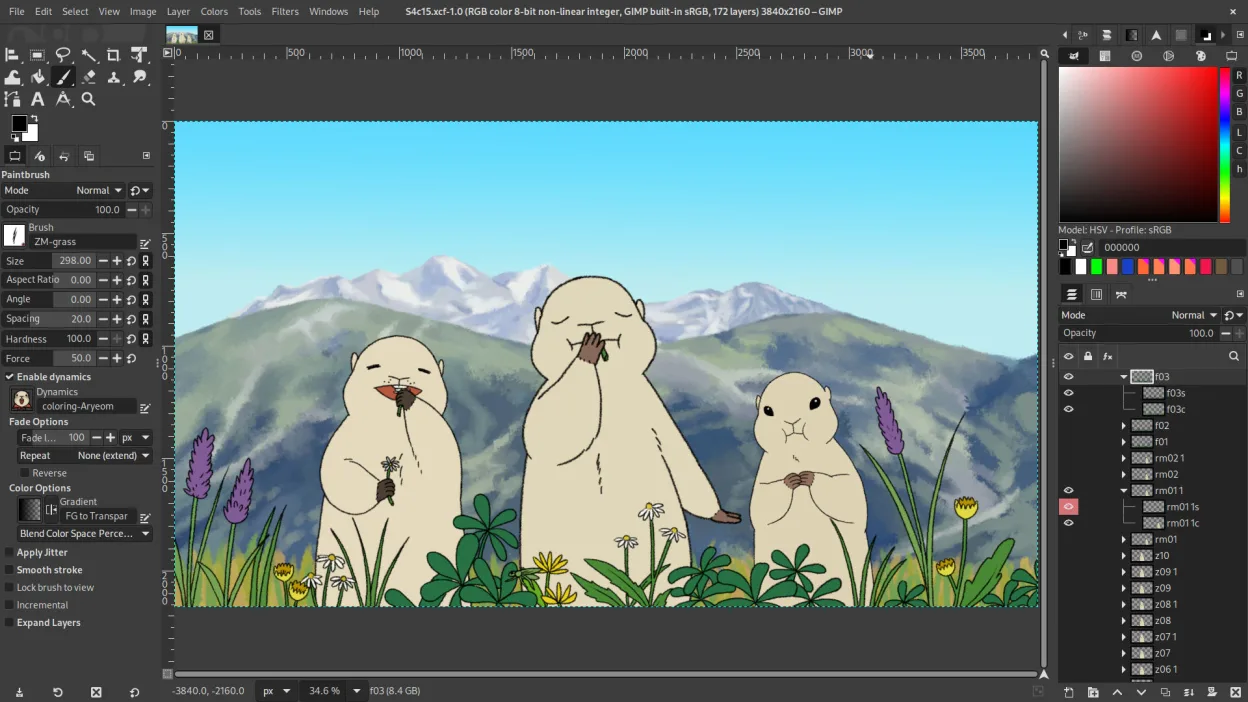
Ce qui fonctionne pareil
- Both support RAW import and non‑destructive adjustments (via layers or masks in GIMP, adjustment layers in Lightroom),
- Both allow metadata tagging and organization of images within the application
- Both provide batch export capabilities (GIMP via scripts, Lightroom via export presets)
Ce qui change
- GIMP has no built‑in cloud sync; Lightroom Mobile syncs edits across devices
- GIMP is a desktop application, not mobile‑friendly; Lightroom Mobile is designed for touch screens
- Lightroom Mobile offers a streamlined, preset‑based workflow; GIMP requires manual layer and mask setup
- GIMP lacks native integration with Adobe cloud services and Lightroom catalog
- Lightroom Mobile provides automatic backup to cloud storage; GIMP relies on local or external backup solutions
Ouvrir vos fichiers Lightroom Mobile
Lightroom Mobile stores images in its proprietary catalog format (.lrcat) and edits are applied to RAW files. GIMP can open RAW files directly via the UFRaw or Darktable plug‑in, but it cannot read Lightroom Mobile catalog files or apply Lightroom presets. Exporting from GIMP to common formats (JPEG, TIFF, PNG) is straightforward, but you would need to re‑apply edits in Lightroom Mobile if you want to maintain a Lightroom catalog.
Passer de Lightroom Mobile à GIMP, étape par étape
- 1. Export RAW files from Lightroom Mobile to a local folder using the export feature.
- 2. Install GIMP and any RAW plug‑ins (UFRaw or Darktable) on your Linux system.
- 3. Open the exported RAW files in GIMP, apply non‑destructive edits using layers or G'MIC.
- 4. Export the edited images to JPEG/TIFF for use on mobile devices or re‑import them into Lightroom Mobile if needed.
Fonctionnalités clés de GIMP
- Édition par calques avec masques, modes de fusion et transparence
- Moteur de pinceau avancé pour la peinture numérique et la retouche
- Prise en charge des plug-ins compatibles Photoshop (via des couches de compatibilité)
- Traitement par lots et scriptage avec Script-Fu, Python ou GEGL
- Édition non destructive possible grâce à des plug-ins comme G'MIC
- Prise en charge étendue des formats : PNG, JPEG, TIFF, PSD, WebP et plus
- Interface personnalisable avec panneaux ancrables et thèmes
- Gestion des couleurs avec prise en charge des profils ICC
Installer GIMP sous Linux
flatpak install flathub org.gimp.GIMPsudo apt install gimpsudo apt install gimpsudo dnf install gimpsudo pacman -S gimpsudo zypper install gimp4 autres alternatives à Lightroom Mobile
 darktabledarktable est un éditeur photo gratuit et open‑source qui gère les fichiers RAW et propose un flux de travail…Open sourceGratuitFlatpakdarktable ou Lightroom Mobile
 RawTherapeeRawTherapee est un programme de développement de photos raw open‑source et multiplateforme.Open sourceGratuitFlatpakRawTherapee ou Lightroom Mobile
 digiKamdigiKam est un gestionnaire de photos KDE complet pour organiser, étiqueter et retoucher des photos…Open sourceGratuitFlatpakdigiKam ou Lightroom Mobile
 ShotwellShotwell est un gestionnaire de photos GNOME pour l'importation, l'organisation et l'édition légère d'images.Open sourceGratuitFlatpakShotwell ou Lightroom Mobile