
 GIMPLinux
vs
Luminar AIWindows
GIMP, alternative Linux à Luminar AI
Mis à jour le
Notre avis
GIMP is not a direct replacement for Luminar AI for users who rely on AI-powered automation for sky replacement, face editing, or one-click style application. It excels as a manual photo editor with deep layer and mask control, making it suitable for advanced users comfortable with hands-on retouching. However, those seeking automated, AI-driven workflows will find GIMP lacking. It's a strong alternative for technical image manipulation, but not for simplicity or AI assistance. Use GIMP if you prioritize control over convenience.
- Licence
- GPL-3.0+ AND LGPL-3.0+
- Prix
- Gratuit
- Dernière version
- 3.2.8 (2 novembre 2026)
- Note
- —
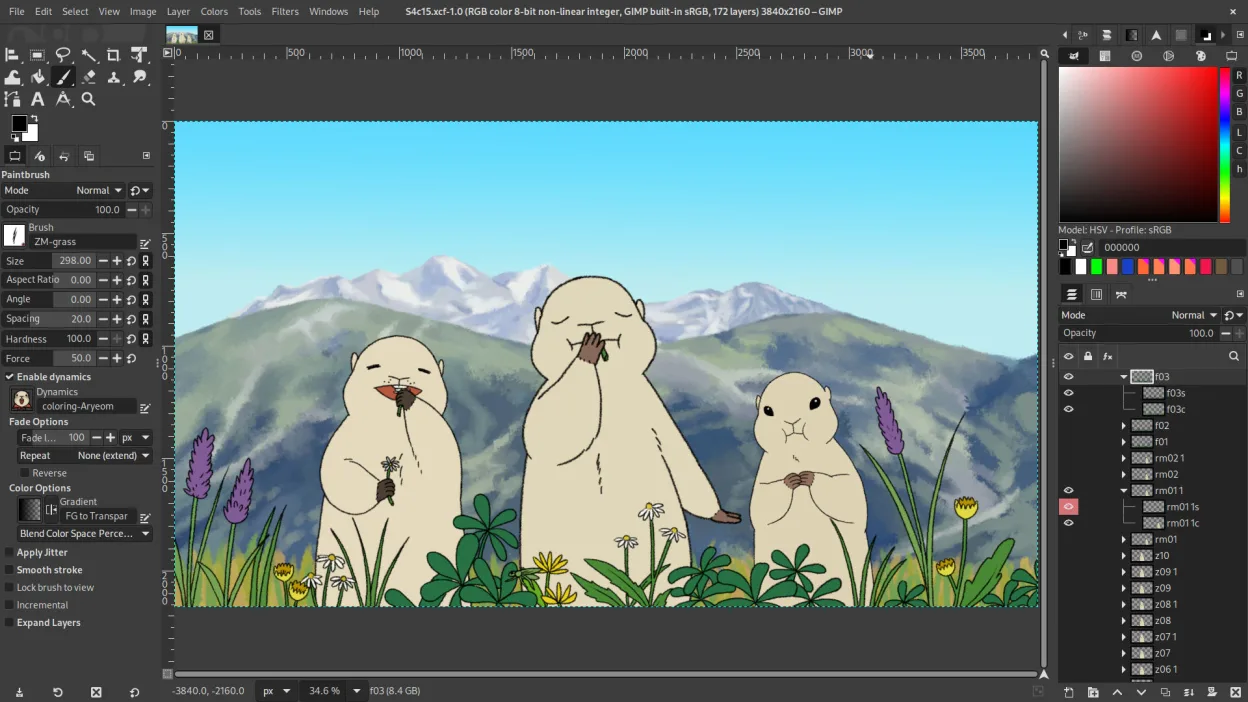
Ce qui fonctionne pareil
- Layer-based editing with masks and blending modes
- Support for non-destructive editing via plug-ins like G'MIC
- Batch processing using scripting (Script-Fu, Python)
- Advanced retouching and color adjustment tools
- Extensive file format support including PSD, TIFF, JPEG
Ce qui change
- No built-in AI for sky or face editing
- No portrait-specific enhancement tools with automatic detection
- No native preset automation or style templates like Luminar AI
- Steeper learning curve; less focused on quick, automated results
- Interface is more complex and less optimized for photo-only workflows
Ouvrir vos fichiers Luminar AI
GIMP does not natively open Luminar AI project files (.luminar or similar). There is no known converter or compatibility layer for importing Luminar-specific edits. You can export images from Luminar AI as TIFF, PSD, or JPEG and edit them in GIMP, but non-destructive adjustments and layer structures from Luminar will not transfer. For ongoing workflows, treat GIMP as a separate editor rather than a drop-in replacement for project files.
Passer de Luminar AI à GIMP, étape par étape
- Export your Luminar AI images as TIFF or PSD with layers if needed
- Install GIMP from your distribution's repository or Flathub
- Add G'MIC plug-in for enhanced filters and non-destructive editing
- Use GIMP's layer masks and brush tools to manually replicate effects
- Automate repetitive tasks with Python scripts or Script-Fu
Fonctionnalités clés de GIMP
- Édition par calques avec masques, modes de fusion et transparence
- Moteur de pinceau avancé pour la peinture numérique et la retouche
- Prise en charge des plug-ins compatibles Photoshop (via des couches de compatibilité)
- Traitement par lots et scriptage avec Script-Fu, Python ou GEGL
- Édition non destructive possible grâce à des plug-ins comme G'MIC
- Prise en charge étendue des formats : PNG, JPEG, TIFF, PSD, WebP et plus
- Interface personnalisable avec panneaux ancrables et thèmes
- Gestion des couleurs avec prise en charge des profils ICC
Installer GIMP sous Linux
flatpak install flathub org.gimp.GIMPsudo apt install gimpsudo apt install gimpsudo dnf install gimpsudo pacman -S gimpsudo zypper install gimpQuestions fréquentes
Can GIMP do sky replacement like Luminar AI?
No, GIMP has no built-in AI sky replacement. You must manually composite skies using layers, masks, and selection tools, which requires more skill and time.
Is GIMP good for portrait editing?
Yes, but manually. GIMP supports detailed retouching with brushes and filters, but lacks automatic face detection or enhancement tools found in Luminar AI.
Can I use Luminar AI presets in GIMP?
No. GIMP doesn't support Luminar AI presets. You can mimic styles using G'MIC or create custom scripts, but automation is limited.
4 autres alternatives à Luminar AI
 darktabledarktable est un éditeur photo gratuit et open‑source qui gère les fichiers RAW et propose un flux de travail…Open sourceGratuitFlatpakdarktable ou Luminar AI
 RawTherapeeRawTherapee est un programme de développement de photos raw open‑source et multiplateforme.Open sourceGratuitFlatpakRawTherapee ou Luminar AI
 digiKamdigiKam est un gestionnaire de photos KDE complet pour organiser, étiqueter et retoucher des photos…Open sourceGratuitFlatpakdigiKam ou Luminar AI
 LightZoneLightZone est un éditeur de photos RAW gratuit et open source, doté d'un flux de travail non destructif basé…Open sourceGratuitFlatpakLightZone ou Luminar AI