
 GNOME System MonitorLinux
vs
NVIDIA Frame ViewWindows
GNOME System Monitor, alternative Linux à NVIDIA Frame View
Mis à jour le
Notre avis
GNOME System Monitor is not a direct replacement for NVIDIA Frame View. It provides general system resource monitoring but lacks the specialized GPU telemetry, frame pacing analysis, and low-overhead in-game overlay that Frame View offers. If you only need to check if your GPU is maxed out during a game, System Monitor works. However, if you are diagnosing stuttering, measuring input latency, or analyzing frame time consistency, you need a tool specifically designed for graphics profiling. For most gamers, System Monitor is too coarse and intrusive for this specific task.
- Licence
- GPL-2.0
- Prix
- Gratuit
- Dernière version
- 51.1
- Note
- 5/5 (1)
Ce qui fonctionne pareil
- Both display real-time resource utilization metrics.
- Both run natively on Linux.
- Both can identify which process is consuming the most resources.
- Both are free and open-source.
Ce qui change
- GNOME System Monitor lacks frame time and pacing visualization.
- It does not provide specific NVIDIA GPU driver telemetry or rendering pipeline insights.
- There is no in-game overlay; it is a desktop window application.
- It does not measure input latency or frame pacing consistency.
Ouvrir vos fichiers NVIDIA Frame View
GNOME System Monitor does not import or export data files. It is a live monitoring tool. NVIDIA Frame View may generate logs or capture data, but System Monitor has no mechanism to read these specific GPU profiling files. You cannot migrate historical Frame View data into System Monitor.
Passer de NVIDIA Frame View à GNOME System Monitor, étape par étape
- Install GNOME System Monitor if not already present via your package manager.
- Launch GNOME System Monitor from your application menu.
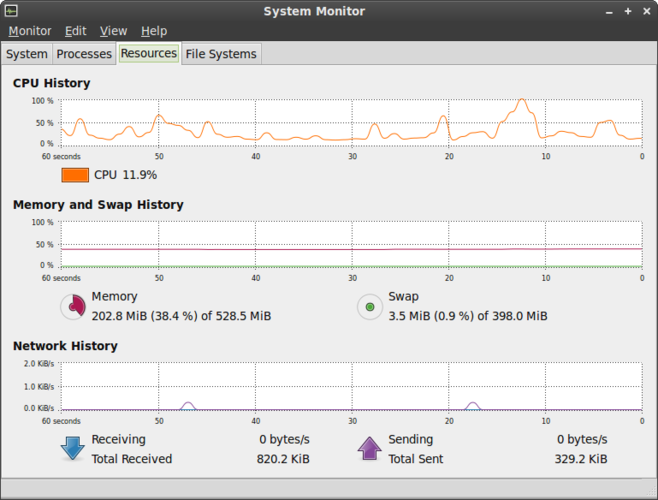
- Switch to the 'Resources' tab to view CPU and memory graphs.
- Note that GPU details may be limited depending on your driver and desktop environment.
- Use the 'Processes' tab to identify the game executable consuming resources.
- Accept that you will not see frame pacing or latency data.
Fonctionnalités clés de GNOME System Monitor
- Lister tous les processus en cours avec leur utilisation du processeur et de la mémoire
- Trier les processus par nom, PID, utilisateur ou consommation de ressources
- Afficher des informations détaillées pour un processus spécifique
- Arrêter ou tuer des processus en cours
- Surveiller la charge globale du processeur et de la mémoire
- Afficher la durée de fonctionnement du système et la charge moyenne
- Afficher un aperçu de l'activité réseau
- S'intégrer à l'environnement de bureau GNOME
Installer GNOME System Monitor sous Linux
sudo apt install gnome-system-monitorsudo apt install gnome-system-monitorsudo dnf install gnome-system-monitorsudo pacman -S gnome-system-monitorsudo zypper install gnome-system-monitorQuestions fréquentes
Can I see GPU usage in GNOME System Monitor?
Sometimes. Depending on your distribution and driver, it may show a basic GPU load percentage. It will not show the detailed frame-by-frame data or specific NVIDIA metrics that Frame View provides.
Is there an in-game overlay for System Monitor?
No. GNOME System Monitor is a standard desktop window. It does not render over games. For in-game stats, look at tools like MangoHud or NVIDIA's own Linux overlay if available.
Why is the parity score so low?
Because the core function of Frame View is frame pacing and latency analysis, which System Monitor does not do at all. It only covers the basic 'is my GPU busy' aspect.