
 geditLinux
vs
PowerShell ISEWindows
gedit as a Linux alternative to PowerShell ISE
Updated
Our verdict
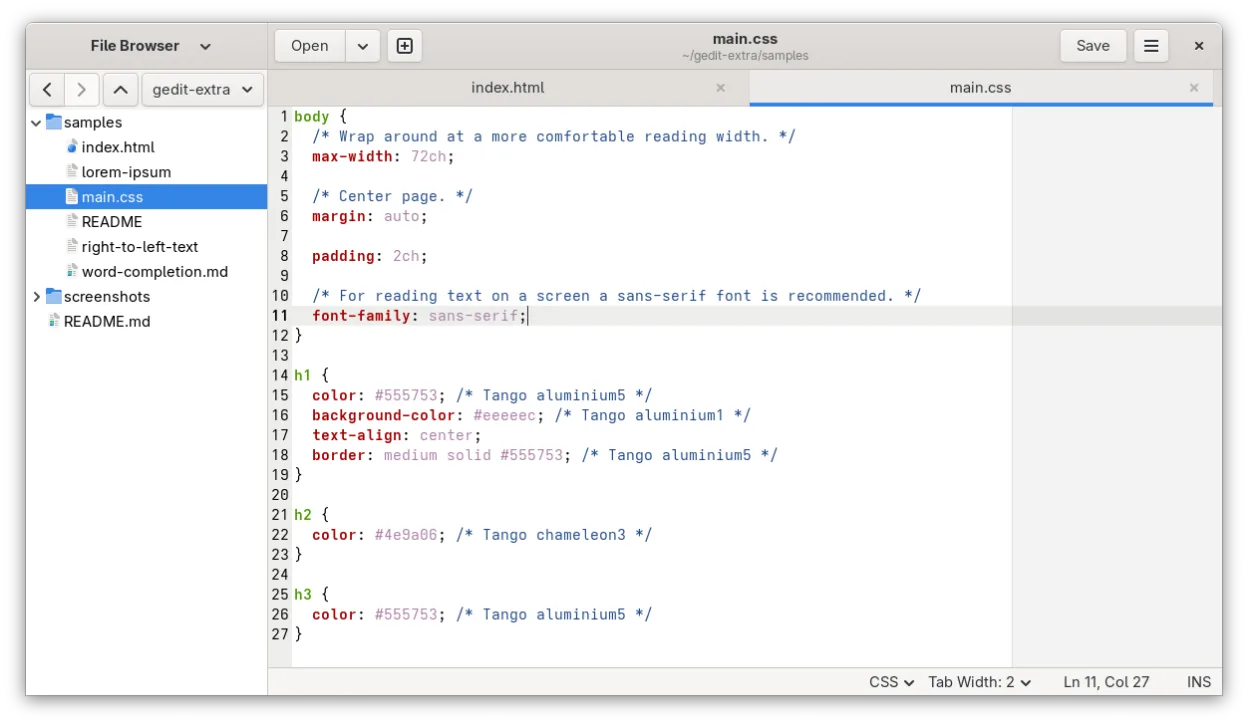
gedit is not a good replacement for PowerShell ISE for users who rely on integrated scripting, debugging, or console execution. While it offers basic syntax highlighting and tabbed editing, it lacks PowerShell-specific tooling, debugging, and terminal integration. It may suit users who only need a simple text editor for viewing or lightly editing PowerShell scripts on Linux, especially in GNOME environments. However, developers needing an actual IDE-like experience should look elsewhere. For lightweight editing with minimal setup, gedit works in a pinch, but it doesn't come close to matching PowerShell ISE’s functionality.
- License
- GPL-2.0+
- Price
- Free
- Latest version
- 51.1 (November 23, 2026)
- Rating
- —
What works the same
- Both support syntax highlighting for scripting languages
- Both offer tabbed editing and line numbering
- Both provide search and replace with regular expressions
- Both support UTF-8 encoding and Unicode text
What is different
- gedit lacks integrated terminal or console for running scripts
- No debugging capabilities for PowerShell code in gedit
- No IntelliSense or auto-completion for PowerShell cmdlets
- No built-in support for PowerShell module development
Opening your PowerShell ISE files
gedit can open .ps1 files and other text-based PowerShell scripts without issue, thanks to its UTF-8 support and plain text handling. It preserves Windows line endings (CRLF) when reading files, though it may normalize them to Unix style (LF) on save depending on settings. File encoding compatibility is generally good, but gedit does not validate or enforce PowerShell-specific encoding requirements like UTF-8 with BOM if needed. Users must manually ensure correct encoding when interoperating with Windows systems.
Switching from PowerShell ISE to gedit, step by step
- Install gedit via your distribution's package manager (e.g., apt install gedit)
- Enable the 'Modelines' and 'File Browser' plugins in Preferences
- Install or manually add a PowerShell syntax highlighting definition if not present
- Open .ps1 files directly or through remote locations using GVfs
- Use an external terminal alongside gedit for script execution
Key features of gedit
- Syntax highlighting for many programming languages
- Plugin system for extending functionality
- Multiple document interface with tabs
- Search and replace with regular expressions
- Unicode (UTF-8) support
- Line numbering and auto-indentation
- Remote file editing via GVfs
- Spell checking through Enchant
How to install gedit on Linux
flatpak install flathub org.gnome.geditsudo apt install geditsudo apt install geditsudo dnf install geditsudo pacman -S geditsudo zypper install geditFrequently asked questions
Can gedit run PowerShell scripts like PowerShell ISE?
No, gedit has no built-in terminal or script execution capability. You must run scripts manually in a separate terminal.
Does gedit support PowerShell IntelliSense or auto-completion?
No, gedit does not offer PowerShell-specific auto-completion or IntelliSense. Basic word completion is available, but not context-aware.
Is gedit suitable for developing PowerShell modules on Linux?
Not really. While you can edit files, gedit lacks debugging, module scaffolding, and console integration needed for serious module development.
5 other alternatives to PowerShell ISE
 GeanyGeany is a lightweight, fast IDE that supports many languages and plugins out of the box.Open sourceFreeFlatpakGeany vs PowerShell ISE
 KateKate is a feature-rich, programmer-focused text editor from KDE with support for 300+ languages and advanced…Open sourceFreeFlatpakKate vs PowerShell ISEVS CodeA lightweight, extensible source code editor supporting many languages, built on Electron and open-source…Open sourceFreeVS Code vs PowerShell ISE
 GNU EmacsGNU Emacs is a highly extensible text editor and Lisp interpreter that functions as a complete development…Open sourceFreeFlatpakGNU Emacs vs PowerShell ISE
 VimVim is a highly configurable, keyboard-driven text editor popular among programmers and system administrators…Open sourceFreeFlatpakVim vs PowerShell ISE