
 GPartedLinux
vs
AOMEI Partition AssistantWindows
GPartedLinux
vs
AOMEI Partition AssistantWindows
GParted as a Linux alternative to AOMEI Partition Assistant
Updated
Our verdict
GParted is a strong, native Linux replacement for AOMEI Partition Assistant. It handles the core tasks of resizing, moving, cloning, and creating partitions with equal reliability. It is ideal for users who need to prepare drives for Linux installation or manage disk layouts on existing systems. The main gap is that GParted is a manual tool; it lacks AOMEI’s automated, one-click system migration wizards. If you are comfortable with command-line verification or just need raw partition control, GParted is sufficient. If you rely heavily on automated Windows-to-Linux migration scripts, you may need supplementary tools.
- License
- GPL-3.0
- Price
- Free
- Latest version
- 1.8.1
- Rating
- —
What works the same
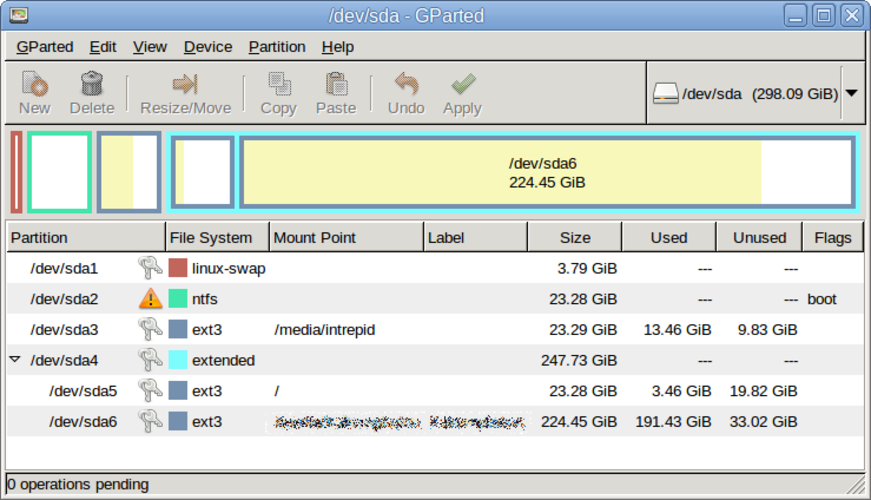
- Graphical interface for visualizing and manipulating disk partitions
- Supports resizing, moving, and copying partitions without data loss
- Ability to create, delete, and format partitions with various file systems
- Live USB capability to edit disks while the OS is not running
- Support for common file systems like NTFS, ext4, and XFS
What is different
Opening your AOMEI Partition Assistant files
GParted does not read or write AOMEI Partition Assistant project files. These are proprietary configuration files containing specific automation scripts and metadata. You cannot import an AOMEI plan into GParted. Instead, you must manually recreate the partition layout and operations in GParted. If you have a backup of your data, you can simply apply the same structural changes manually. There is no direct file conversion path between the two.
Switching from AOMEI Partition Assistant to GParted, step by step
- Back up all critical data from the target disk before starting any partition changes.
- Create a bootable Linux USB drive using a tool like Ventoy or UNetbootin with a GParted Live ISO.
- Boot your computer from the USB drive to ensure no partitions are mounted by the running OS.
- Open GParted and visually verify the current disk layout matches your backup plan.
- Execute partition resizing, moving, or cloning operations in the order specified by your plan.
- Apply all pending operations and wait for the process to complete without interruption.
Key features of GParted
- GTK front‑end to GNU Parted
- Supports resizing, moving, copying, and deleting partitions
- File‑system‑agnostic: ext4, NTFS, FAT32, XFS, Btrfs, etc.
- Live‑USB support for pre‑boot editing
- Undo/redo for partition operations
- Checksum verification for data integrity
- Batch mode via command line for scripting
How to install GParted on Linux
sudo apt install gpartedsudo apt install gpartedsudo dnf install gpartedsudo pacman -S gpartedsudo zypper install gpartedFrequently asked questions
Can GParted clone a running Windows system disk?
No. You must boot from a Live USB to clone a system disk. Cloning a mounted system partition leads to data corruption. Always unmount or boot externally before cloning.
Does GParted support NTFS file systems?
Yes, GParted supports reading, writing, resizing, and formatting NTFS partitions. It uses libparted and ntfs-3g drivers to handle NTFS operations safely.
Is GParted safe for use on SSDs?
Yes, GParted is safe for SSDs. It does not perform unnecessary full-disk writes. However, avoid moving partitions on SSDs if possible, as this generates write amplification. Resizing is generally safer than moving.