
 KarbonLinux
vs
KarbonLinux
vs
 CorelDRAWWindows
Karbon as a Linux alternative to CorelDRAW
Updated
Our verdict
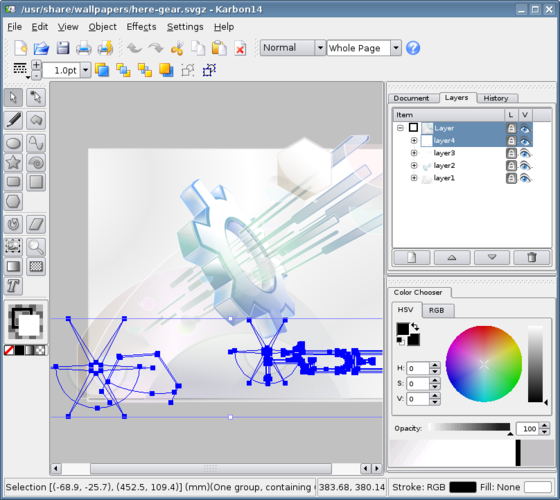
Karbon can serve as a replacement for CorelDRAW for hobbyists, small‑business designers, and educators who need basic to moderate vector illustration capabilities. It offers essential Bézier tools, layer handling, and SVG/EPS export, but it lacks the depth of industry‑grade features found in CorelDRAW, such as advanced color management, extensive font libraries, and specialized cut‑line tools. Users whose workflow revolves around complex multi‑page layouts, high‑precision signmaking, or tight integration with bitmap editors may find Karbon insufficient, while those comfortable with a more modest toolset will appreciate its free, open‑source nature.
- License
- GPL-3.0
- Price
- Free
- Latest version
- —
- Rating
- —
What works the same
- Bézier curve editing
- Layer management
- Support for SVG, EPS, PDF export
- Text on paths and basic typography tools
- Gradient and pattern fills
What is different
- No native CorelDRAW (.cdr) import; only indirect via AI/EPS
- Limited advanced color‑management and spot‑color handling
- No dedicated cut‑line, engraving, or sign‑making workflow tools
- Simpler text engine; lacks extensive font‑style controls and OpenType features
- No multi‑page document handling; each file is a single canvas
Opening your CorelDRAW files
Karbon can open Adobe Illustrator files (.ai) and export to SVG, PDF, and EPS, which CorelDRAW can also read and write. Direct .cdr support is not available, so opening native CorelDRAW files requires an intermediate conversion step—usually exporting from CorelDRAW to SVG or EPS first. Exporting from Karbon back to CorelDRAW works via those same interchange formats, though some effects or complex text layouts may not survive the round‑trip unchanged.
Switching from CorelDRAW to Karbon, step by step
- Export existing CorelDRAW assets to SVG, EPS, or PDF from within CorelDRAW.
- Open the exported files in Karbon and verify that layers, text, and gradients appear as expected.
- Adjust any missing spot colors or cut‑line objects using Karbon's native tools.
- Save the project as a Karbon (.kra) file for future editing.
- When delivering to clients or partners still using CorelDRAW, export from Karbon back to SVG or PDF.
Key features of Karbon
- Layer management
- Gradient and pattern tools
- SVG, PDF, EPS export
- Customizable brushes
- Text on paths
- Import from Adobe Illustrator (.ai)
Frequently asked questions
Can Karbon replace CorelDRAW for sign‑making and CNC cutting?
Only partially. Karbon lacks built‑in cut‑line generation and tool‑path export, so you would need a separate CAM application to create CNC files.
Is there any way to edit .cdr files directly in Karbon?
No. Karbon does not read CorelDRAW's native format; you must convert the files to a supported format like SVG or EPS before opening them.
How does Karbon handle multi‑page documents?
Karbon works with single‑canvas files; for multi‑page layouts you need to create separate files or use a desktop publishing suite such as Calligra Words.
2 other alternatives to CorelDRAW
 InkscapeInkscape is a free, open‑source vector graphics editor that rivals Adobe Illustrator and CorelDRAW.Open sourceFreeFlatpakInkscape vs CorelDRAW
 sK1sK1 is a free, open-source vector graphics editor for prepress workflows, serving as a Linux alternative to…Open sourceFreeDiscontinuedsK1 vs CorelDRAW