
 KRDCLinux
vs
Quick AssistWindows
KRDCLinux
vs
Quick AssistWindows
KRDC as a Linux alternative to Quick Assist
Updated
Our verdict
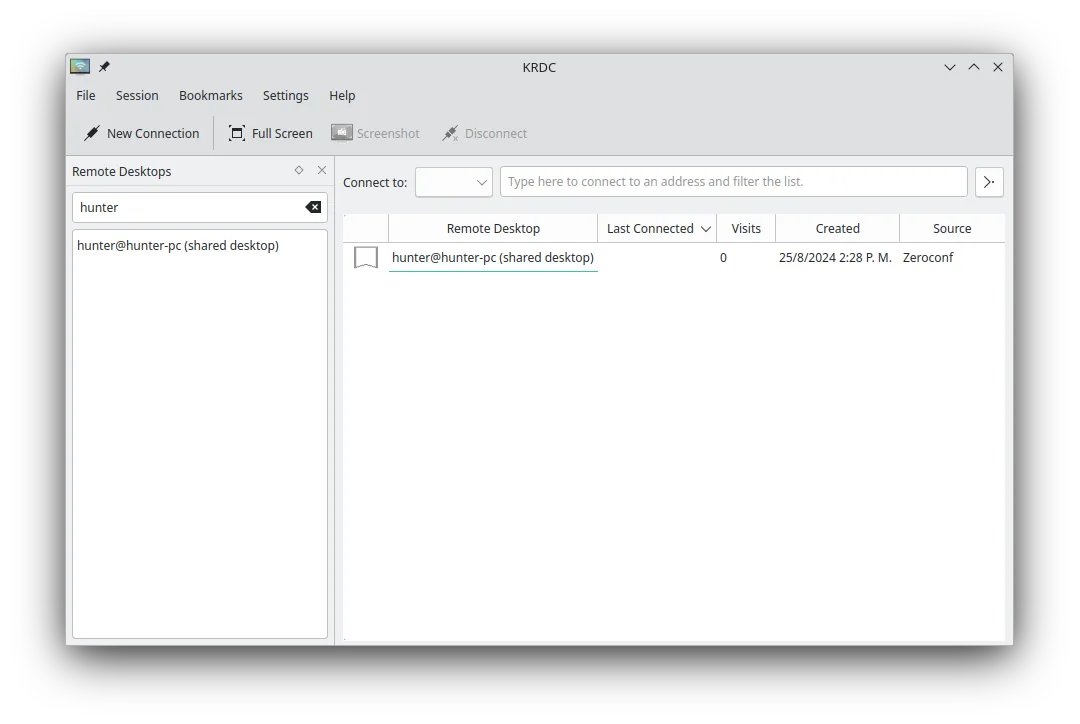
KRDC is a solid replacement for Quick Assist if you're on Linux and need to connect *to* remote machines using RDP or VNC. It supports encrypted connections, remote control, and has a clean interface. However, it's a client only — unlike Quick Assist, it can't let others connect *to* your Linux machine easily. So while it's great for providing support *from* Linux to Windows, it doesn't support incoming sessions the way Quick Assist does. Best for Linux users supporting others remotely via RDP/VNC, not for hosting.
- License
- GPL-2.0+
- Price
- Free
- Latest version
- 26.04.3 (July 2, 2026)
- Rating
- —
What works the same
- Supports remote desktop viewing and input control via RDP and VNC
- Provides encrypted connections (TLS for RDP)
- Allows full remote desktop interaction including keyboard and mouse
- Free and open-source with no licensing restrictions
- Cross-platform: can connect to Windows, Linux, or other systems
What is different
- KRDC is a client only — cannot host incoming remote sessions like Quick Assist
- No built-in session sharing via link or code; requires manual IP/port sharing
- Lacks integration with Windows authentication and Microsoft accounts
- No built-in helper mode for unattended support or easy user consent flow
- Requires manual setup of VNC/RDP servers on target machines
Opening your Quick Assist files
Quick Assist does not generate files for import or export, and KRDC does not support session codes or links used by Quick Assist. There is no direct file or session transfer between the two. Connection details in KRDC must be manually entered or bookmarked. No compatibility exists between Quick Assist session tokens and KRDC.
Switching from Quick Assist to KRDC, step by step
- Install KRDC via your package manager or Flatpak
- Set up an RDP or VNC server on the target machine (Windows or Linux)
- Open KRDC and enter the remote machine's IP address and protocol
- Save connection details as a bookmark for future use
- Use Ctrl+Alt+Shift to toggle keyboard capture when needed
Key features of KRDC
- Supports both RDP and VNC protocols
- KDE‑styled graphical interface
- Bookmark management for frequent connections
- Full-screen and windowed modes
- Keyboard shortcut support (Ctrl+Alt+Shift for remote input)
- Dynamic scaling of remote display
- TLS encryption for RDP sessions
- Integration with KDE Wallet for password storage
How to install KRDC on Linux
flatpak install flathub org.kde.krdcsudo apt install krdcsudo apt install krdcsudo dnf install krdcsudo pacman -S krdcsudo zypper install krdcFrequently asked questions
Can KRDC let someone help me like Quick Assist does?
No. KRDC is a client — it lets you connect *to* other machines, but doesn't allow others to connect *to* your Linux machine. You'd need a separate VNC or RDP server for that.
Is KRDC secure for remote support?
Yes, when used with TLS-encrypted RDP or secure VNC setups. However, security depends on proper server configuration and password protection.
Can I use KRDC without KDE?
Yes, KRDC runs on any Linux desktop, though it integrates best with KDE Plasma. On other environments, it may pull in KDE libraries.
3 other alternatives to Quick Assist
 RemminaRemmina is a Linux remote desktop client supporting RDP, VNC, SSH, and X2Go for connecting to remote systems…Open sourceFreeFlatpakRemmina vs Quick Assist
 RustDeskRustDesk is an open-source remote desktop tool that lets you securely control computers over the internet…Open sourceFreeFlatpakRustDesk vs Quick Assist
 VinagreVinagre is a GNOME remote‑desktop viewer for VNC, RDP, SSH and SPICE, now discontinued.Open sourceFreeDiscontinuedVinagre vs Quick Assist