

Linux · Games
ProtonPlus
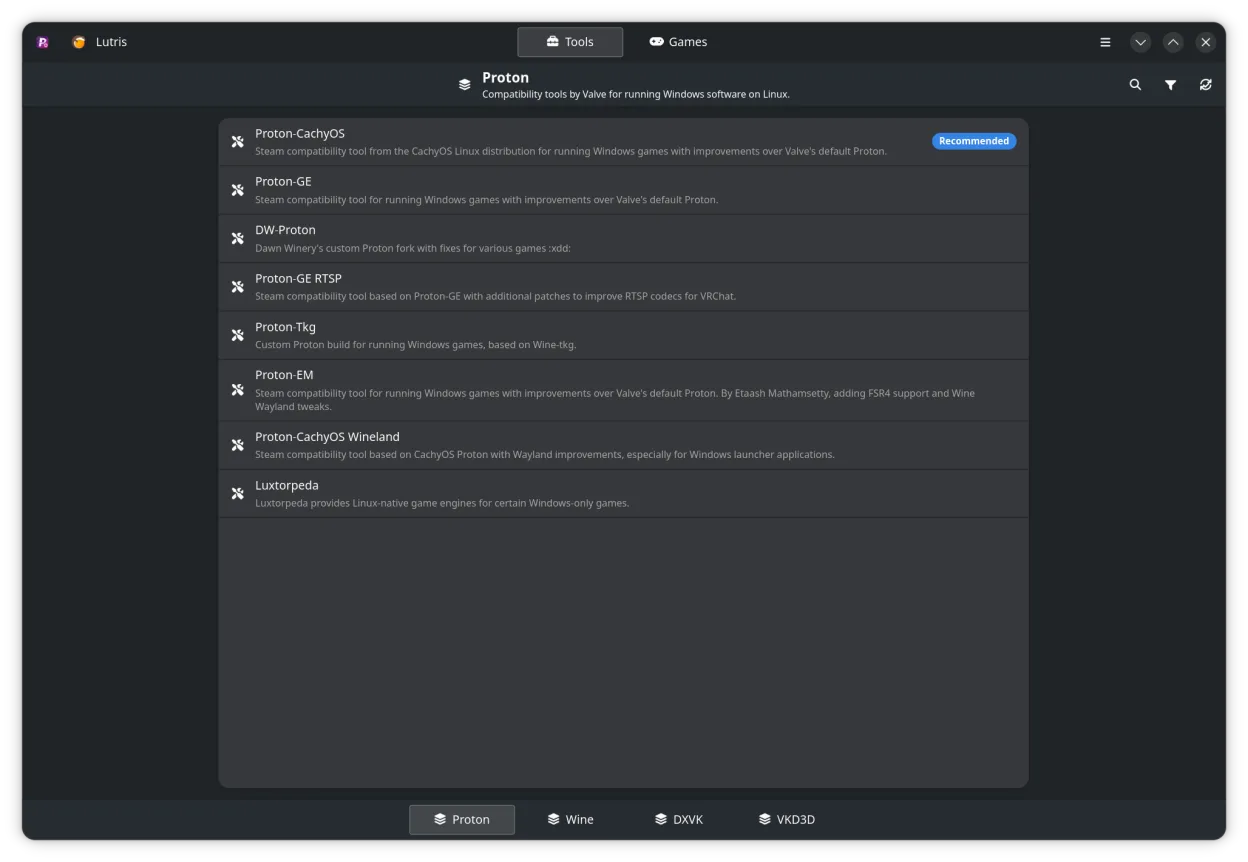
ProtonPlus is a tool to install, update, and manage Proton, Wine, DXVK, and VKD3D for Linux game launchers.
- License
- GPL-3.0-or-later
- Latest version
- 0.6.8 (September 8, 2026)
- Developer
- Vysp3r
- Installs
- 45,156 (Flathub, 30 days)
What is ProtonPlus?
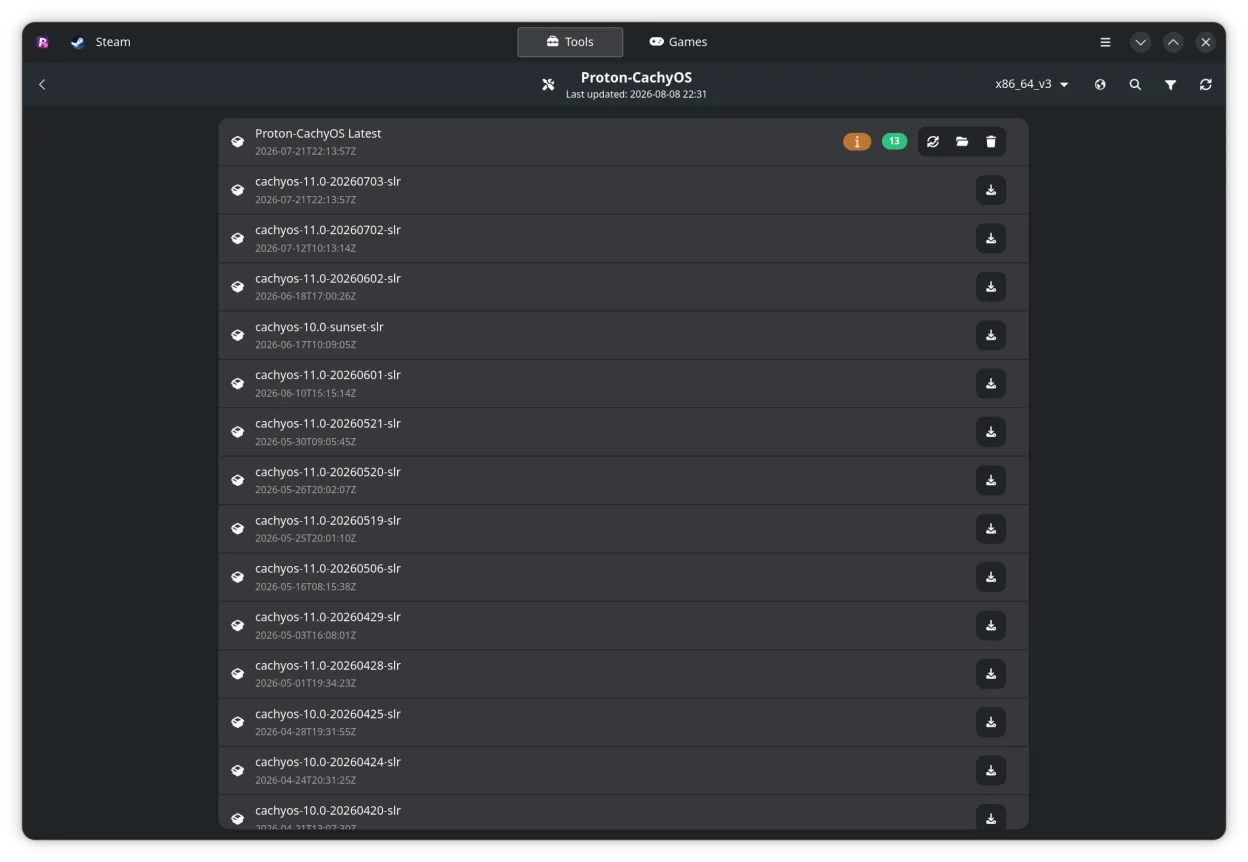
ProtonPlus started as a small project to simplify the messy process of juggling multiple compatibility layers for Linux gaming. Over the past two years it has grown into a mature, command‑line and GUI‑based manager that keeps your tools up‑to‑date and lets you switch versions on a per‑game basis.
It is aimed at gamers who use Steam, Epic Games Launcher, GOG Galaxy, or other third‑party launchers on Linux and want a single place to control the underlying compatibility layers.
Compared with the Windows‑centric tools, ProtonPlus feels lightweight and focused. It doesn’t replace the launchers themselves but gives you a clear, consistent interface for the heavy lifting that those launchers rely on.
Best for: Gamers who want a single, lightweight manager for all their Linux compatibility tools across multiple launchers.
Key features of ProtonPlus
- Manage Proton, Wine, DXVK, VKD3D and related tools
- Support for Steam, Faugus Launcher, Lutris, Heroic Games Launcher, Bottles, and WineZGUI
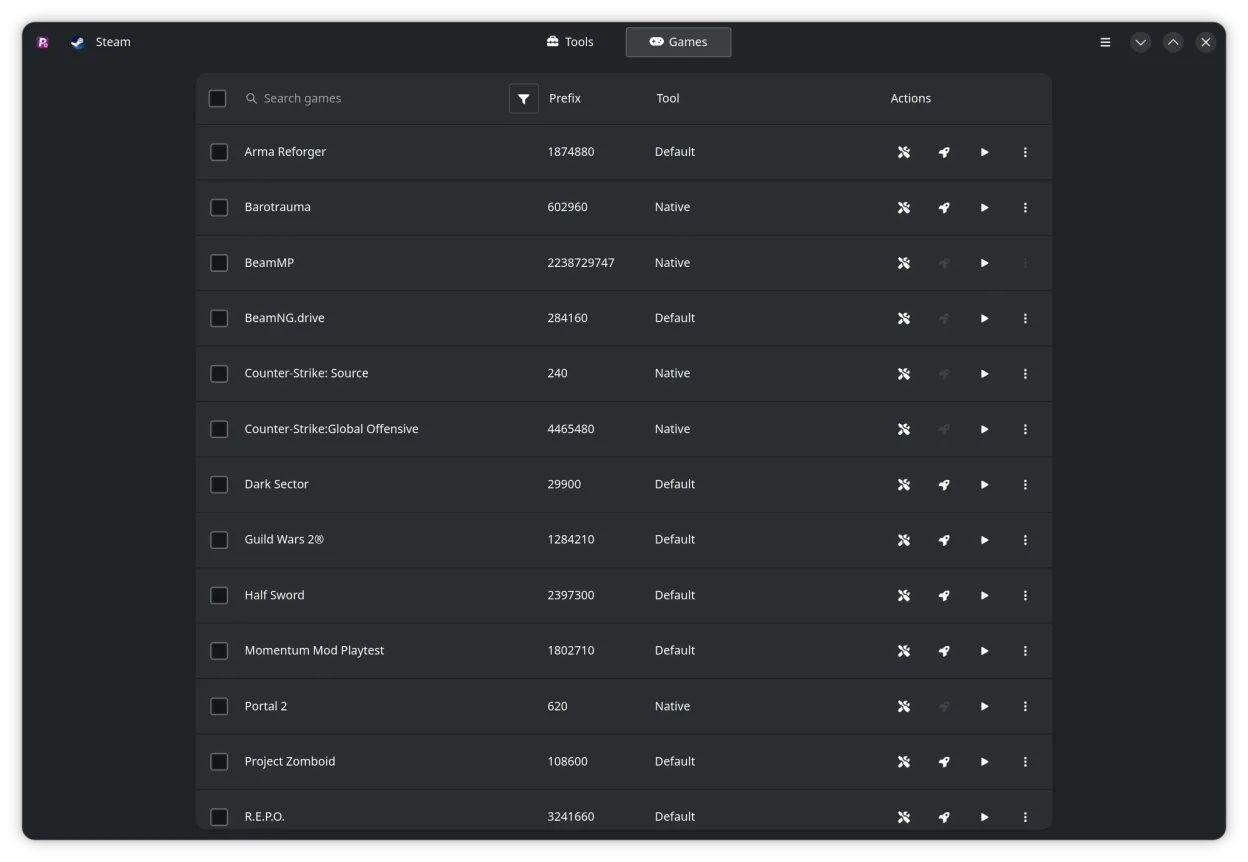
- Browse Steam library and change compatibility settings per game
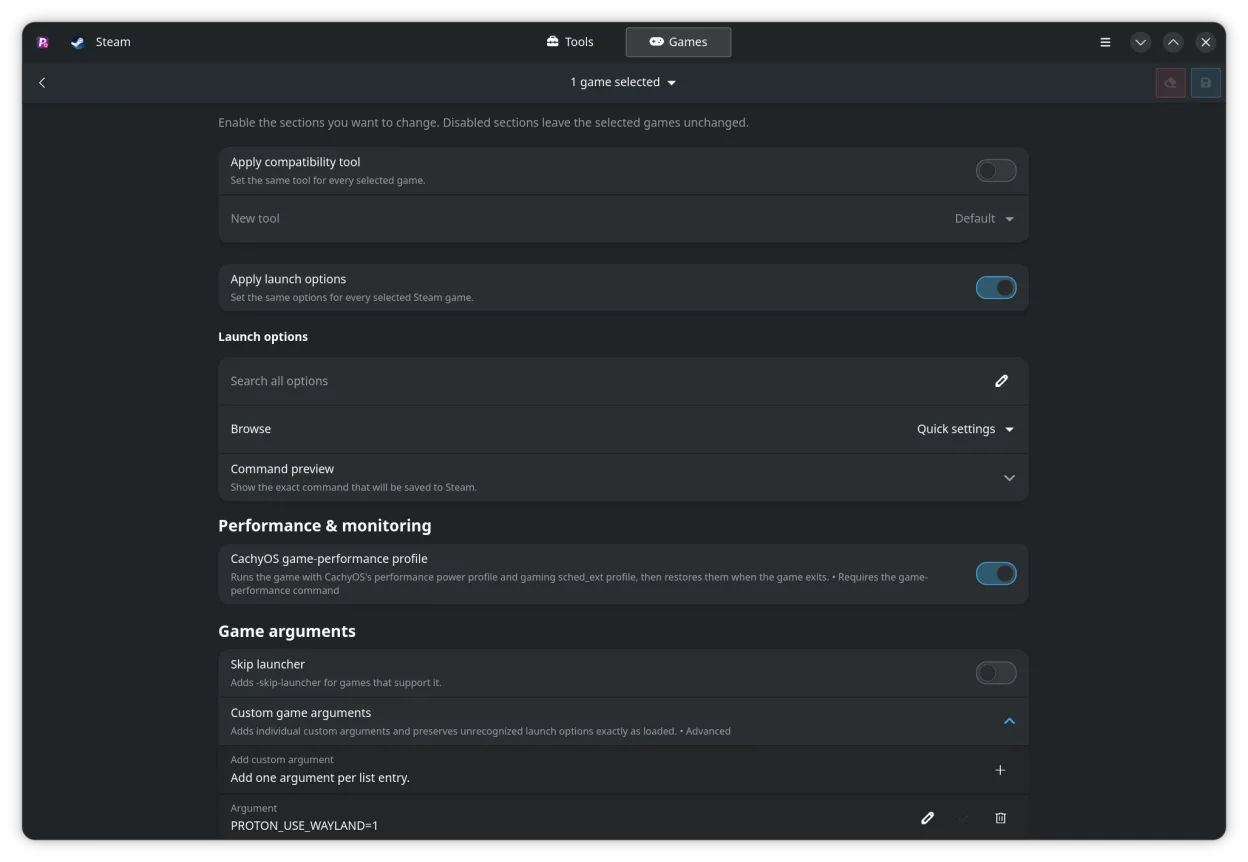
- Edit launch options directly from the interface
- Track downloads and updates with notifications
- CLI support for scripting and automation
Pros
- Centralizes all compatibility tools in one place
- Keeps tools up‑to‑date automatically
- Works with multiple launchers, not just Steam
- Open source and free
- Provides clear status and logs
Cons
- No native support for non‑Steam launchers outside the listed ones
- CLI can be intimidating for new users
- GUI is still basic compared to full launcher interfaces
- Requires manual configuration for some advanced options
Windows programs ProtonPlus replaces
How to install ProtonPlus on Linux
flatpak install flathub com.vysp3r.ProtonPlussudo zypper install ProtonPlusTips for Windows users
When moving from Windows launchers, keep your game libraries in the same folders; ProtonPlus works with the existing game files, so you only need to install the toolset. Use the GUI to point to your Steam library and let ProtonPlus auto‑detect games. Shortcuts and launch options can be edited per game; the CLI can be used to batch‑apply settings if you prefer scripts. Remember that Windows‑only mods or launchers will not run unless you have a compatible Wine or Proton version installed via ProtonPlus.
Recent releases
- 0.6.8 —
- ✨ Added a Discord community link to the About dialog - 🐛 Fixed some release changelogs failing to render when inline code contains Markdown emphasis characters - 🐛 Fixed the Steam restart notification missing its icon - 🌐 Updated Polish localization
- 0.6.7 —
- 🐛 Fixed Proton-Wineland WoW64 releases not being detected - 🔄 Renamed Proton-CachyOS Wineland to Proton-Wineland - 🌐 Updated Polish, Russian, and Spanish localizations
- 0.6.6 —
- 🐛 Fixed scheduled tool updates not working when ProtonPlus is installed as a Flatpak - 🌐 Updated Spanish and Indonesian localizations
- 0.6.5 —
- 🐛 Fixed release catalogs sometimes remaining stale until application data was refreshed manually - 🌐 Updated Czech, German, French, Portuguese, Russian, Japanese, and Spanish localizations
ProtonPlus: frequently asked questions
Does ProtonPlus replace Steam or Epic Games Launcher?
No, it only manages the underlying compatibility layers that those launchers use. You still need Steam, Epic, or GOG to run the games.
Can I use ProtonPlus with Lutris?
Yes, Lutris is listed as a supported launcher. ProtonPlus can install and update the tools that Lutris will use.
Is ProtonPlus free?
Yes, it is released under GPL-3.0-or-later and is free to download and use.
How often are the tools updated?
ProtonPlus tracks updates from the official repositories and can automatically download new versions or notify you when they are available.
Updated