

Linux · Games
Protontricks
A GUI tool to run Winetricks commands and install Windows dependencies for Steam Proton games.
- License
- GPL-3.0
- Latest version
- 1.15.0 (October 4, 2026)
- Developer
- Janne Pulkkinen
- Installs
- 42,540 (Flathub, 30 days)
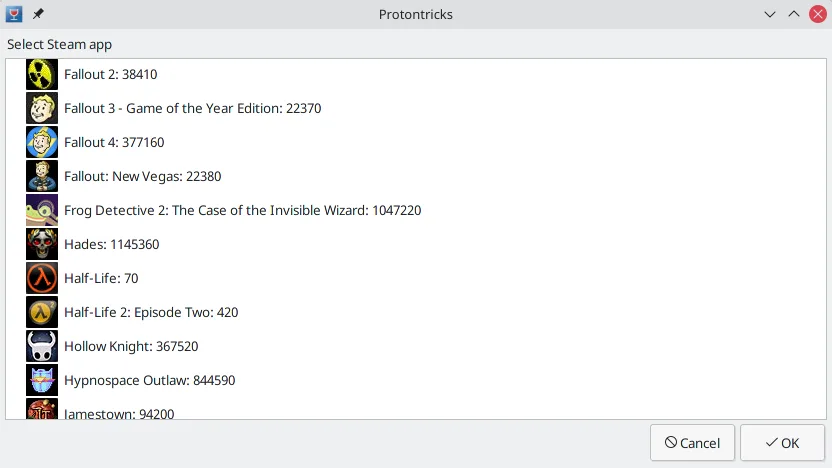
What is Protontricks?
Protontricks is a utility that wraps the command-line Winetricks tool, making it easier to install missing Windows runtime libraries and DirectX components for games running under Proton. It has been a staple in the Linux gaming community for years, evolving alongside Steam's Proton support. The project is mature, with a long history of updates and community contributions, ensuring compatibility with the latest game releases and Proton versions.
This tool is primarily for Linux gamers who encounter 'missing DLL' errors or launch failures in Windows-only titles. If you are playing a game that requires specific closed-source components like Visual C++ redistributables or older DirectX versions, Protontricks provides a straightforward interface to install them into your game's Proton prefix. It is not a game launcher itself but a maintenance tool for your existing Steam library.
Compared to running raw Wine commands or using Windows-native tools, Protontricks offers a safer, more targeted approach. While Windows tools like the DirectX End-User Runtime are installed system-wide, Protontricks isolates changes to specific game prefixes, preventing conflicts. It feels like a specialized version of the Windows Control Panel for software distribution, but tailored specifically for the sandboxed environment of Proton.
Best for: Linux gamers needing to install missing Windows dependencies for Proton-compatible games.
Key features of Protontricks
- Graphical interface for Winetricks commands
- Install common Windows runtime libraries
- Support for specific game prefixes
- Launch external Windows executables
- Flatpak compatibility for Steam
- Cross-distro availability (Arch, Fedora, etc.)
- Isolated environment management
Pros
- Simplifies complex Wine configuration
- Keeps game dependencies isolated
- Actively maintained and updated
- Available on major Linux distributions
Cons
- Requires Steam Proton to be enabled
- Not a solution for all compatibility issues
- Flatpak users need manual filesystem permissions
How to install Protontricks on Linux
flatpak install flathub com.github.Matoking.protontrickssudo apt install protontrickssudo dnf install protontrickssudo pacman -S protontrickssudo zypper install protontricksTips for Windows users
Unlike Windows, where you install runtimes system-wide, Protontricks targets specific game prefixes. You do not need to migrate any files; simply open the tool, select your game from the Steam library, and choose the required component (e.g., vcrun2019). If you use Steam on a non-default drive, remember to grant Flatpak access to that path using the command provided in the documentation. The workflow is: identify the missing DLL from the error log, find the corresponding Winetricks package, and install it via the GUI.
Recent releases
- 1.15.0 —
- 1.14.1 —
- 1.14.0 —
- 1.13.1 —
Protontricks: frequently asked questions
Do I need to install Protontricks for every game?
No, only for games that fail to launch due to missing Windows dependencies. Most modern games work out of the box with Proton.
Can Protontricks fix anti-cheat issues?
No, Protontricks handles runtime libraries and DirectX, not kernel-level anti-cheat drivers. Those require specific Proton-GE builds or kernel support.
Is it safe to use Protontricks on my system?
Yes, it modifies only the specific Proton prefix for the selected game, not your entire Linux system or other Wine prefixes.
What if a game is not listed in Protontricks?
You can still use it by selecting 'Custom' or entering the app ID manually, though the list is auto-populated from your Steam library.
Updated