
 GIMPLinux
vs
Lightroom MobileWindows
GIMP como alternativa Linux ao Lightroom Mobile
Atualizado em
Nossa avaliação
GIMP can replace Lightroom Mobile for basic RAW editing and batch export, but it lacks the mobile‑first, cloud‑sync workflow that Lightroom offers. It is suitable for users who prefer a free, open‑source desktop editor and are comfortable with manual workflow steps. Those who need instant cloud backup, cross‑device sync, or a touch‑optimized interface will find GIMP insufficient.
- Licença
- GPL-3.0+ AND LGPL-3.0+
- Preço
- Grátis
- Versão mais recente
- 3.2.8 (2 de novembro de 2026)
- Avaliação
- —
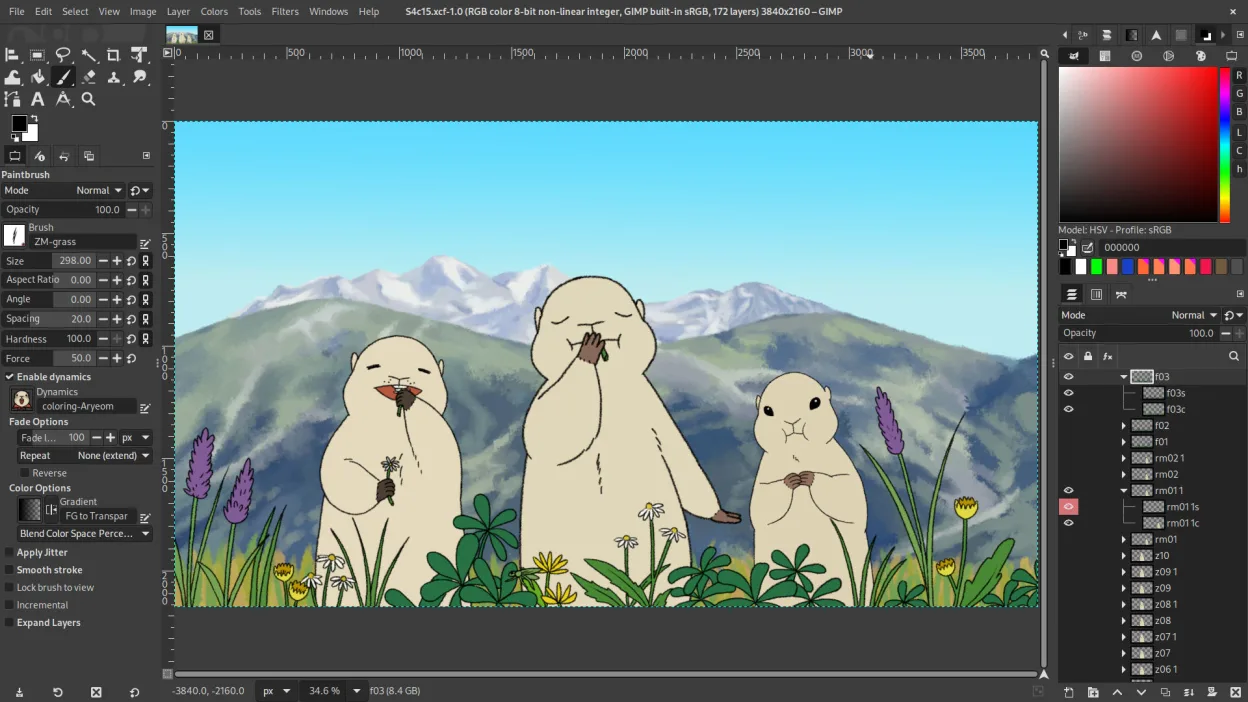
O que funciona igual
- Both support RAW import and non‑destructive adjustments (via layers or masks in GIMP, adjustment layers in Lightroom),
- Both allow metadata tagging and organization of images within the application
- Both provide batch export capabilities (GIMP via scripts, Lightroom via export presets)
O que muda
- GIMP has no built‑in cloud sync; Lightroom Mobile syncs edits across devices
- GIMP is a desktop application, not mobile‑friendly; Lightroom Mobile is designed for touch screens
- Lightroom Mobile offers a streamlined, preset‑based workflow; GIMP requires manual layer and mask setup
- GIMP lacks native integration with Adobe cloud services and Lightroom catalog
- Lightroom Mobile provides automatic backup to cloud storage; GIMP relies on local or external backup solutions
Abrindo seus arquivos do Lightroom Mobile
Lightroom Mobile stores images in its proprietary catalog format (.lrcat) and edits are applied to RAW files. GIMP can open RAW files directly via the UFRaw or Darktable plug‑in, but it cannot read Lightroom Mobile catalog files or apply Lightroom presets. Exporting from GIMP to common formats (JPEG, TIFF, PNG) is straightforward, but you would need to re‑apply edits in Lightroom Mobile if you want to maintain a Lightroom catalog.
Trocando o Lightroom Mobile pelo GIMP, passo a passo
- 1. Export RAW files from Lightroom Mobile to a local folder using the export feature.
- 2. Install GIMP and any RAW plug‑ins (UFRaw or Darktable) on your Linux system.
- 3. Open the exported RAW files in GIMP, apply non‑destructive edits using layers or G'MIC.
- 4. Export the edited images to JPEG/TIFF for use on mobile devices or re‑import them into Lightroom Mobile if needed.
Principais recursos do GIMP
- Edição baseada em camadas com máscaras, modos de mesclagem e transparência
- Motor avançado de pincéis para pintura digital e retoque
- Suporte a plug‑ins compatíveis com Photoshop (via camadas de compatibilidade)
- Processamento em lote e scripting com Script-Fu, Python ou GEGL
- Edição não destrutiva possível via plug‑ins como G'MIC
- Suporte extensivo a formatos: PNG, JPEG, TIFF, PSD, WebP e mais
- Interface customizável com painéis ancoráveis e temas
- Gerenciamento de cores com suporte a perfis ICC
Como instalar o GIMP no Linux
flatpak install flathub org.gimp.GIMPsudo apt install gimpsudo apt install gimpsudo dnf install gimpsudo pacman -S gimpsudo zypper install gimpOutras 4 alternativas ao Lightroom Mobile
 darktabledarktable é um editor de fotos gratuito e de código aberto que gerencia arquivos RAW e oferece um fluxo de…Código abertoGrátisFlatpakdarktable vs Lightroom Mobile
 RawTherapeeRawTherapee é um programa de desenvolvimento de fotos raw de código aberto e multiplataforma.Código abertoGrátisFlatpakRawTherapee vs Lightroom Mobile
 digiKamdigiKam é um gerenciador de fotos KDE completo para organizar, marcar e editar fotos digitais com forte…Código abertoGrátisFlatpakdigiKam vs Lightroom Mobile
 ShotwellShotwell é um gerenciador de fotos GNOME para importar, organizar e editar imagens de forma leve.Código abertoGrátisFlatpakShotwell vs Lightroom Mobile