
 GIMPLinux
vs
PaintTool SAIWindows
GIMP como alternativa Linux ao PaintTool SAI
Atualizado em
Nossa avaliação
GIMP is a capable, free alternative to PaintTool SAI, though it lacks SAI's signature lightweight footprint and specific stabilization tools. It excels in layer management, blending modes, and format support, making it suitable for users who need a robust, extensible raster editor and are willing to learn a steeper interface. However, if your primary need is low-resource usage for pure line art with SAI's unique brush feel, GIMP may feel heavier and less intuitive for that specific workflow.
- Licença
- GPL-3.0+ AND LGPL-3.0+
- Preço
- Grátis
- Versão mais recente
- 3.2.8 (2 de novembro de 2026)
- Avaliação
- —
O que funciona igual
- Supports pressure-sensitive input for digital painting
- Offers extensive layer management with various blending modes
- Provides selection and masking tools for complex edits
- Exports to standard formats like PNG, JPEG, and TIFF
- Features a customizable interface with dockable panels
O que muda
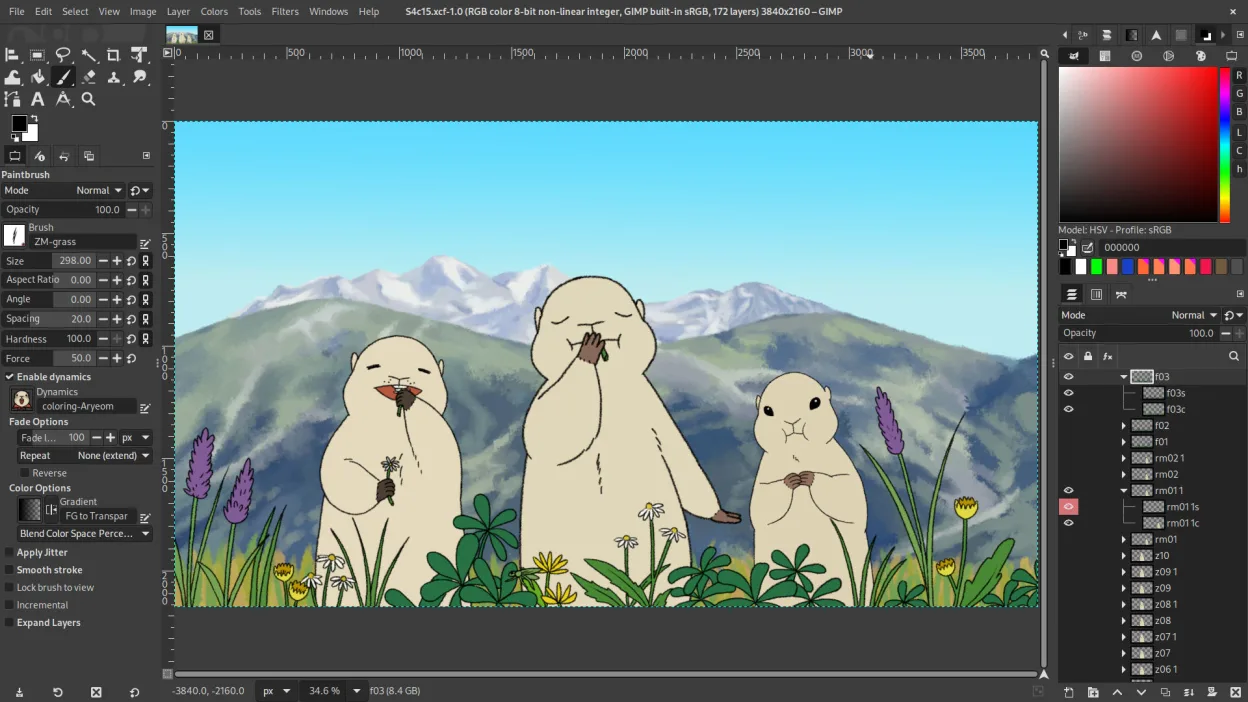
- GIMP is significantly heavier on system resources than SAI
- Lacks SAI's specific line art stabilization and brush smoothing features
- Does not natively support SAI's proprietary file format without conversion
- Interface is more complex and less streamlined for simple illustration tasks
- Brush engine behavior differs, requiring re-customization for similar results
Abrindo seus arquivos do PaintTool SAI
GIMP does not natively open PaintTool SAI's proprietary .psa or .sai2 files. You will need to export your work from SAI to a universal format like PNG or PSD before importing it into GIMP. Conversely, GIMP can save to PSD, allowing some interoperability, but direct file exchange is not possible.
Trocando o PaintTool SAI pelo GIMP, passo a passo
- Install GIMP via your Linux package manager or Flathub
- Configure your graphics tablet drivers and pressure sensitivity settings
- Import your existing SAI projects by exporting them to PNG or PSD first
- Customize GIMP's brush settings to mimic your preferred SAI brush behavior
- Set up your workspace layout to match your SAI workflow if desired
- Test export settings to ensure compatibility with your final delivery format
Principais recursos do GIMP
- Edição baseada em camadas com máscaras, modos de mesclagem e transparência
- Motor avançado de pincéis para pintura digital e retoque
- Suporte a plug‑ins compatíveis com Photoshop (via camadas de compatibilidade)
- Processamento em lote e scripting com Script-Fu, Python ou GEGL
- Edição não destrutiva possível via plug‑ins como G'MIC
- Suporte extensivo a formatos: PNG, JPEG, TIFF, PSD, WebP e mais
- Interface customizável com painéis ancoráveis e temas
- Gerenciamento de cores com suporte a perfis ICC
Como instalar o GIMP no Linux
flatpak install flathub org.gimp.GIMPsudo apt install gimpsudo apt install gimpsudo dnf install gimpsudo pacman -S gimpsudo zypper install gimpPerguntas frequentes
Can GIMP handle pressure-sensitive tablets as well as SAI?
Yes, GIMP supports pressure sensitivity, but the brush response and stabilization feel different. You may need to adjust brush dynamics and dynamics settings to achieve a similar line quality.
Is GIMP lightweight enough for older hardware?
GIMP is generally heavier than SAI. While it runs on most modern Linux systems, it may consume more RAM and CPU, especially with large canvases or many layers, compared to SAI's low-resource usage.
Do I need to relearn my brush settings when switching?
Yes, brush engines differ. You will likely need to recreate or import custom brush settings to replicate the specific feel and behavior of your favorite SAI brushes.
Outras 3 alternativas ao PaintTool SAI
 KritaKrita é um programa de pintura digital e ilustração de código aberto com recursos completos.Código abertoGrátisFlatpakKrita vs PaintTool SAI
 MyPaintMyPaint é um programa rápido, gratuito e de código aberto para pintura raster, focado na dinâmica dos pincéis…Código abertoGrátisFlatpakMyPaint vs PaintTool SAI
 Pencil2DPencil2D é uma ferramenta de animação 2D de código aberto para gráficos vetoriais e bitmap desenhados à mão.Código abertoGrátisFlatpakPencil2D vs PaintTool SAI